


If you’re sending SMS campaigns with links, you’re generating traffic. But if you can’t separate those visitors from your organic, social, or email traffic in Google Analytics, there’s no way to know whether your mobile marketing is actually paying off.
The fix is UTM parameters — a few extra tags you add to your SMS links so Google Analytics can recognize and report on them as a distinct channel. In this guide, I’ll walk you through exactly how to set them up. No coding required.
In This Article:
Why Track SMS Campaigns in Google Analytics?
Including a link in your SMS campaign messages is a great way to direct visitors to your website. But if you don’t track those SMS clicks, there’s no way to know whether your mobile marketing is really working.
With Google Analytics, you can see if people who click the links in your SMS campaigns end up buying your products, signing up for your email list, or completing any other conversion on your site. That’s what separates a gut-feel SMS strategy from one you can actually optimize.
What’s the Best Way to Set Up SMS Campaign Tracking?
The easy way to track SMS campaigns is by adding UTM (Urchin Tracking Module) parameters to your URL. These are special codes you add to the end of your link to help you track different marketing campaigns separately in Google Analytics.
When you do that, Google Analytics knows to track visitors who came from those links and group them together. This makes it easy to pull reports and see exactly how each campaign is performing.
With MonsterInsights, it’s easier than ever to create URLs with UTM tracking codes right inside your WordPress dashboard. If you don’t have WordPress, you can use Google’s Campaign URL Builder instead.
How to Create a Custom URL for SMS Campaigns
Here’s how to build a custom campaign URL for your SMS campaigns using the URL builder in MonsterInsights.
Step 1: Install and Activate MonsterInsights
First, install and activate the MonsterInsights plugin on your WordPress website. It’s the best Google Analytics WordPress plugin and helps you set up tracking without needing to edit code or hire a developer.
You get advanced tracking right out of the box — file download tracking, affiliate link tracking, outbound link click tracking, and much more. And all of your Google Analytics data shows up right inside your WordPress dashboard.
Step 2: Add Google Analytics to Your WordPress Site
Once you’ve activated the MonsterInsights plugin, the next step is to connect Google Analytics to your website. Normally, this requires adding a tracking code — which can be a challenge if you’re not familiar with code.
MonsterInsights handles this automatically. Just follow the setup wizard and it will connect Google Analytics to your site without any code editing. For a full walkthrough, see our guide on how to add Google Analytics to WordPress.
Step 3: Create a Custom URL
Go to Insights » Tools in your WordPress dashboard to open the URL builder. Enter the page URL you want to send SMS recipients to, plus your campaign details so Google Analytics can track them precisely. Only the Website URL and Campaign Source fields are required — the rest are optional but useful.
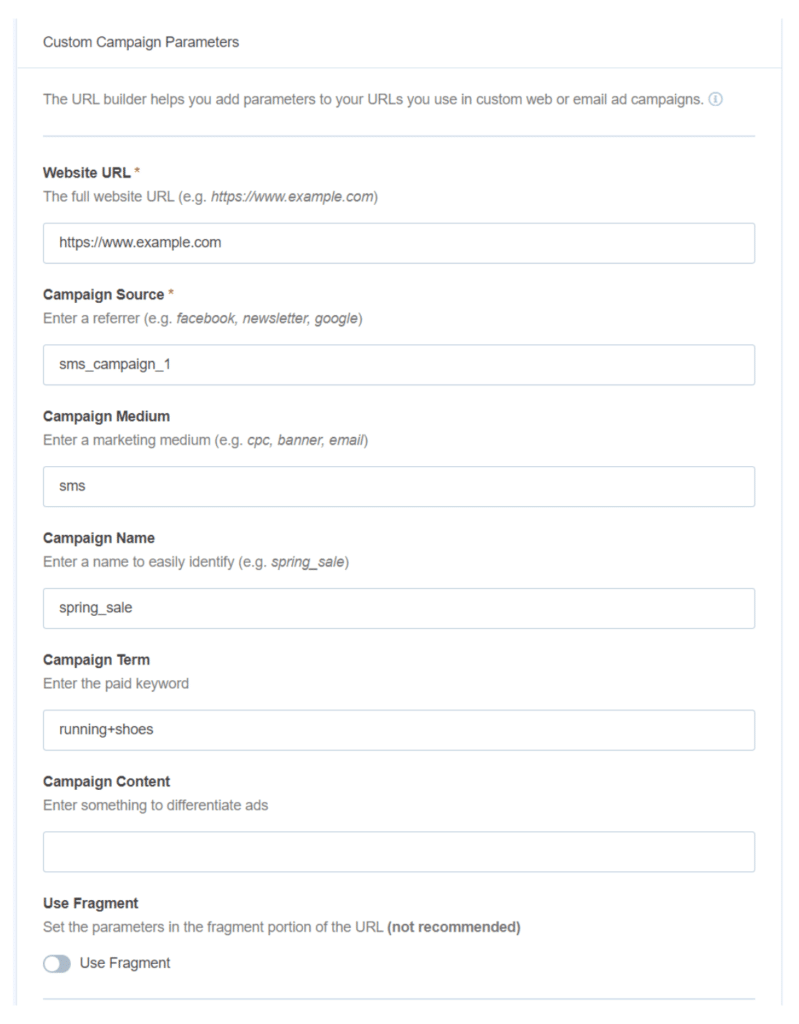
- Website URL: The page you want SMS recipients to land on.
- Campaign Source (utm_source): The origin of your traffic — for example, sms_campaign_1 or the name of your SMS platform.
- Campaign Medium (utm_medium): The channel — use sms so this traffic is easy to filter separately from email and other channels.
- Campaign Name (utm_campaign): A specific name for this campaign, like spring_sale or reengagement_june.
- Campaign Term (utm_term): Optional — for paid search campaigns to tag specific keywords.
- Campaign Content (utm_content): Optional — useful for A/B testing multiple SMS variations, like logolink vs textlink.
- Use Fragment: Builds UTM codes using fragments instead of query strings (e.g., example.com#utm_source=sms). This method isn’t recommended for most sites.
Pro Tip: Always use sms as your utm_medium value across every SMS campaign. It lets you filter all SMS traffic in one click in Google Analytics — without having to hunt for it across multiple campaign names.
Once you’ve filled in your campaign details, copy the custom link and paste it into your SMS messages.
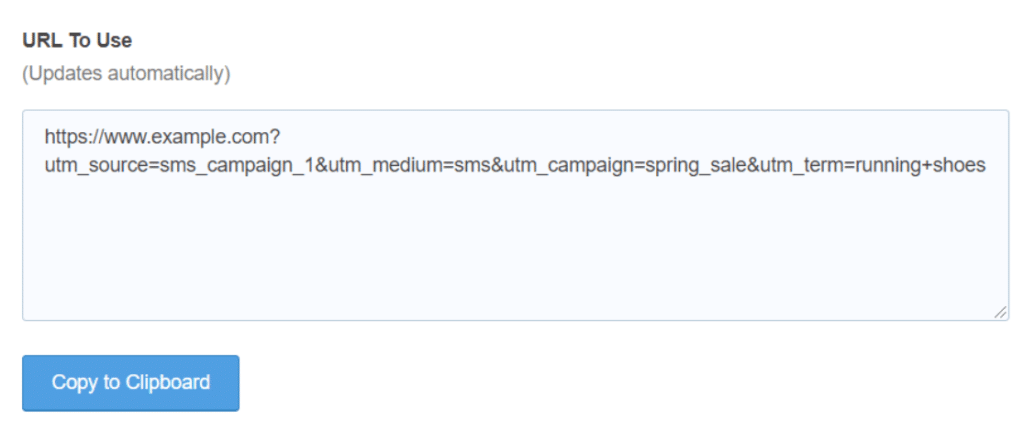
MonsterInsights also integrates with Pretty Links, which lets you shorten your UTM-tagged URLs into clean, readable links — useful for SMS messages where long URLs can look spammy.
Step 4: View Your SMS Campaign Report
Once your campaigns are live, you can monitor their performance directly from your WordPress dashboard. Go to Insights » Reports and select the Campaigns tab:
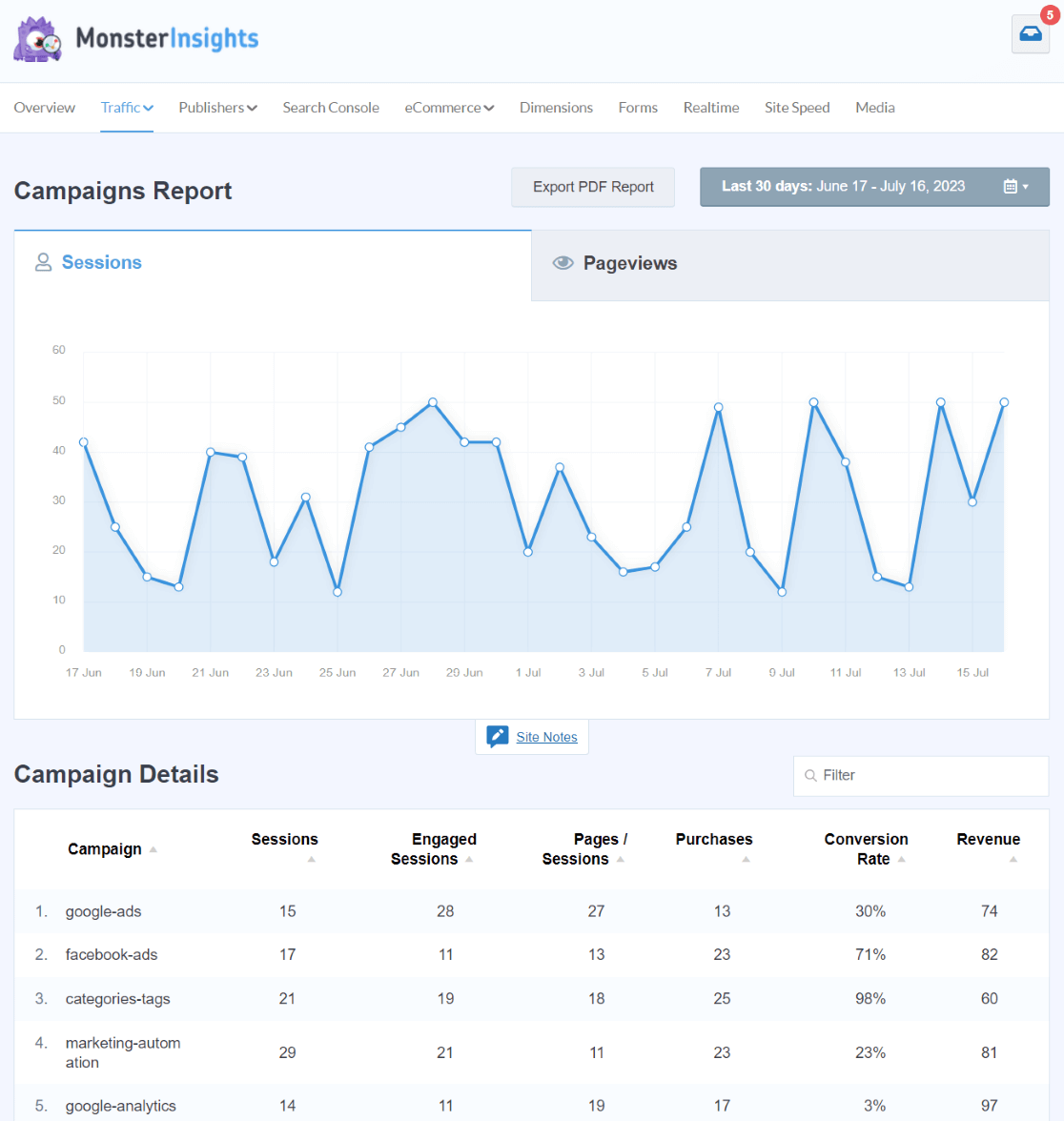
You’ll see how many visitors each campaign brought in, along with revenue generated per campaign if you have eCommerce tracking enabled.
In Google Analytics 4, go to Acquisition » Traffic Acquisition, then change the dimension dropdown to Session campaign:
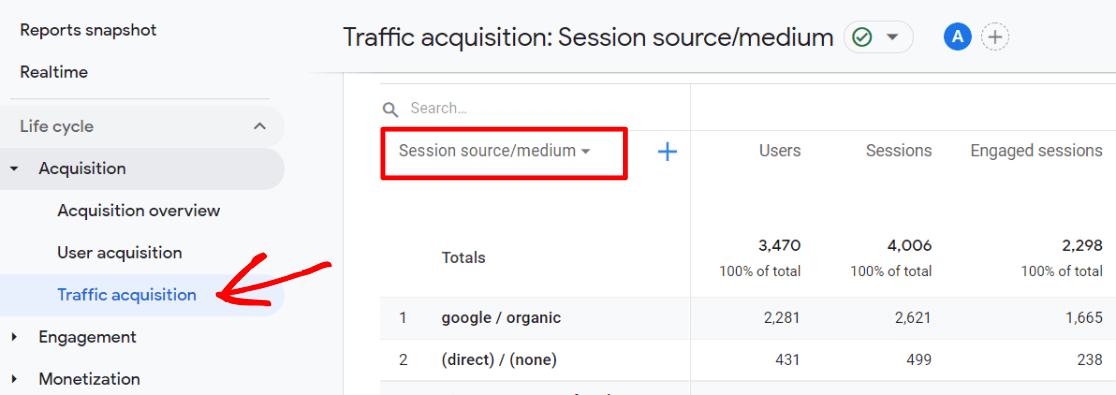
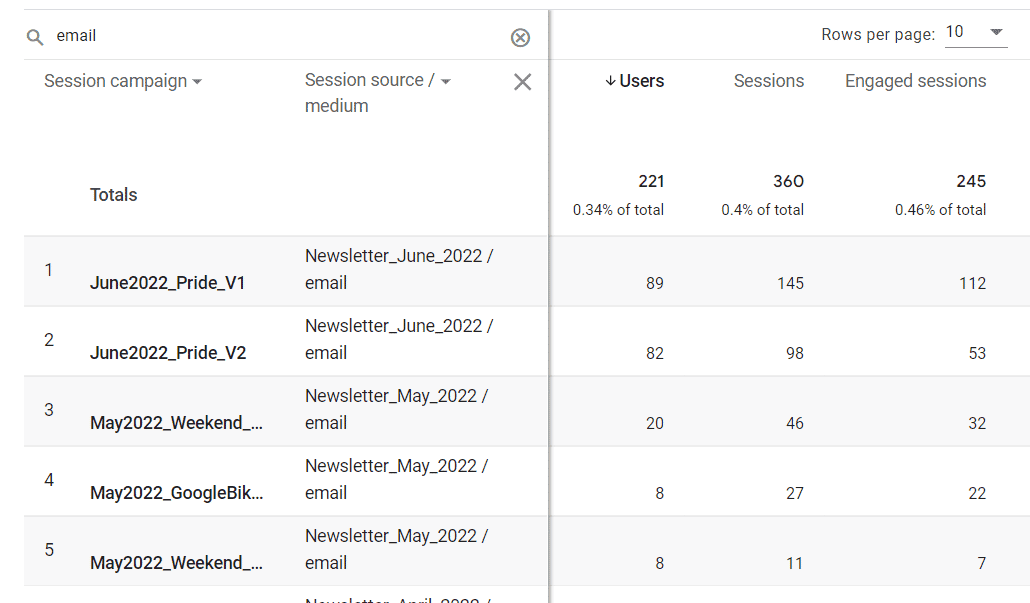
To see Source and Medium for each campaign alongside your campaign names, click the blue plus icon near the dropdown and select Session source/medium. Then look for the campaign name you set in the URL builder:
What to Look For
High click volume from SMS doesn’t always mean high-quality traffic. Check the conversion rate alongside session count — a smaller SMS list that converts at 5% is more valuable than a mass send that converts at 0.5%.
Use Charlie Chat to Dig Into Your SMS Campaign Data
Once your SMS campaigns are live and data is flowing into Google Analytics, Charlie Chat gives you a faster way to make sense of it.
Charlie Chat is MonsterInsights’ AI assistant, available right inside your WordPress dashboard. Instead of navigating through Acquisition reports and adjusting date ranges to find your SMS data, you can ask plain-English questions and get direct answers in seconds.
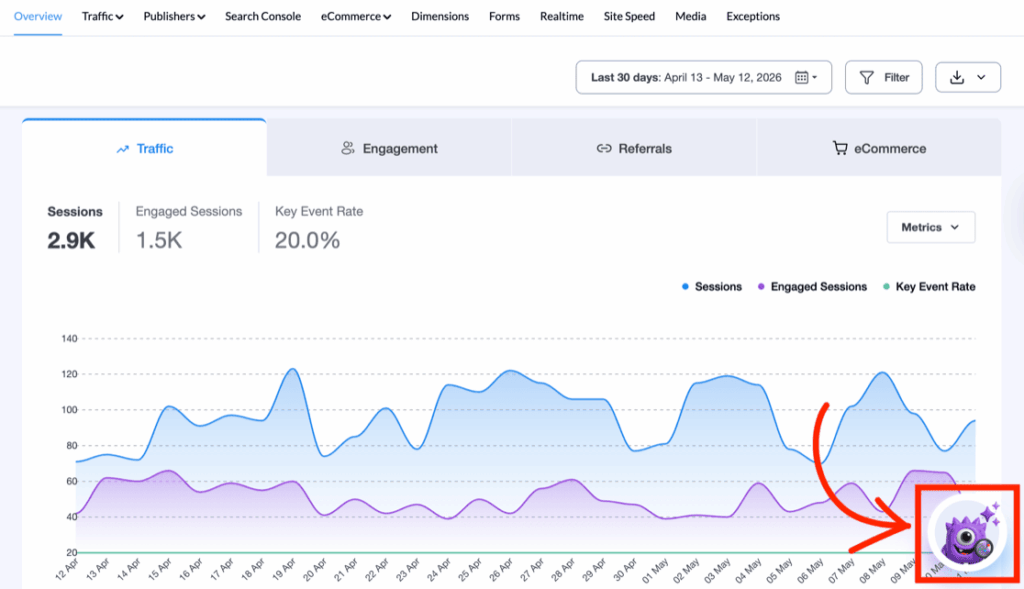
Want to know which SMS campaign drove the most conversions this month, or how your spring sale campaign compared to last month’s reengagement send? Just ask. Charlie Chat pulls from your connected GA4 data and responds immediately — no report setup, no date range adjustments, no filters to configure.
Charlie Chat is available to all MonsterInsights users, including the free Lite plan. Look for the chat icon in the bottom-right corner of your Reports screen.
Start Tracking SMS Campaigns with MonsterInsights
Build UTM-tracked URLs, view your campaign reports inside WordPress, and use Charlie Chat to ask questions about your SMS performance — all included on every MonsterInsights plan.
Get MonsterInsights Today →FAQs About Tracking SMS Campaigns in Google Analytics
Can you track SMS campaigns in Google Analytics?
Yes — you track SMS campaigns in Google Analytics using UTM parameters. Add UTM tags to the URLs in your SMS messages so Google Analytics can identify and report on that traffic separately from other channels. MonsterInsights makes this easy with a built-in URL builder inside your WordPress dashboard.
What UTM parameters should I use for SMS campaigns?
The most important UTM parameters for SMS are utm_source (e.g., the name of your SMS platform or “sms_campaign_1”), utm_medium (use “sms” consistently so you can filter by channel), and utm_campaign (a specific name for each campaign, like “spring_sale”). Using consistent values across all your SMS campaigns makes it easy to compare performance in Google Analytics.
How do I view SMS campaign data in Google Analytics?
In MonsterInsights, go to Insights » Reports and select the Campaigns tab. In Google Analytics 4, navigate to Acquisition » Traffic Acquisition and change the dimension to “Session campaign.” Look for the campaign names you defined in your UTM parameters — those are your SMS campaigns.
Does SMS campaign tracking require coding?
No — tracking SMS campaigns doesn’t require any coding. You build a custom URL using a UTM parameter tool like MonsterInsights’ URL builder, then paste that URL into your SMS messages. Google Analytics handles the tracking automatically once the link is clicked.
How is SMS campaign tracking different from email tracking?
The tracking method is identical — both use UTM parameters. The main difference is the utm_medium value: use “email” for email campaigns and “sms” for text messages. This keeps them separated in your reports so you can compare performance across channels and see which drives better engagement and conversions.
Can I analyze SMS campaign performance without manually building reports?
Yes. Charlie Chat, MonsterInsights’ built-in AI assistant, lets you ask plain-English questions about your campaign data directly from your WordPress dashboard. Instead of navigating reports and adjusting filters, you can ask which SMS campaign converted best and get an immediate answer. It’s available on all MonsterInsights plans including Lite.
That’s it! I hope this article helped you track your SMS campaigns in Google Analytics. If you found it useful, check out these related guides:
- How to Track Link Clicks in Google Analytics
- How to Set Up Marketing Campaign Tracking in Google Analytics
- Beginners’ Guide to UTM Parameters (And How to Use Them)
- How to Set up Google Analytics QR Code Tracking
- How to Measure Social Media ROI With Google Analytics
Follow us on Twitter, Facebook, and YouTube for more Google Analytics tips.