


Uploading a PDF to WordPress takes about two minutes — and you don’t need a plugin to do it.
In this guide, I’ll walk you through the process step by step. First, you’ll need to get your PDF into the WordPress media library, then you can decide how to use it. Whether you want to embed it so visitors can read it right on the page, or link to it so they can download it from anywhere on your site.
I’ll also show you how to track which PDFs your visitors are actually downloading — so you’re not just publishing files into the void.
In This Article:
How to Upload a PDF to WordPress (Step-by-Step)
Step 1: Upload Your PDF to the Media Library
The media library is the starting point for all three methods below. Even if you plan to link to a PDF rather than embed it, you’ll still upload it here first.
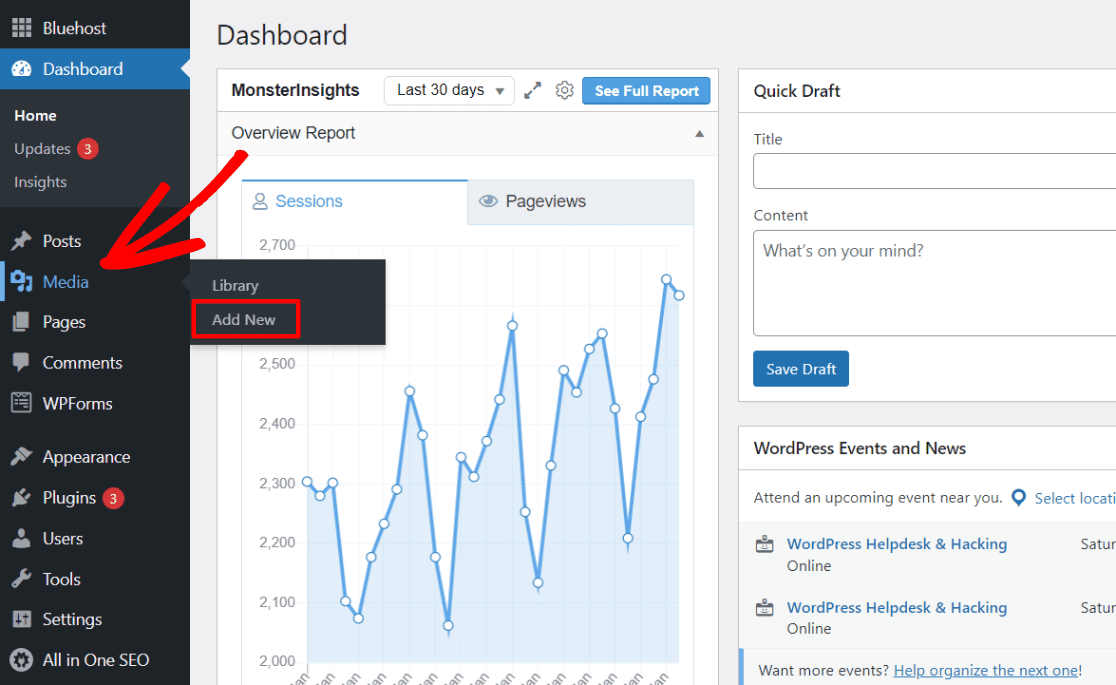
In your WordPress admin, hover over Media in the left sidebar and click Add New Media File:
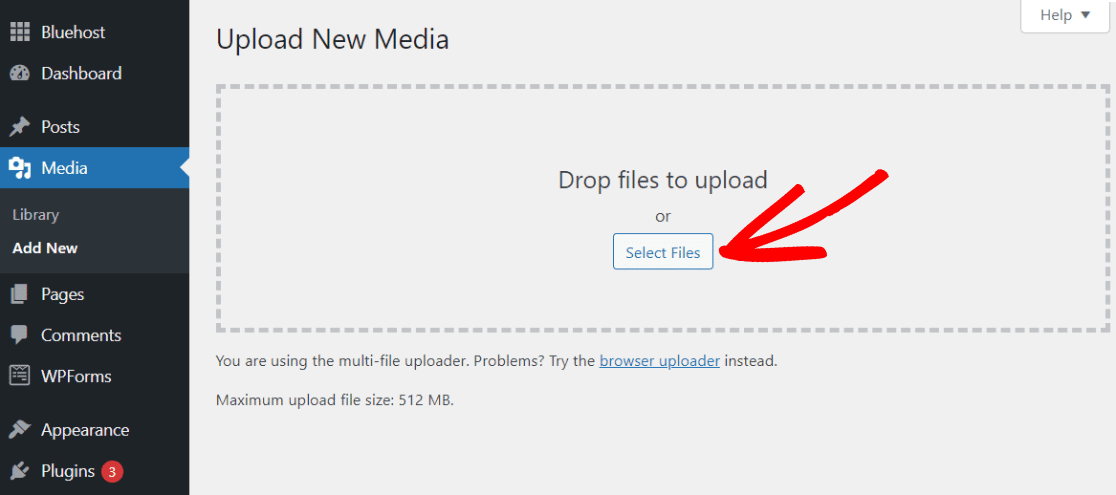
On the upload screen, drag your PDF into the upload box or click Select Files to choose it from your computer:
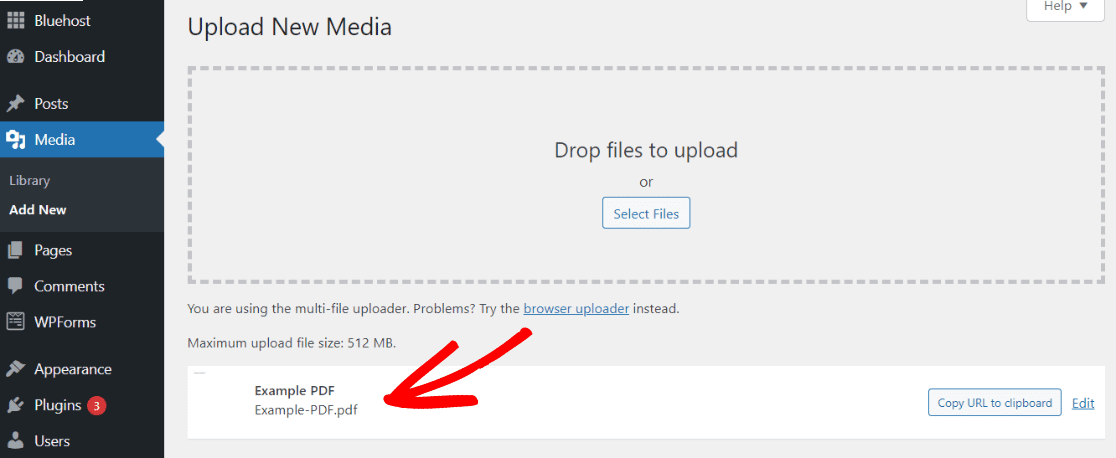
Once the upload finishes, your PDF will appear below the upload box. You’ll see the filename, file size, and a small PDF icon confirming the upload was successful:
That’s it — your PDF is now in your library and ready to use. From here, you can embed it in a page, link to it from anywhere on your site, or do both.
Step 2: Embed a PDF in a WordPress Page or Post
If you want visitors to read your PDF right on the page — without having to download it first — you can embed it using WordPress’s built-in File block. This works for both pages and posts, and the steps are identical.
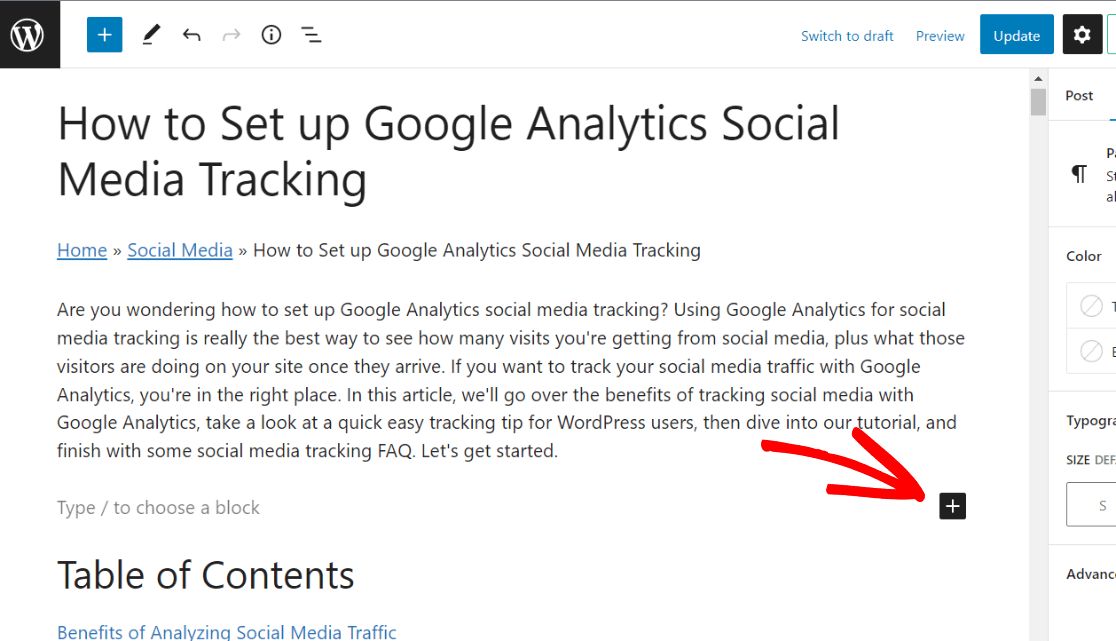
Open the page or post where you want the PDF to appear. Click the Plus icon to add a new block, or type a forward slash “/” to open the block menu:
Search for and select the File block:
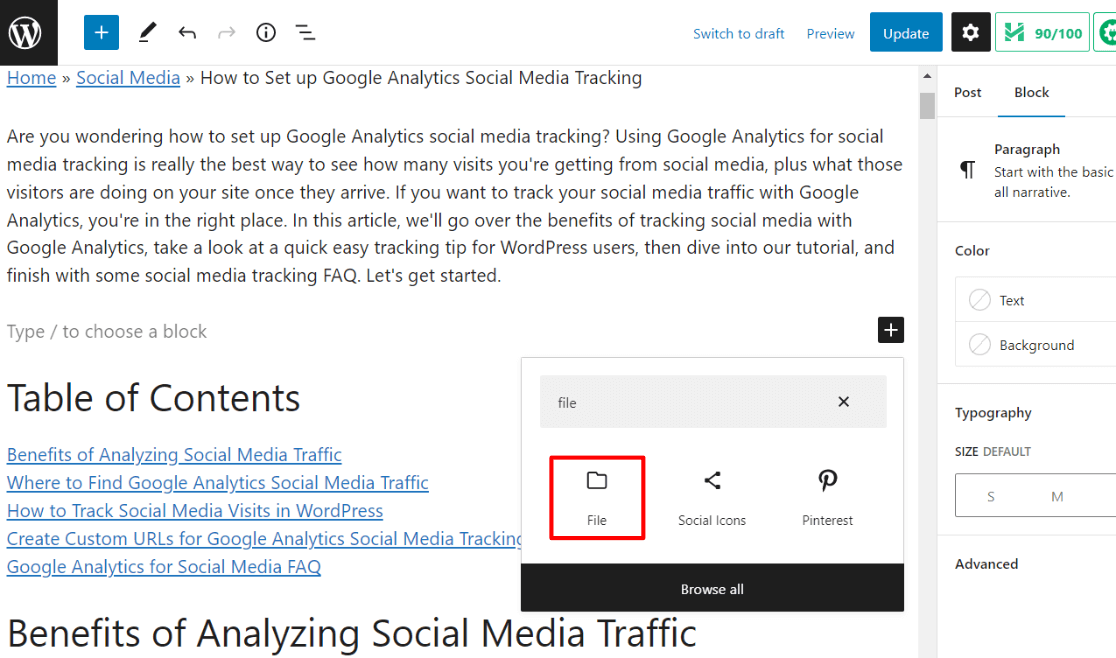
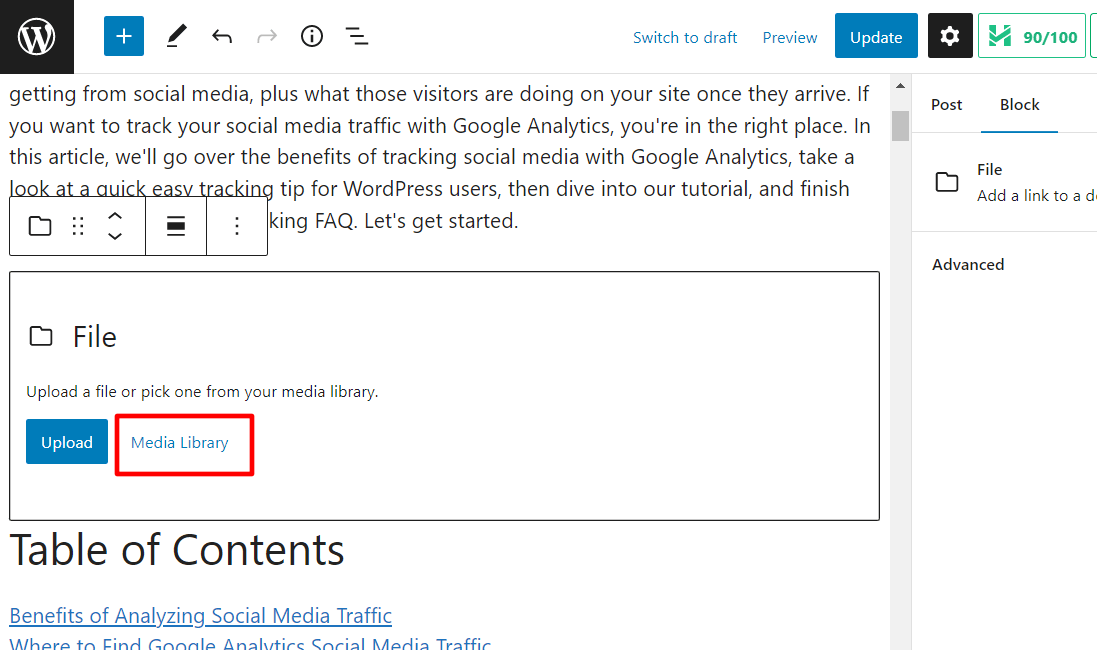
You can either upload the PDF directly here or pull it from your media library. Since we already uploaded it, click Media Library:
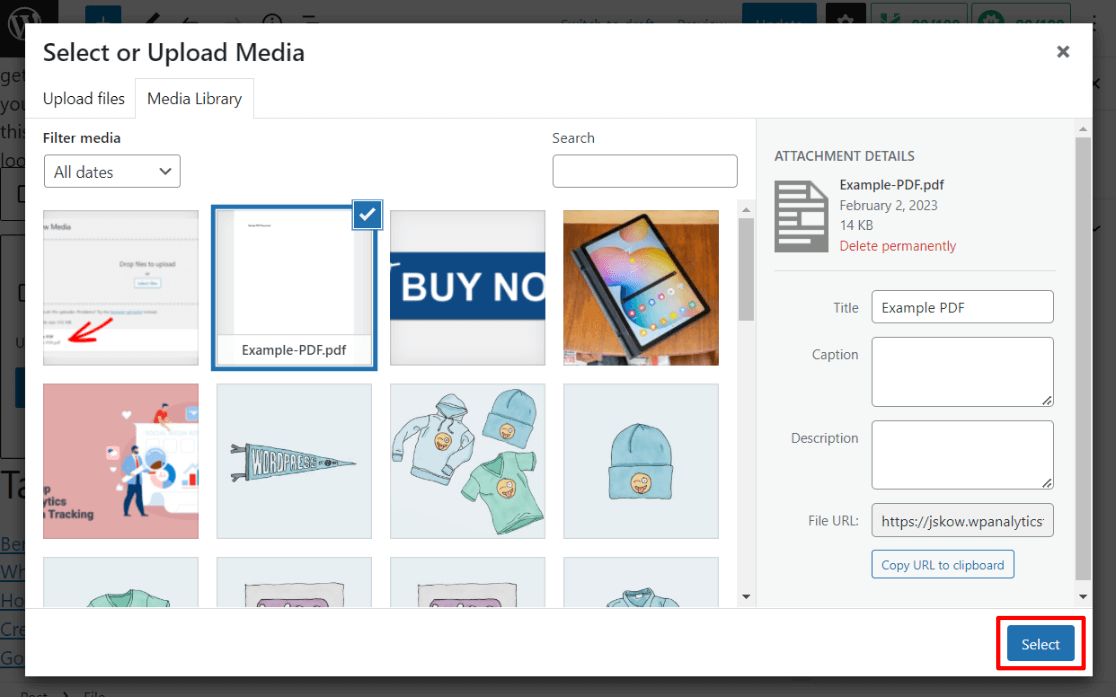
Find your PDF and click Select:
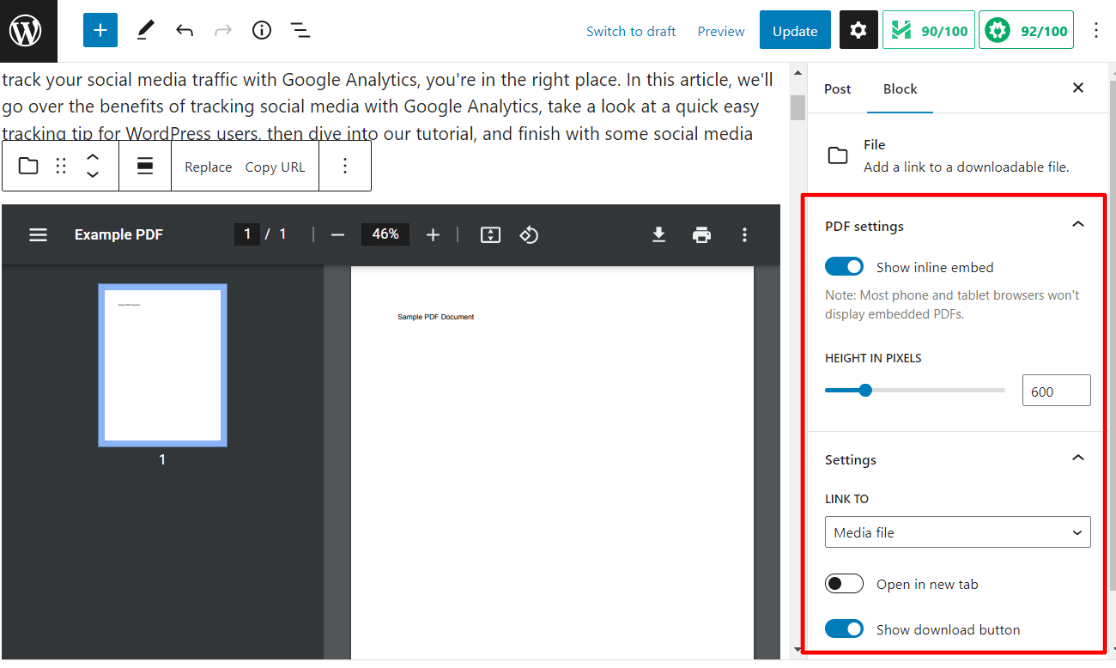
Once your PDF is inserted, the right sidebar gives you several display options. To embed it inline so visitors can read it on the page, turn on the Show inline embed toggle and set a height in pixels.
You can also choose whether to open the file in a new tab, where the link should point, and whether to show a Download button:
I’d recommend enabling the inline embed for documents you want readers to browse on your site — like portfolios, guides, or reports.
For documents meant for download only (like forms or templates), skip the inline embed and just let the Download button do the work.
Step 3: Link to Your PDF Anywhere on Your Site
Sometimes a simple download link is more useful than an embed — especially for sidebars, buttons, or text links within a post. Here’s how to grab the direct URL for any PDF in your library.
Go to Media → Library and click on your PDF. On the right side of the screen, you’ll see the File URL — copy it:
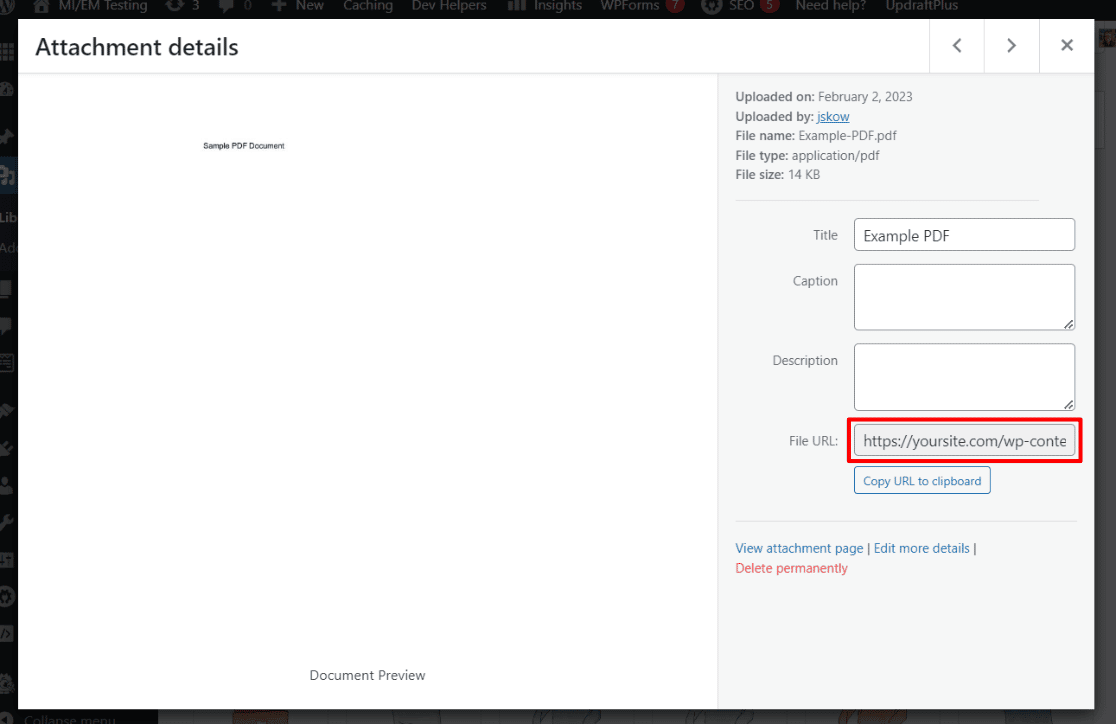
You can paste this URL into any link on your site — a text anchor, a button block, or a widget. WordPress will also let you search for the file by name when you’re adding a link anywhere in the editor.
For example, here’s a button widget in the sidebar set to link directly to a PDF. Typing the filename into the URL field pulls it up automatically:
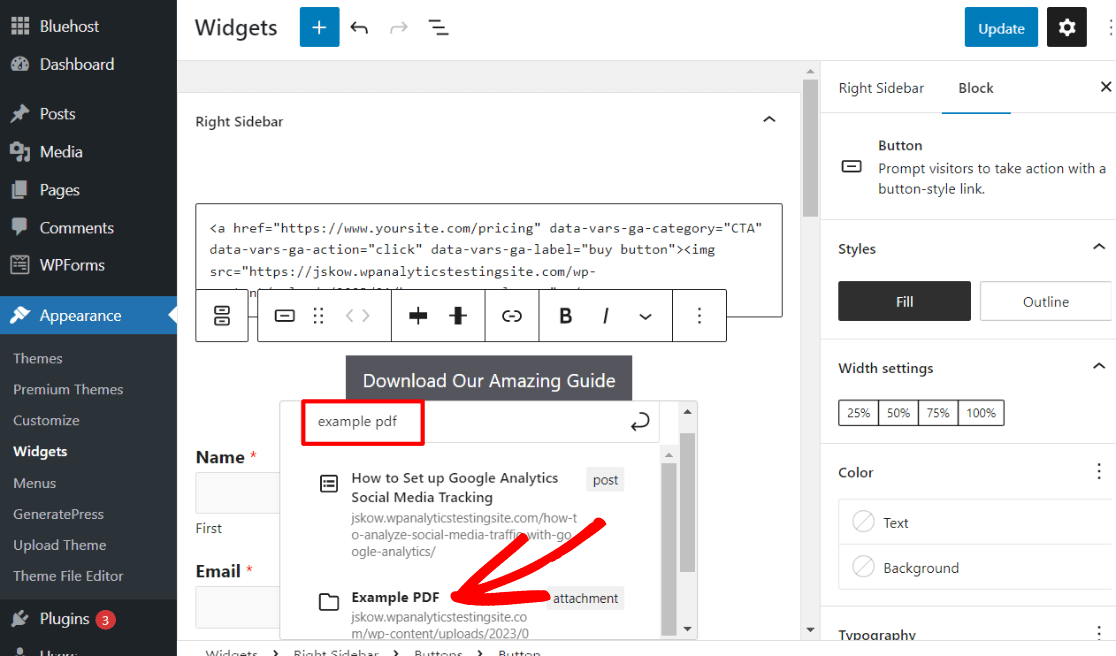
This approach works anywhere you can add a URL in WordPress — navigation menus, sidebar widgets, post content, or page builders. If you want to take that a step further and see which links and buttons visitors are clicking, that’s where tracking comes in.
How to Embed a PDF in WordPress Using PDF Embedder
The built-in File block works fine for basic embeds, but if you want more control over how your PDF looks — a custom viewer with navigation controls, zoom, and a cleaner presentation — PDF Embedder is worth a look.
The free version gives visitors a proper PDF viewer with page navigation and zoom, rather than a raw browser iframe. It’s a noticeably better reading experience, especially for longer documents:
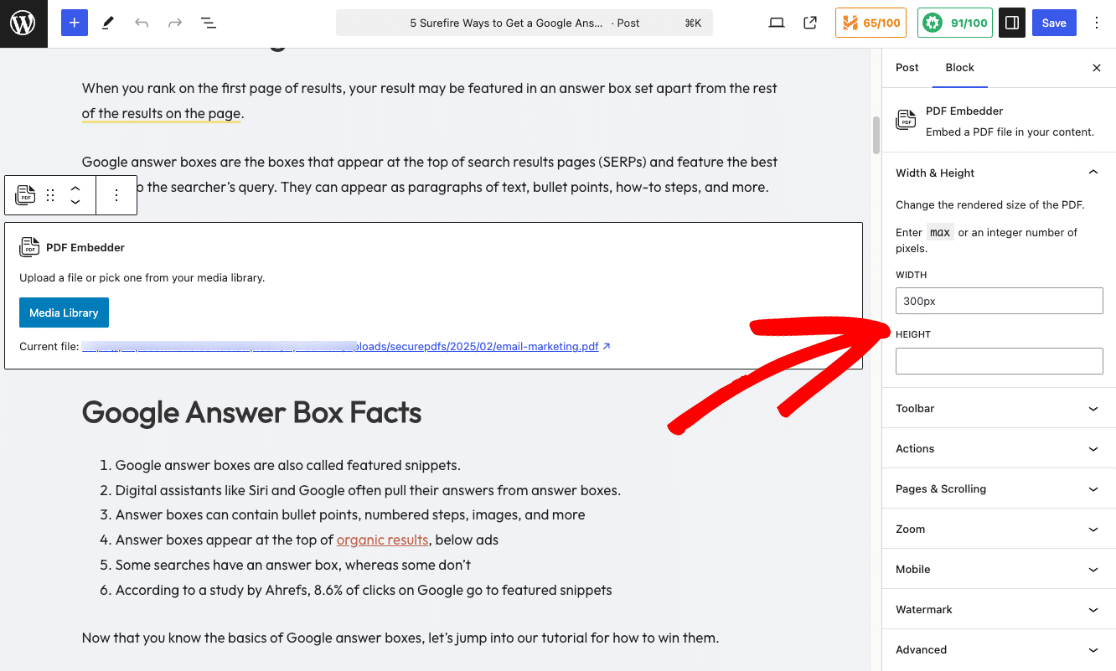
Once installed, you’ll have a PDF Embedder block available in the editor. Select it, choose your PDF from the media library, and configure how it looks using the sidebar settings:
One thing to keep in mind: you’ll need the Plus license or higher if you want visitors to be able to download the document, or if you want to track views and downloads inside the plugin’s own dashboard. The free tier is display-only.
How to Track PDF Downloads in WordPress
You’ve got your PDFs live on the site — now the question worth asking is: who’s actually downloading them?
If you’re using MonsterInsights, the WordPress analytics plugin, you don’t need to do anything special to track PDF downloads.
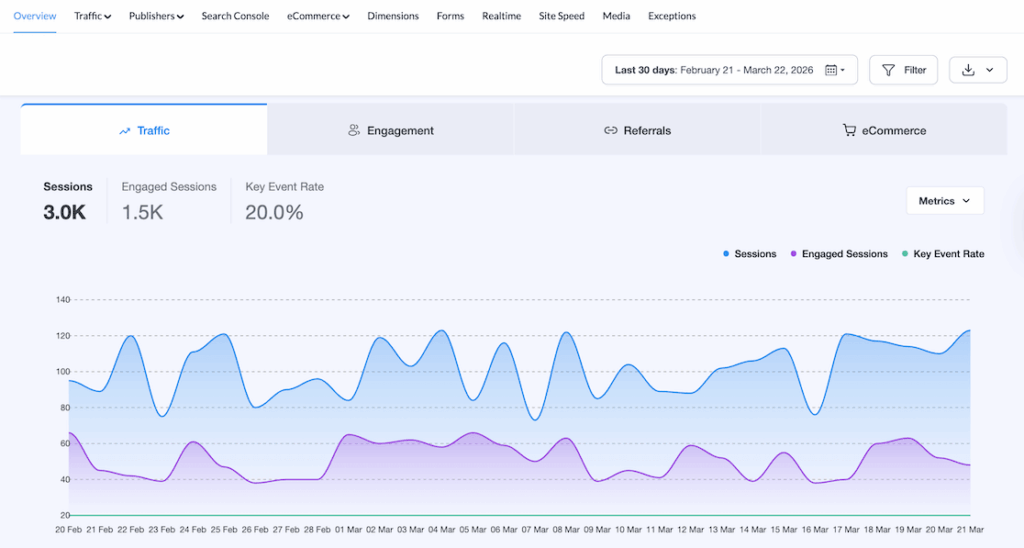
File download tracking is enabled automatically on Plus plans and above — the moment someone clicks a link to your PDF, MonsterInsights records it as a download event in Google Analytics and surfaces it inside your WordPress dashboard.
You can see your top downloaded files in the Publishers Report, under Insights → Reports → Publishers. It shows you which files are getting the most clicks, so you know which resources are actually resonating with visitors:
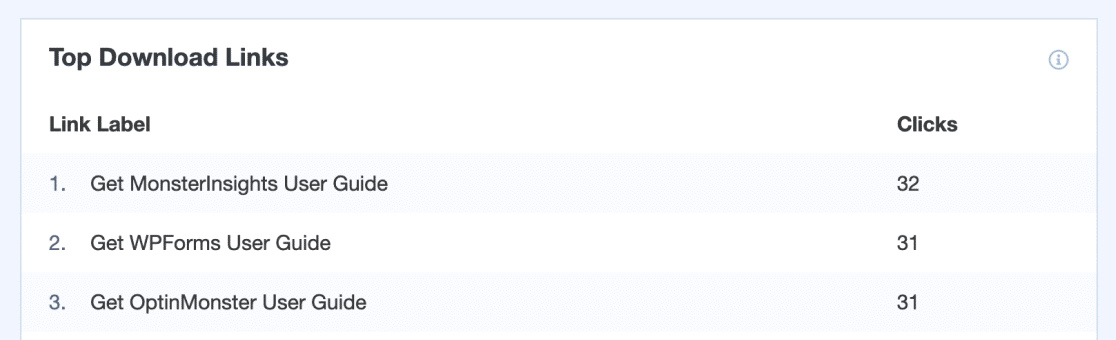
This is especially useful if you’re offering lead magnets, free templates, or resource libraries. Knowing which PDFs drive the most downloads helps you decide what to promote and what to create more of. For a full walkthrough on setting up download tracking, see the file download tracking guide.
See Exactly Which PDFs Your Visitors Are Downloading
MonsterInsights automatically tracks file downloads in Google Analytics and shows your top downloaded files right inside your WordPress dashboard — no code, no manual setup.
Get MonsterInsightsFAQs About Uploading a PDF to WordPress
Can WordPress display PDFs without a plugin?
Yes. The built-in File block lets you embed a PDF directly in any page or post using the “Show inline embed” option. Visitors can read the document in a PDF viewer right on the page without downloading it. For a more polished viewer with navigation controls and zoom, a plugin like PDF Embedder gives you more control over the presentation.
What is the maximum file size for uploading a PDF to WordPress?
WordPress’s default maximum upload size is set by your hosting provider — typically somewhere between 2MB and 64MB. If your PDF is too large to upload, you’ll see an error message. You can increase the limit by editing your server’s php.ini settings, or ask your host to raise it. There’s also a guide on how to increase the maximum file upload size in WordPress if you need step-by-step instructions.
How do I add a download button for a PDF in WordPress?
There are two easy ways. First, when you use the File block to embed your PDF, you can enable the “Download” button option in the block settings — WordPress will display a clickable download button right below the embedded file. Alternatively, copy the PDF’s File URL from the media library and paste it as the link for any Button block anywhere on your site.
Does Google index PDFs uploaded to WordPress?
Yes, Google can crawl and index PDF files, and they can appear in search results just like any web page. Google reads the text content of your PDFs and may rank them for relevant queries. To help Google find and index your PDFs, make sure the pages or posts that link to them are indexable. For maximum SEO benefit, use descriptive file names and include relevant keywords in the PDF text itself.
How can I see how many people are downloading my PDFs in WordPress?
MonsterInsights automatically tracks PDF downloads as file download events in Google Analytics and shows your top downloaded files inside your WordPress dashboard. No setup required — just install the plugin, connect your GA4 property, and downloads are tracked from the moment it’s active. You can find the data in the Publishers Report under Insights → Reports → Publishers.
That’s it! I hope this guide helped you get your PDF uploaded, embedded, and linked exactly where you need it. If you found this helpful, here are some more WordPress and analytics guides worth bookmarking:
- How to Track Downloads in Google Analytics + WordPress
- How to Increase the Maximum File Upload Size in WordPress
- How to Create a File Upload Form in WordPress
- How to Set Up Google Analytics Click Tracking
- How to Add Google Analytics 4 to WordPress (Best Way)
Not using MonsterInsights yet? Get started today!
Follow us on X, Facebook, and YouTube for more Google Analytics tips.