


If you’re using Rank Math to optimize your WordPress content, you’re already setting focus keywords for every post and page.
What most site owners don’t realize is that those same focus keywords can flow directly into Google Analytics — giving you real performance data, not just optimization scores.
Tracking your Rank Math focus keywords in Google Analytics tells you which topics are actually driving traffic and engagement, so you can make content decisions based on results, not guesses.
In this article, I’ll show you how to connect the two tools, activate the right custom dimension, and read the reports — step by step.
Let’s dive in!
In This Article:
About Rank Math

Rank Math is a popular SEO plugin for WordPress that can help you optimize each post, page, and more to rank better in search engines and improve your website.
It also has other features to help you improve your website’s SEO, such as an SEO analytics report with data from Google Search Console, keyword tracking, a schema generator, sitemaps, integration with Google Trends, and more.
The feature of Rank Math I’ll be focusing on in this article is their Focus Keyword.
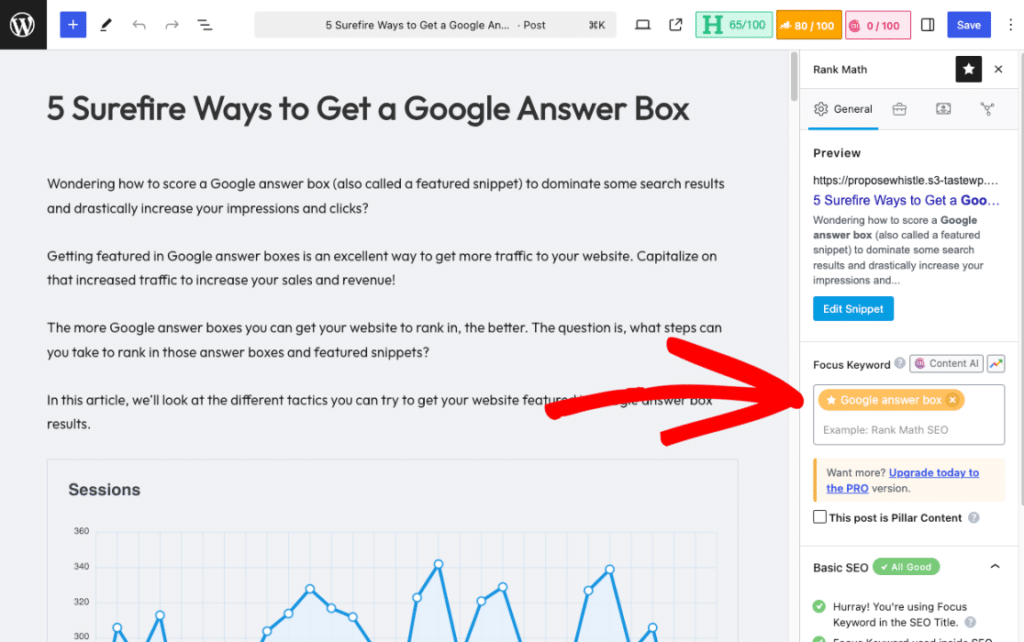
Entering a focus keyword for your page or post will instantly tell you how well your content is optimized for that keyword.
About MonsterInsights
MonsterInsights is the best Google Analytics plugin for WordPress. With over 3 million downloads, it’s an incredibly popular plugin because it makes using Google Analytics so easy.
Not only can you use it to set up and install Google Analytics, but it also provides a whole dashboard full of helpful reports and metrics so that you can understand your users better and grow your business.
Plus, you can use MonsterInsights to set up the more complicated tracking inside Google Analytics that you’d need to hire a professional to do otherwise. Track your eCommerce metrics, form submissions, scroll depth, and much more in just a couple of clicks.
How to Track Rank Math Focus Keywords
When you use Rank Math and MonsterInsights together, you can track your focus keywords right inside WordPress and Google Analytics. For this tutorial, I’ll assume you have Rank Math set up and running, so we’ll get started with the MonsterInsights portion.
Want to See Which Focus Keywords Are Driving Traffic?
MonsterInsights Pro connects your Rank Math data to Google Analytics — so you can see exactly which keywords bring visitors to your site, right inside WordPress.
Get MonsterInsights ProStep 1: Install MonsterInsights Pro
To track your focus keywords in WordPress and Google Analytics, you’ll need MonsterInsights Pro.
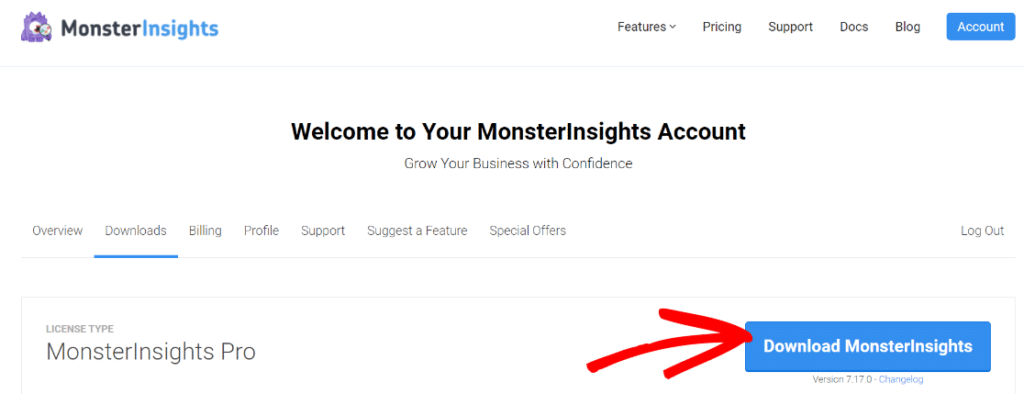
Head to the Pricing page to get started. Once you’ve signed up, download the MonsterInsights file from your Accounts page:
Then, open your WordPress dashboard and head to Plugins » Add new. Upload the MonsterInsights file:
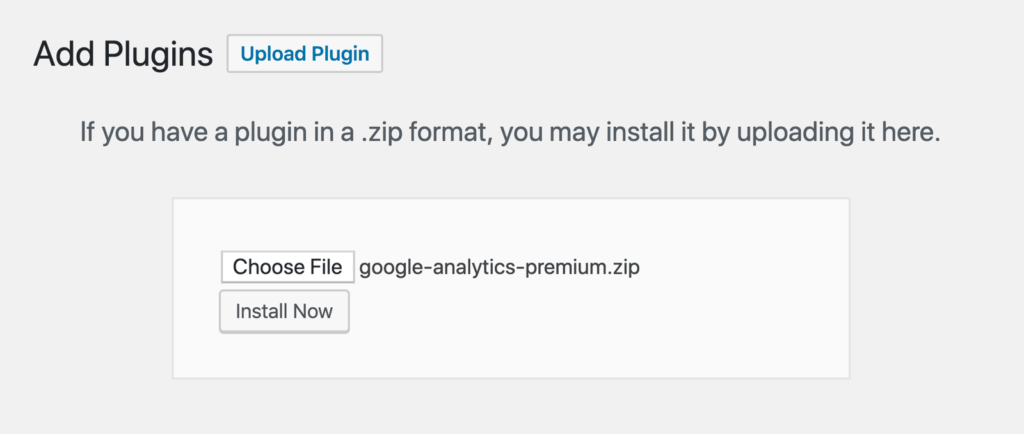
Once MonsterInsights is uploaded and activated, proceed to step 2.
Step 2: Set up MonsterInsights + Connect Google Analytics
It’s super easy to connect MonsterInsights to Google Analytics and get everything set up.
Simply follow the instructions in the onboarding wizard. Your License Key can be found in your MonsterInsights account.
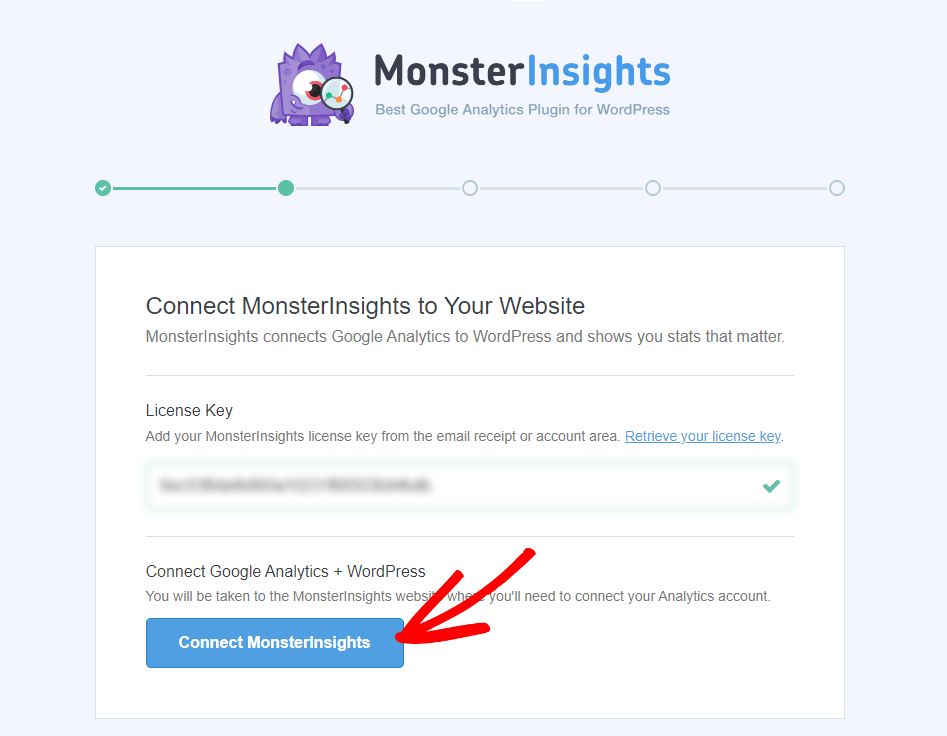
For full, step-by-step instructions for setting up MonsterInsights, check out our guide: How to Add Google Analytics to WordPress.
Step 3: Install the Custom Dimensions Addon
To track your Rank Math focus keywords, you’ll need the Custom Dimensions addon.
Head to Insights » Addons and click Download & Activate in the Dimensions box:
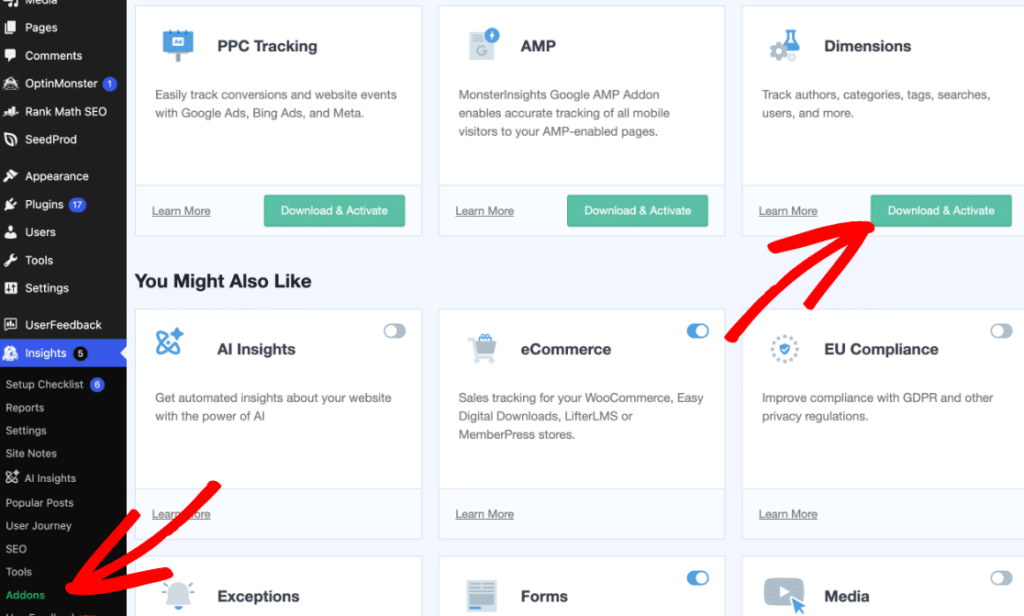
Now, you’ve got to tell MonsterInsights which dimension to activate.
To do that, head to Insights » Settings » Conversions and find the Custom Dimensions box. Choose RankMath Focus Keyword from the dropdown:
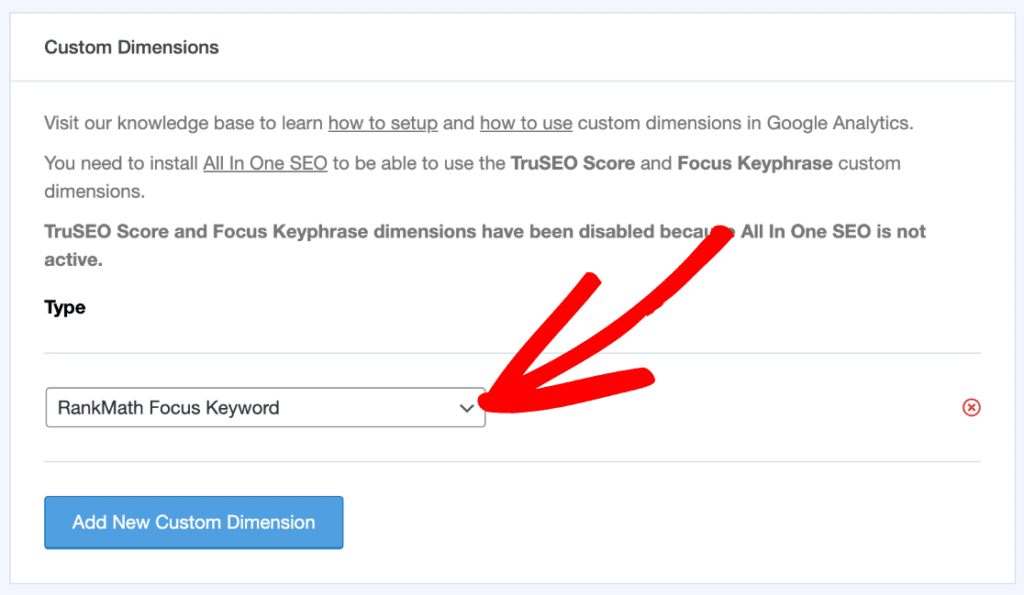
Note: If you don’t have Rank Math installed, the custom dimension will not be available in the dropdown.
Step 4: View the Custom Dimensions Report
Once you have some data collected, you’ll be able to view your focus keywords report.
Head to Insights » Reports » Dimensions and find your Focus Keyword (Rank Math) report:
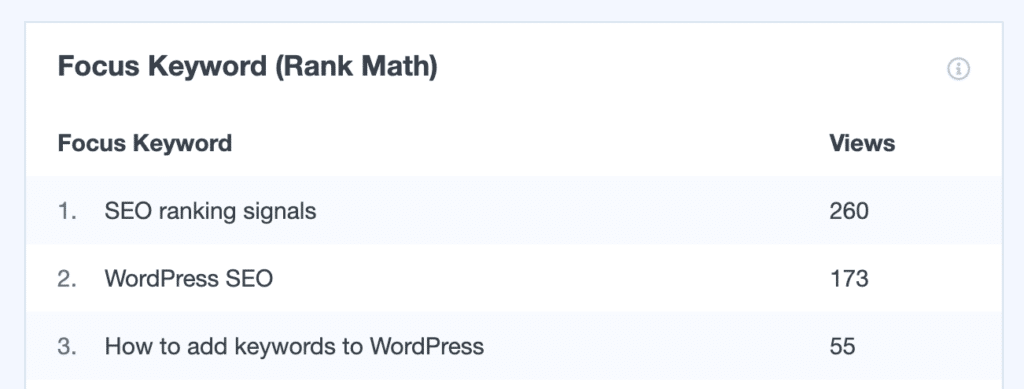
This report shows how many views each of your focus keywords has gotten within the time frame of the report. This report is great for taking a quick look at what topics are the most popular on your site right now.
While the report is helpful on its own, MonsterInsights also sends your Focus Keyword from Rank Math into Google Analytics as a custom dimension so that you can use it in your reports. I’ll go over that next!
The Bottom Line
The Focus Keyword report gives you a quick read on content performance by topic — and since the data lives inside WordPress, you don’t need to leave your dashboard to act on it.
Step 5: View Rank Math Focus Keywords in Google Analytics
You can create a custom report in Google Analytics that shows you just about anything you want to know about your Rank Math focus keywords.
For example, you can find out which focus keywords are attracting the most engaged users, how visitors found the content associated with each keyword, how much time visitors are spending checking out that content, and more.
The best way to explore all of this focus keyword data is with custom reports in Google Analytics. If you’ve never built one of these before, make sure to check out our GA4 custom reports tutorial first.
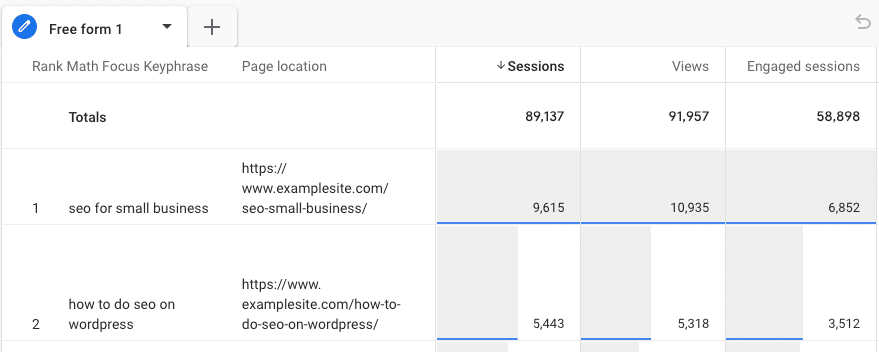
Then, to create a report like the example above, add the “Rank Math Focus Keyword” dimension to your custom report. Thanks to MonsterInsights, you now have this dimension that you can use to build any report you want.
To create the example, I added Rank Math Focus Keyword and Page location dimensions and Sessions, Views, and Engaged sessions as my metrics.
Experiment with other dimensions like session source/medium, session campaign, or author, and other metrics like engagement rate or entrances.
Worth Knowing
The Rank Math Focus Keyword dimension works with any metric in GA4 — sessions, engagement rate, conversions. Your reports can be as simple or as detailed as your strategy requires.
That’s the end of the tutorial!
FAQs About Tracking Rank Math Focus Keywords in Google Analytics
Do I need MonsterInsights Pro to track Rank Math focus keywords in Google Analytics?
Yes. Focus keyword tracking requires the Custom Dimensions addon, which is available on MonsterInsights Pro plans. Once you install the addon and select the RankMath Focus Keyword dimension in your settings, MonsterInsights automatically sends your focus keyword data to Google Analytics as a custom dimension on every page view.
How do I add focus keywords in Rank Math?
Open your post or page editor and find the Rank Math SEO panel in the sidebar. Click the Focus Keyword field, type your target keyword, and press Enter — Rank Math will immediately score your content against that keyword. On Rank Math Pro, you can add multiple focus keywords per post by clicking “Add Another” after the first one.
What does the Rank Math focus keyword report in MonsterInsights show?
The report (found at Insights » Reports » Dimensions) shows how many views each of your focus keywords received in the selected time period. It’s a fast way to see which topics are driving the most traffic right now. You can also push the focus keyword dimension to GA4 and build custom reports that combine keyword data with engagement rate, session source, conversions, and more.
Can I see Rank Math focus keyword data directly in Google Analytics 4?
Yes — that’s exactly what the MonsterInsights Custom Dimensions integration does. Once you activate the RankMath Focus Keyword dimension, it’s sent to GA4 as a custom dimension on every page view. From there, you can use it in any GA4 Explore report to combine focus keyword data with traffic sources, user engagement, conversions, and more.
Does the MonsterInsights Rank Math integration work with both the free and Pro versions of Rank Math?
Yes. MonsterInsights reads whichever focus keyword Rank Math passes, regardless of whether you’re on the free or Pro version. The main difference is that Rank Math Pro supports multiple focus keywords per post while the free version supports one. Pro users will see richer keyword data in their reports as a result.
I hope you found this tutorial helpful. If you enjoyed it, you might also want to check out:
- What Is a Focus Keyword? Plus 2 Step-by-Step Examples
- How to Do Keyword Research for SEO: Quick-Start Guide
- How to Use Google Search Console for Keyword Research
- How to Create Google Analytics Custom Reports (Step by Step)
- How to Add Google Analytics to WordPress
Not using MonsterInsights yet? Get started today!
Finally, stay connected with us on YouTube for the latest Google Analytics and WordPress tips and tutorials.
Follow us on X, Facebook, and YouTube for more Google Analytics tips.