


Getting Google Analytics running on your website is one of the highest-leverage things you can do as a site owner.
Once the data starts flowing, you stop guessing about what’s working and start making decisions based on what’s actually happening.
The setup takes less time than most people expect — and this guide walks you through every step, from creating your Google Analytics account to verifying that data is coming through.
Whether you’re on WordPress or another platform, you’ll find the right method here.
In This Article:
Why Is Google Analytics Important for Your Website?
If you want to make your website more successful — whether it’s for business, blogging, or anything else — Google Analytics gives you a clear picture of what’s actually happening on your site.
Without it, you’re making decisions in the dark. You might keep investing time in content or pages that aren’t driving results, while your best-performing pages go unnoticed.
With Google Analytics, you get real data about where your visitors come from, what they do on your site, and where they leave. That information changes how you make decisions.
Here are some of the most valuable insights you’ll get from setting up Google Analytics:
- Understand your visitors — Google Analytics shows you who’s coming to your site, where they’re coming from, and what they engage with most.
- Track your best content — Find out which pages or blog posts drive the most traffic and engagement, so you can make more of what works.
- Improve ad performance — If you’re spending money on ads, Google Analytics shows you which campaigns are driving results and which are wasting budget.
- Make data-driven decisions — Instead of guessing what your visitors want, you get the real picture. That means smarter choices about your content, design, and strategy.
- Spot and fix problems — If something’s wrong with your setup, like double tracking codes, Google Analytics can help you catch these issues before they corrupt your data.
That covers the why — now let’s get into the how.
Before You Dive In
Google Analytics shows you traffic and behavior data — but interpreting that data takes practice. Once your tracking is live, our Google Analytics reports guide will help you understand exactly what each report is telling you.
How to Set Up Google Analytics
Getting started with Google Analytics is easier than you might think — and it’s completely free. All you need is a Google or Gmail account.
Each step below covers how to set up Google Analytics 4 (GA4) from scratch.
1. Create a Google Analytics Account
First, you need to create a Google Analytics account. This is where all your website’s data will live.
Step 1: Go to Google Analytics
To begin, go to the Google Analytics website to sign up. Once there, click the “Get started today” button in the top right corner.

Step 2: Sign into Google
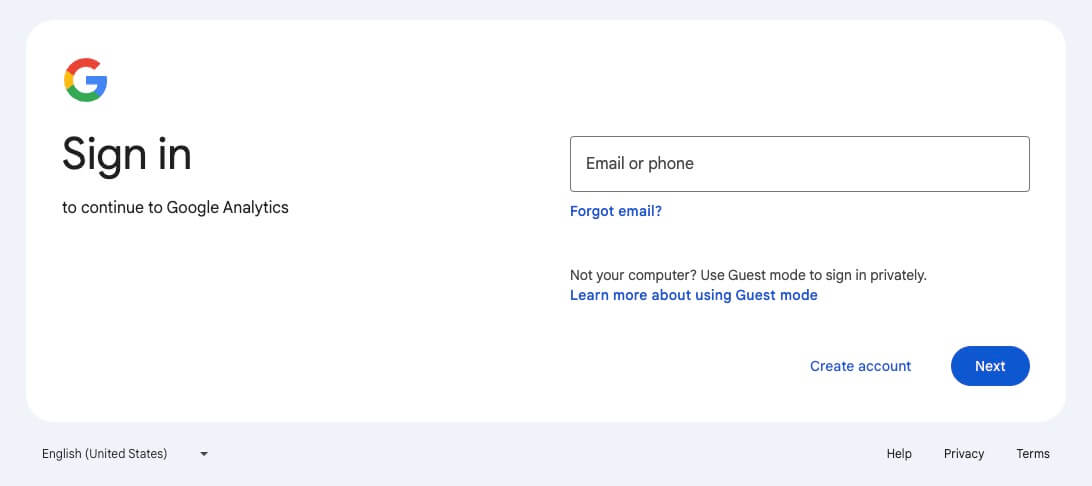
In the next step, you’ll be asked to sign in using your Google account. If you have an existing Google or Gmail account, you can use it. If not, you’ll need to create a new one.
Step 3: Create Your Google Analytics Property
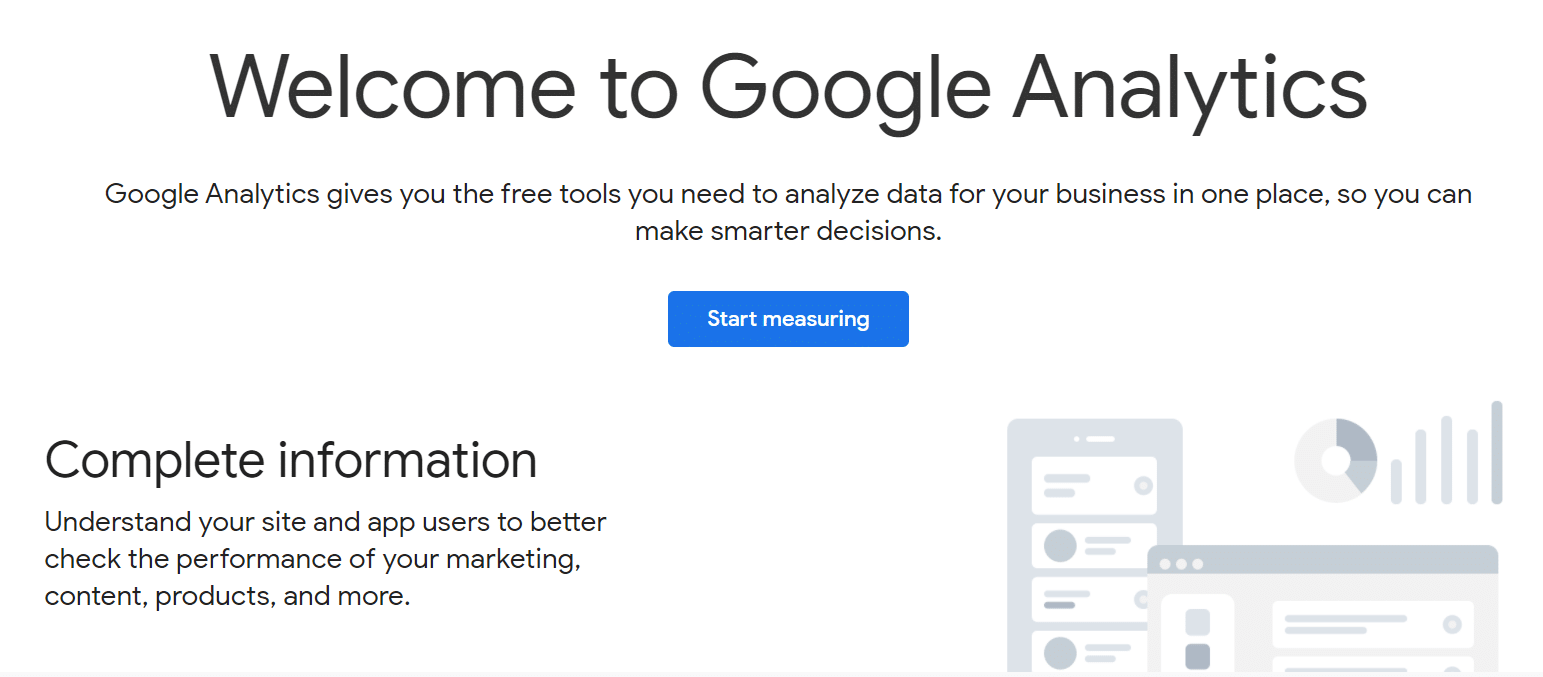
Once you’re signed in, click the Start measuring button.
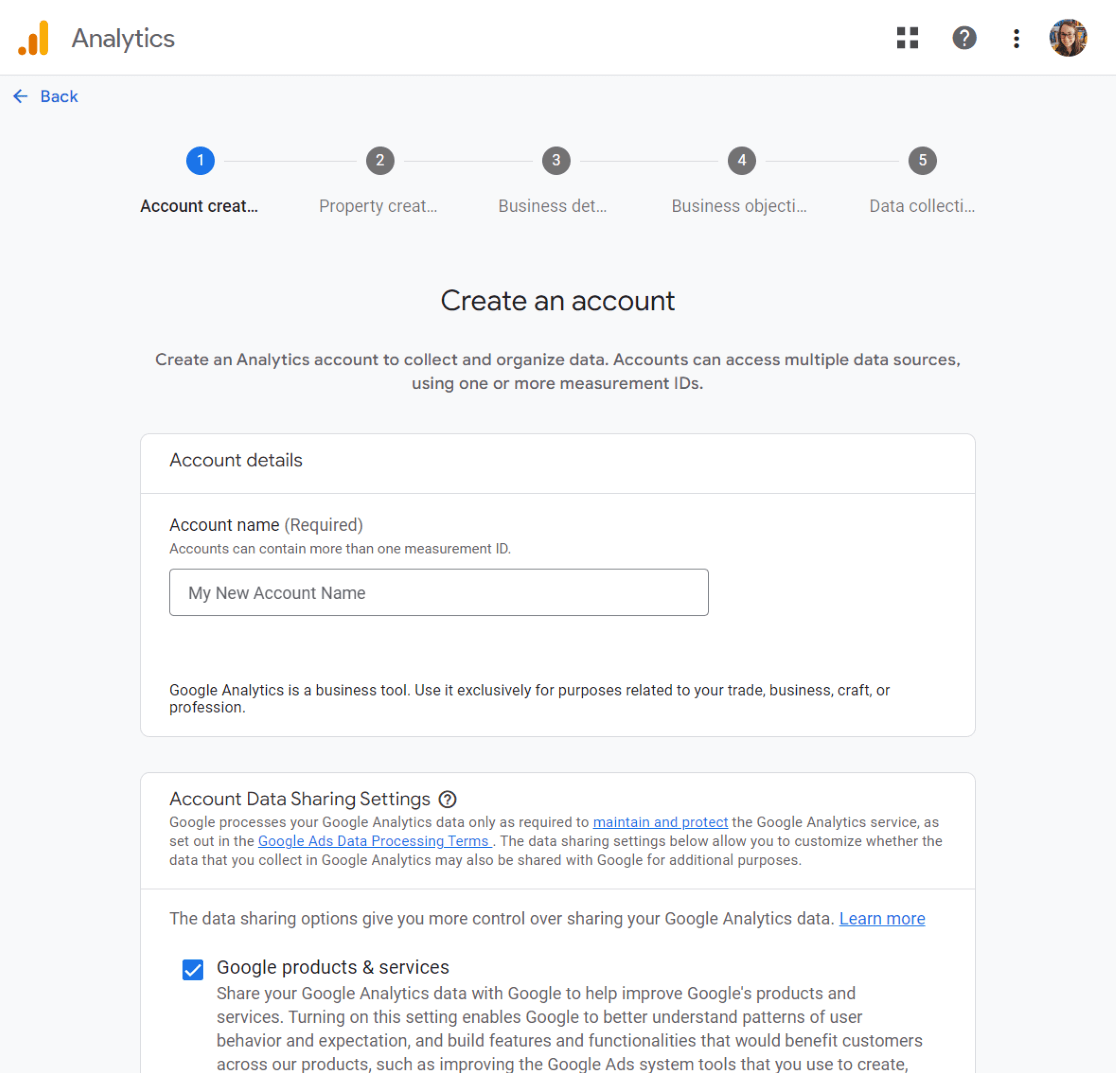
Next, select an Account name for your Google Analytics account. You’ll also see various data-sharing options — review and configure these before clicking Next.
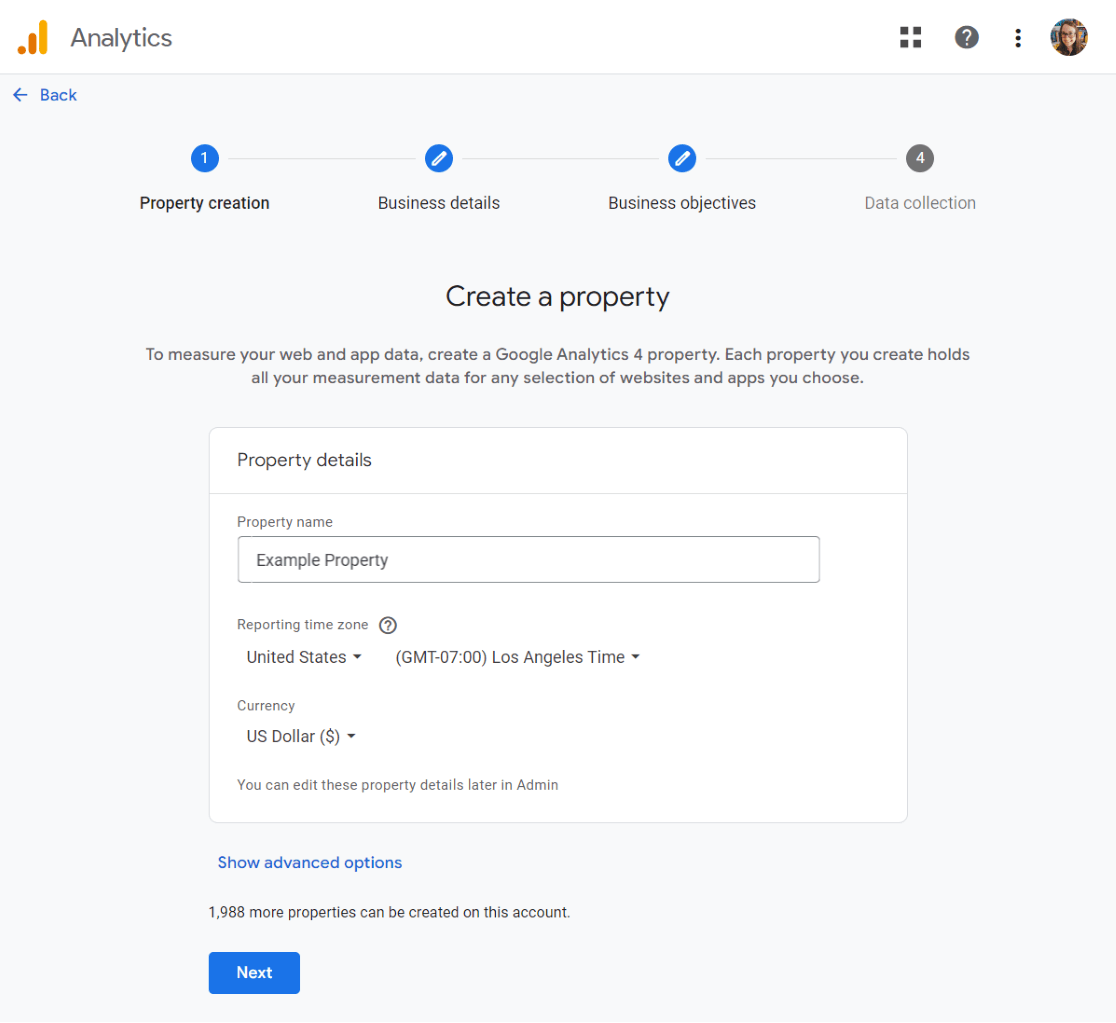
Enter your property name, choose a reporting time zone, and select the currency. After that, click Next.
Select your industry category and the size of your business, then click Next.
Choose the objectives of your business. Selecting “Get baseline reports” gives you access to the full range of Google Analytics data and reports right away.
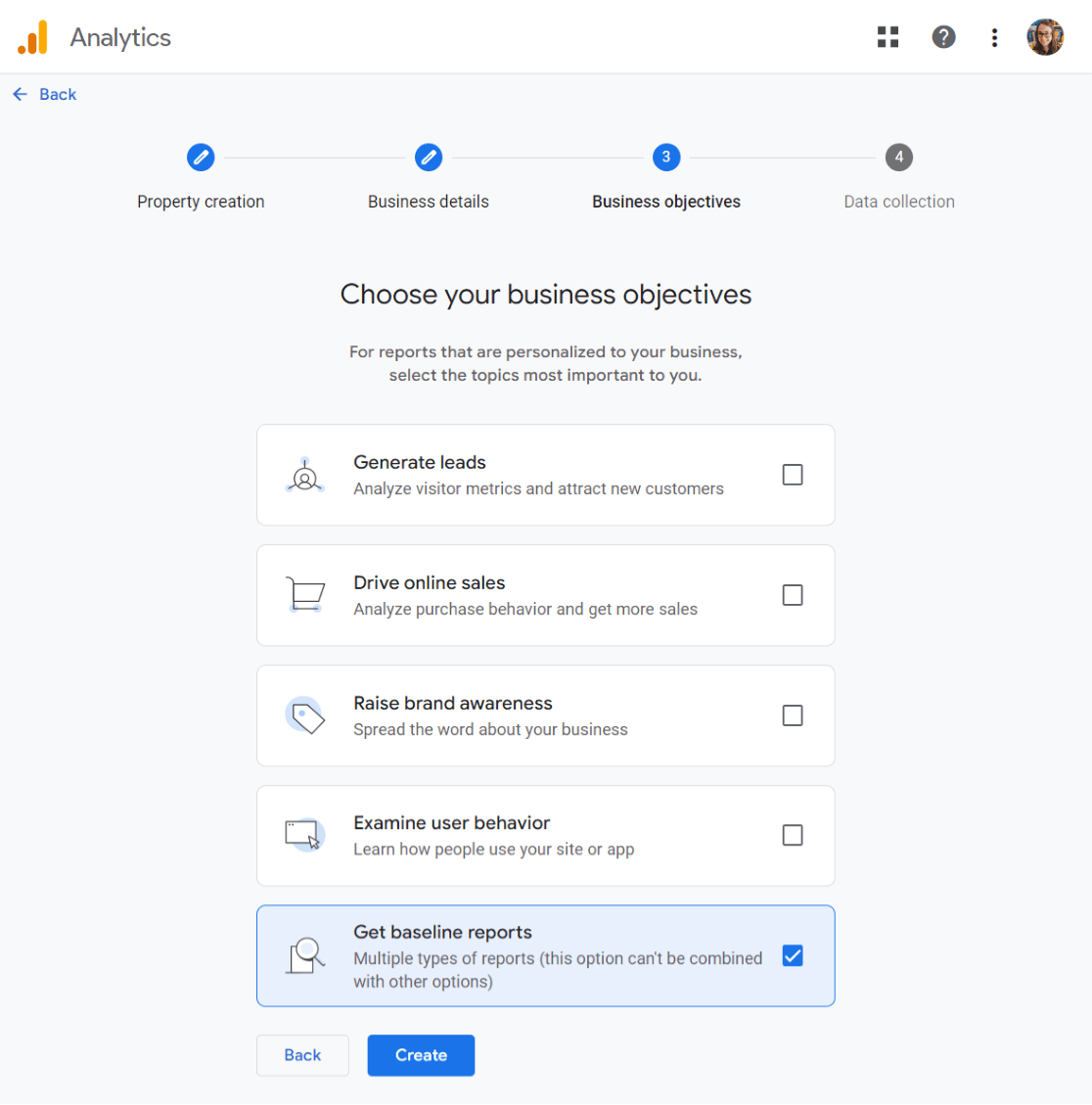
Click Create.
You’re now signed up for Google Analytics and ready to set up your web stream.
Step 4: Choose Web Stream
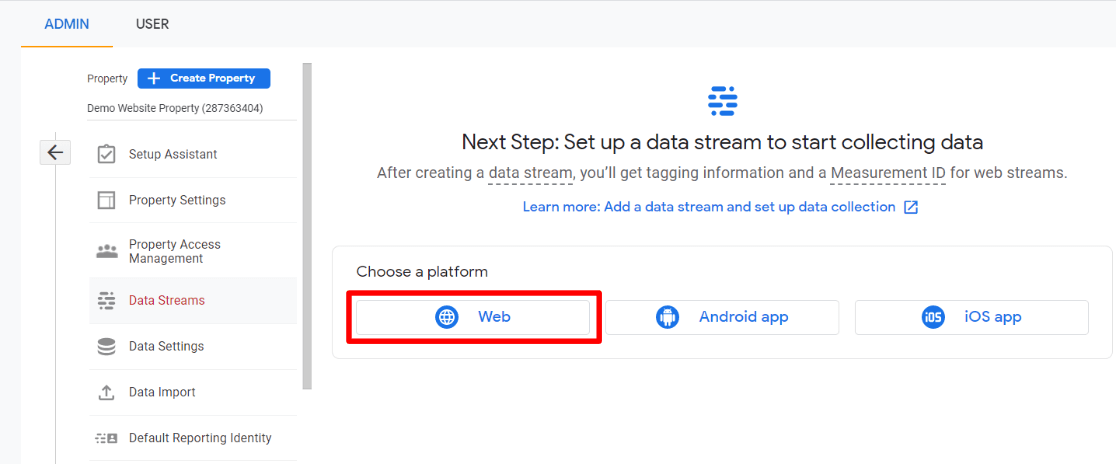
You’ll now see your Google Analytics web stream options. Since we’re setting up GA4 for a website, select Web as your platform.
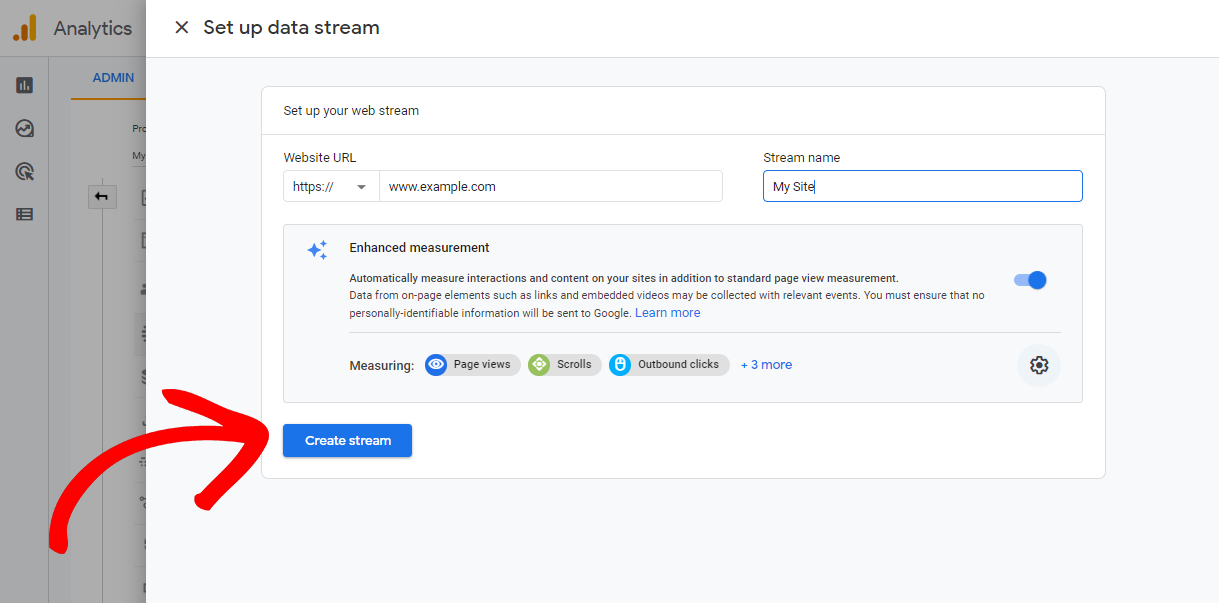
Enter your website URL and Stream name.
By default, Google Analytics has the Enhanced measurement option enabled. This lets you track visitors, scrolls, outbound clicks, and much more. That said, some of these settings don’t behave the way you’d expect out of the box — our GA4 Enhanced Measurement Guide covers exactly what to watch for.
Click the “Create stream” button.
You’ll now see your Stream name, ID, URL, and Measurement ID, along with the enhanced measurements being tracked.
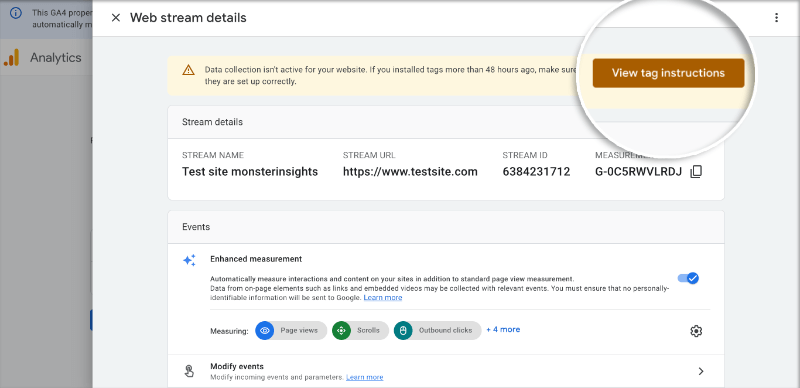
Click the View tag instructions button. You’ll be shown different ways to add the Google Analytics tracking code to your website.
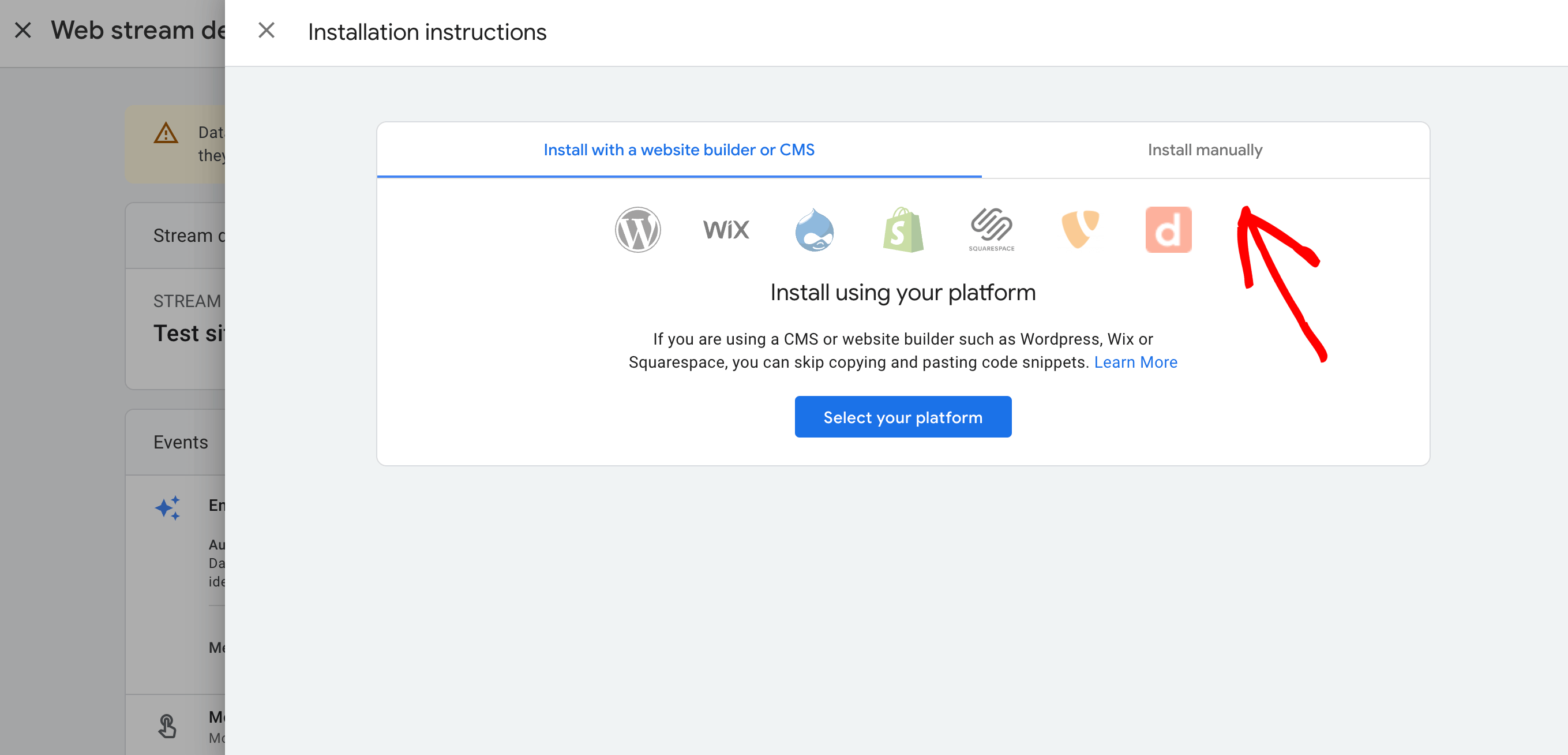
Switch to the “Install manually” tab. From here, you can see your Google Analytics tracking code.
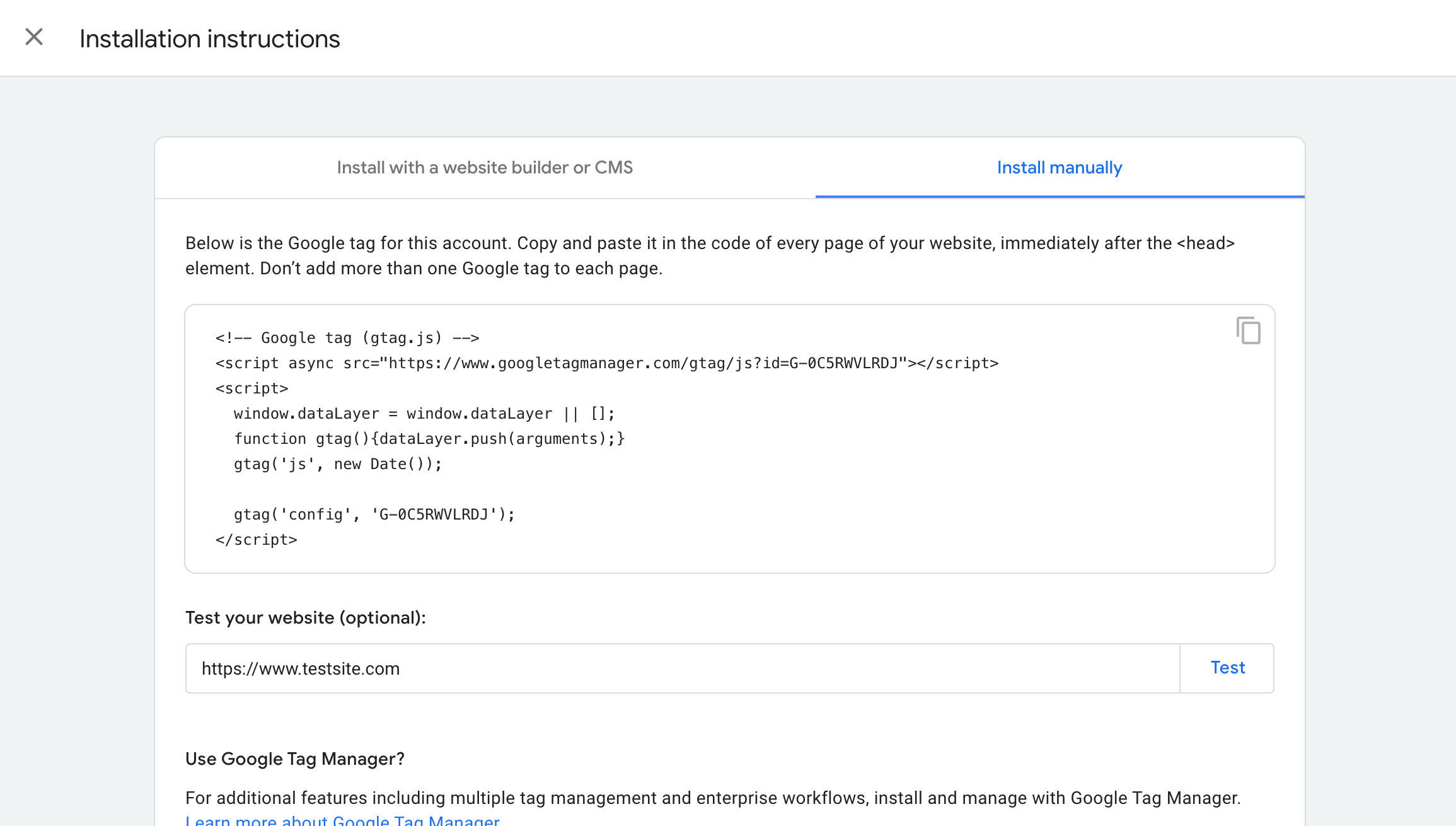
Copy the tracking code — you’ll need it for the next step. Your Measurement ID (formatted as G-XXXXXXXXXX) appears at the top of the stream details page. It’s worth copying that separately, since some installation methods ask for the Measurement ID instead of the full code snippet.
Now let’s look at how to add Google Analytics to your website.
2. Install Google Analytics on Your Website
There are a few different ways to add Google Analytics to your site. Choose the one that fits your setup — but only use one method. Using more than one will double-track your pageviews and skew your data.
How to Set Up Google Analytics With Code
The steps for adding the tracking code vary depending on your platform.
For WordPress Sites
If you have a WordPress website, the easiest way to set up Google Analytics is by using MonsterInsights, the leading Google Analytics plugin for WordPress. It connects your site to GA4 without any code, and you can get started for free.

Head to your WordPress dashboard and go to the plugins section. Search for MonsterInsights, click Install Now, and Activate the plugin.
To unlock advanced tracking features like eCommerce tracking, form tracking, PPC ads tracking, and more, grab a MonsterInsights license and install the plugin from your account dashboard.
The plugin walks you through a step-by-step setup to connect Google Analytics to your WordPress site. Jump to Set Up Google Analytics With a Plugin for the full walkthrough.
If you’d rather install the code directly, the cleanest way to do it without touching theme files is the WPCode plugin.
Copy your Google Analytics tracking code from the stream details page.
Install and activate WPCode. For help with this, see this guide on installing a WordPress plugin.
Once active, go to Code Snippets » Header & Footer. Paste your Google Analytics tracking code into the Header section.
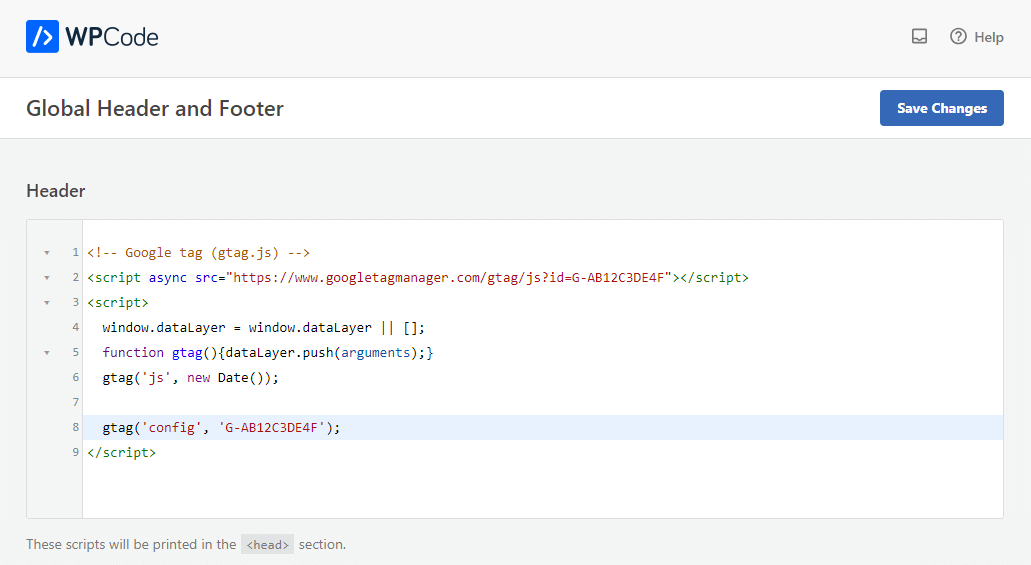
Click Save Changes. Google Analytics is now installed on your WordPress site.
For Other Websites
If you’re on a platform like Wix, Shopify, or another website builder, the process is similar — the only difference is where you paste the code.
Copy your Google Analytics tracking code from your GA4 account.
Each platform has its own location for adding custom code. Wix has a built-in code snippet tool under Site Settings. Shopify lets you add tracking code in the theme’s HTML. Look for an option to add HTML or edit your header, then paste your tracking code there so it loads on every page.
Save your changes when done.
How to Set Up Google Analytics in a WordPress Theme
This approach is more technical and best suited for those comfortable with editing theme files. The key risk: if you switch or update your theme, the tracking code disappears with the old files — meaning you’d have to redo the setup from scratch.
That’s why I’d suggest the WPCode method above for most users. But if you prefer direct theme integration, here’s how it works.
Copy the Google Analytics tracking code from your GA4 stream details page.
You have two options — pick only one:
1. Adding Code to header.php File
Open the header.php file of your WordPress theme and paste the Google Analytics tracking code right after the opening <body> tag.
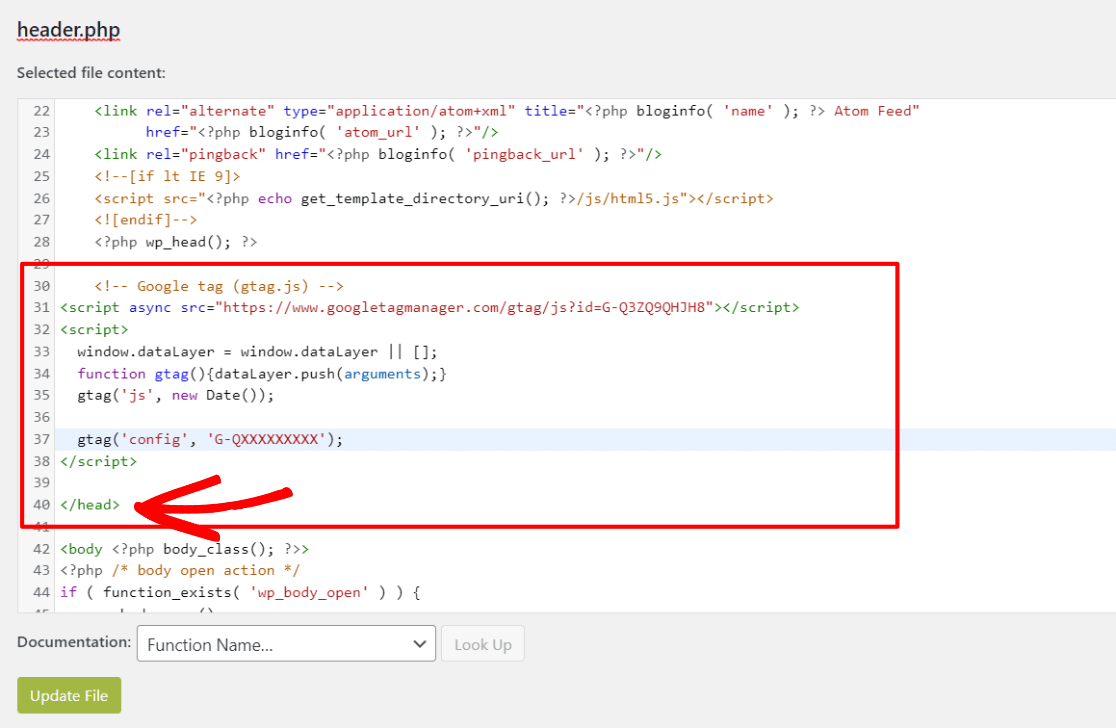
Save your changes and re-upload the file to your server.
2. Inserting Code via Functions File
Adding the tracking code to your theme’s functions.php file is another option. This automatically inserts the code on every page of your WordPress site.
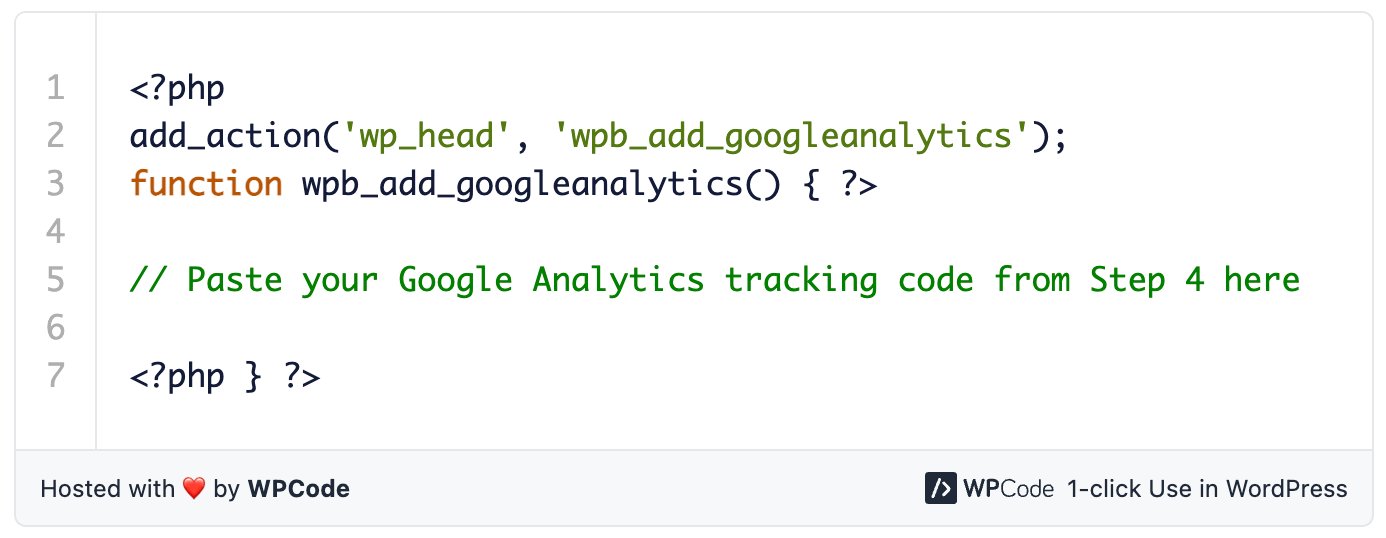
Replace the placeholder in the code snippet with your actual tracking code. For more on both approaches, see our guide on where to add the Google Analytics code in WordPress.
How to Set Up Google Analytics With Google Tag Manager
Google Tag Manager is another way to deploy GA4 — especially useful if you’re already managing other tags through it.
To start, create an account with Google Tag Manager. Once set up, you’ll receive two code snippets to add to your website. From there, you configure your GA4 tag inside the GTM interface.
This method involves a few more steps than the others. Our guide on adding GA4 via Google Tag Manager walks through each step in detail. If you’re not sure how GTM and GA4 relate to each other, the Google Tag Manager vs. Google Analytics comparison is a good place to start.
3. Test That Google Analytics is Working
After installing Google Analytics, the next step is confirming that data is actually flowing.
Wait 15 to 30 minutes after setup, then head to the Data Streams page in your GA4 account. Check whether it says “Receiving traffic in the past 48 hours.” That’s your confirmation that tracking is active.
Full report data can take 24 to 48 hours to populate completely. If you don’t see much at first, that’s normal — data is still accumulating in the background.
If you see no data after 48 hours, check for common issues like a caching plugin blocking the script or an ad blocker interfering with the tag. If problems persist, Google support can help diagnose the issue.
How to Set Up Google Analytics With a Plugin
If you have a WordPress site, there’s a much faster way to get Google Analytics running.
MonsterInsights is the most popular Google Analytics plugin for WordPress, used by over 3 million websites. It handles the technical setup for you — no code, no manual stream configuration — and delivers analytics reports right inside your WordPress dashboard.
The setup takes a few minutes. You still need to create your GA4 account (Steps 1 through 3 above), but MonsterInsights handles the web stream configuration automatically when you connect.

Once connected, your most important analytics data is available without ever leaving WordPress.
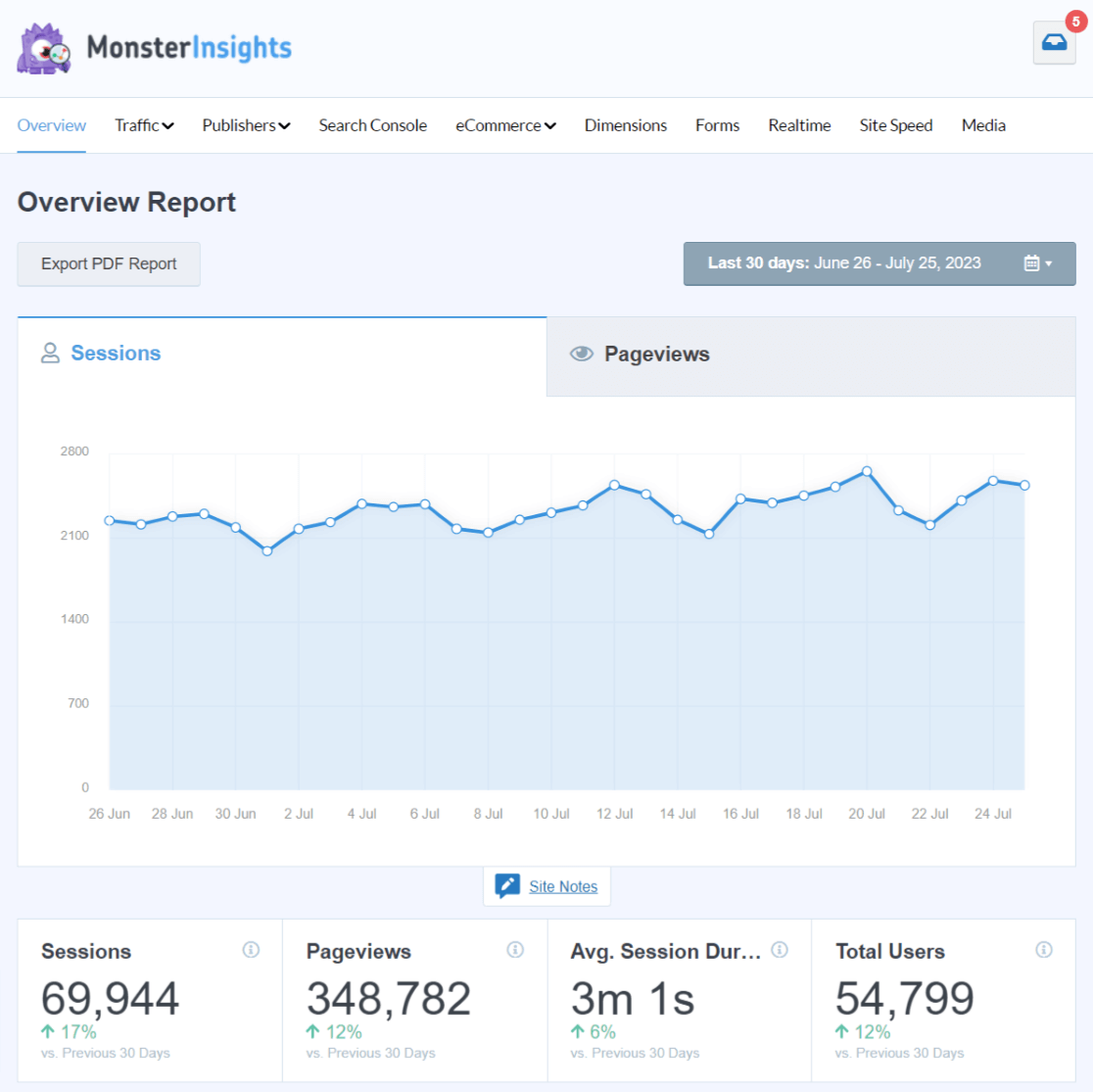
MonsterInsights provides tailored reports for a range of needs: real-time analytics, eCommerce analytics, site speed, Search Console keywords, video tracking, and more.
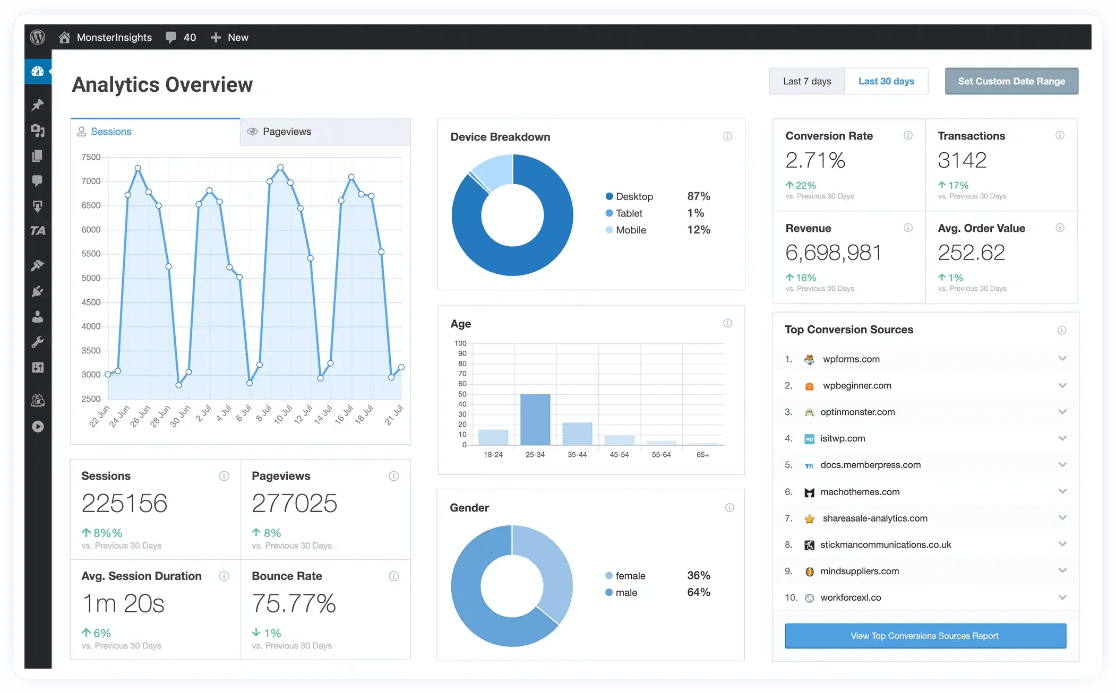
You can also activate advanced tracking with a single click — form tracking, event tracking, author tracking, outbound link tracking, WooCommerce tracking, custom dimensions, and more.
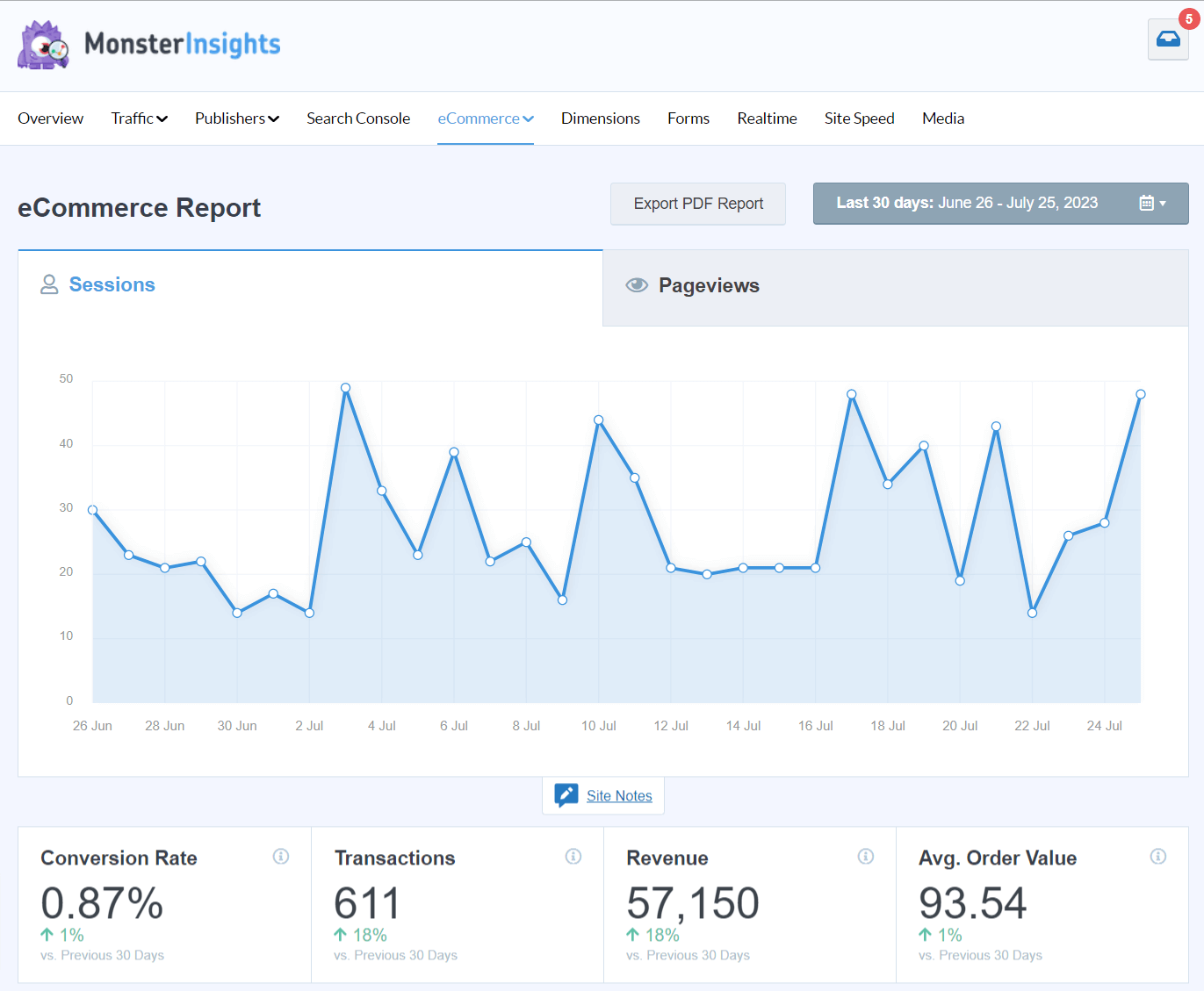
Before MonsterInsights, setting up eCommerce tracking required either a developer or a working knowledge of Google Tag Manager. Now it’s a one-click process for WordPress users.
For a complete setup walkthrough, see our guide on adding Google Analytics to WordPress.
See Your Google Analytics Data Right Inside WordPress
MonsterInsights connects your WordPress site to Google Analytics in minutes — no code required. Get the reports that matter most, right in your dashboard.
Get MonsterInsights FreeFAQs About Setting Up Google Analytics
Can anyone set up Google Analytics?
Yes, anyone with a basic understanding of websites can set up Google Analytics. The signup process is straightforward, and this guide covers every step. WordPress users can simplify things further with a plugin like MonsterInsights.
Is it free to set up Google Analytics?
Yes, Google Analytics is completely free. There are no charges for the standard version, which covers everything most site owners need.
Can you use Google Analytics on any website?
Google Analytics can be integrated with almost any website, regardless of the platform — WordPress, Wix, Shopify, Squarespace, and custom-built sites all work. The exact steps for adding the tracking code vary by platform.
Do I need Google Analytics?
If you want to understand your website’s traffic and make informed decisions about your content, marketing, or design, then yes — Google Analytics is one of the most useful free tools available. Without it, you’re making decisions without knowing what’s actually working.
How long does it take for Google Analytics data to appear?
Real-time data appears almost immediately in the Real-Time report. Full report data — like sessions, users, and conversions — typically takes 24 to 48 hours to populate completely.
What is a Google Analytics Measurement ID?
Your Measurement ID is a unique identifier for your GA4 property, formatted as G-XXXXXXXXXX. You’ll find it on your data stream’s details page. Some installation methods — including MonsterInsights — ask for this ID instead of the full tracking code snippet. See our Google Analytics Tracking ID guide for more detail.
Can I use Google Analytics and Google Tag Manager together?
Yes — Google Tag Manager can deploy your GA4 tracking code instead of adding it directly to your site’s HTML. This is useful if you’re already managing other tags through GTM. Our guide to Google Tag Manager vs. Google Analytics explains how the two tools work together.
I hope this guide helped you get Google Analytics set up on your website. If you want to keep learning, these are a great next step:
- Google Analytics Reports: The Ultimate Guide (GA4)
- Best Ways to Learn Google Analytics: Courses, Training, and More
- Essential Google Analytics Tips for Businesses & Marketers
- How to Create Google Analytics (GA4) Dashboards
- How to Use Google Analytics and AI to Grow Faster
Follow us on X, Facebook, and YouTube for more Google Analytics tips.