


If you’re managing more than one website — or launching a new one — you’ll need to add a separate property to your Google Analytics account.
GA4’s account structure is straightforward once you know what you’re looking at, but the setup steps aren’t always obvious the first time.
We’ve helped plenty of WordPress site owners get through this exact setup with MonsterInsights, and the process is faster than most people expect. Here’s exactly what to do.
In This Article:
Understanding Accounts and Properties in Google Analytics
Your Google Analytics profile consists of 2 different components: Account and property.
Here’s a closer look at each of them:
- Account: The account is the highest level. You’ll need a Google Analytics account before you can add any properties.
- Property: A property can be a website or a mobile app. Your account can consist of up to 2,000 properties. So if you’re a business with a website and an app or multiple websites, you’d have a property for each of those within your business’s account.
Now let’s take a look at how to add a new website and property to Google Analytics.
Good to Know
A single Google Analytics account supports up to 2,000 properties. If you manage multiple websites or apps, you can track all of them under one account — each with its own data stream and reports.
Add a Website/Property to Google Analytics in 4 Steps
Let me guide you through the process of adding a new website property to your Google Analytics account:
- Sign in and Choose an Account
- Set New Property Settings
- Enter Property Details
- Install Your Tracking Code
Step 1: Sign in and Choose an Account
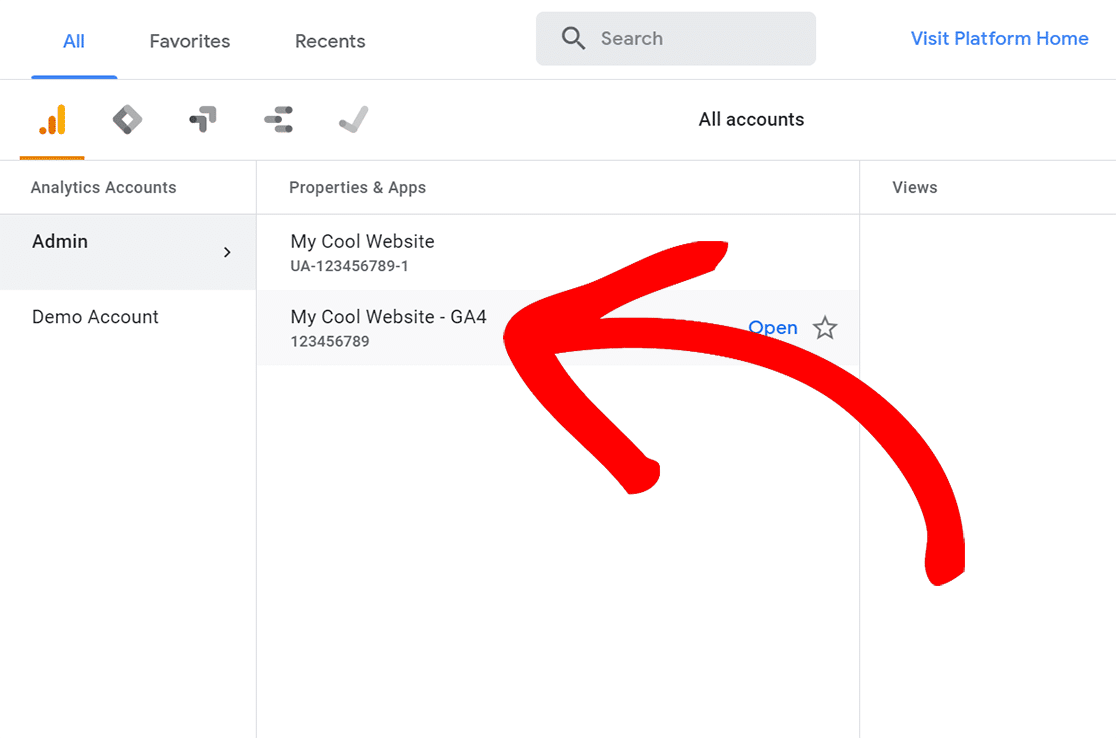
First, log in to your Google Analytics account and select the website in which you’d like to add a new property.
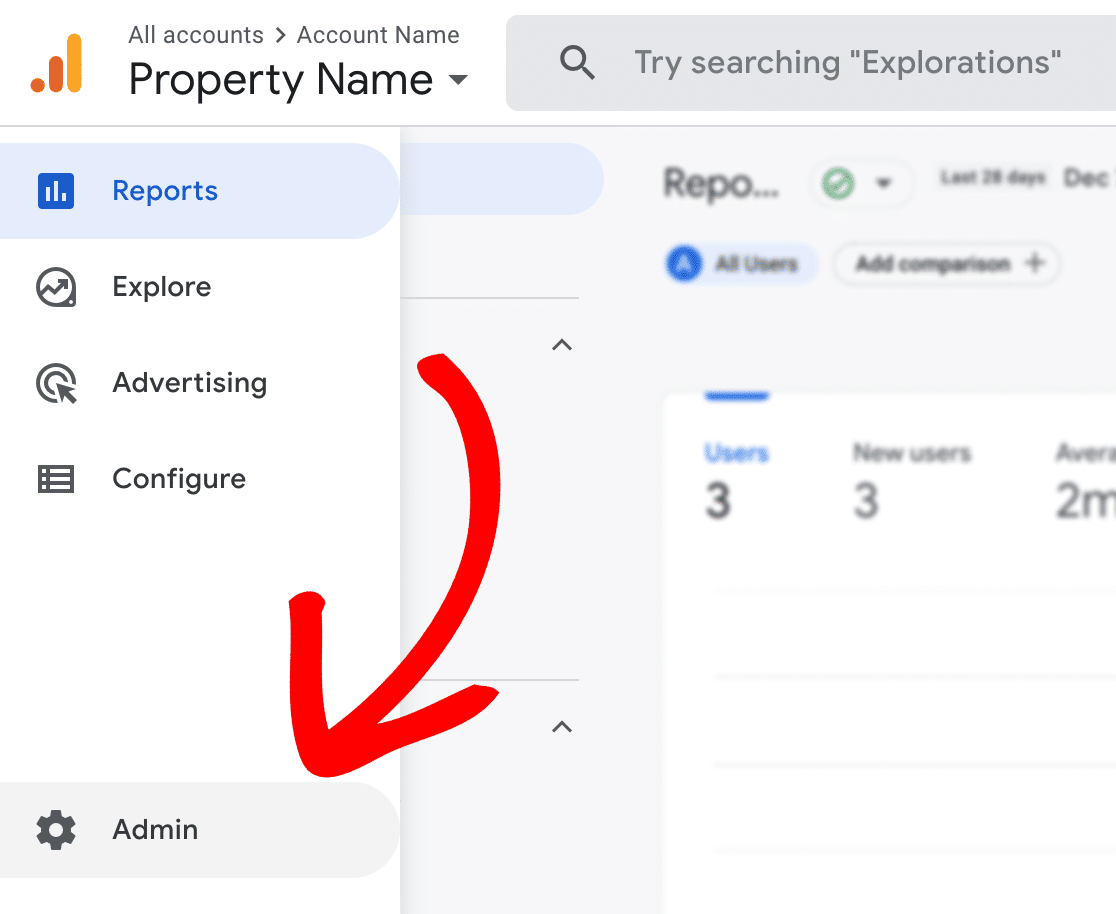
Then, click on Admin in the left taskbar.
Step 2: Set New Property Settings
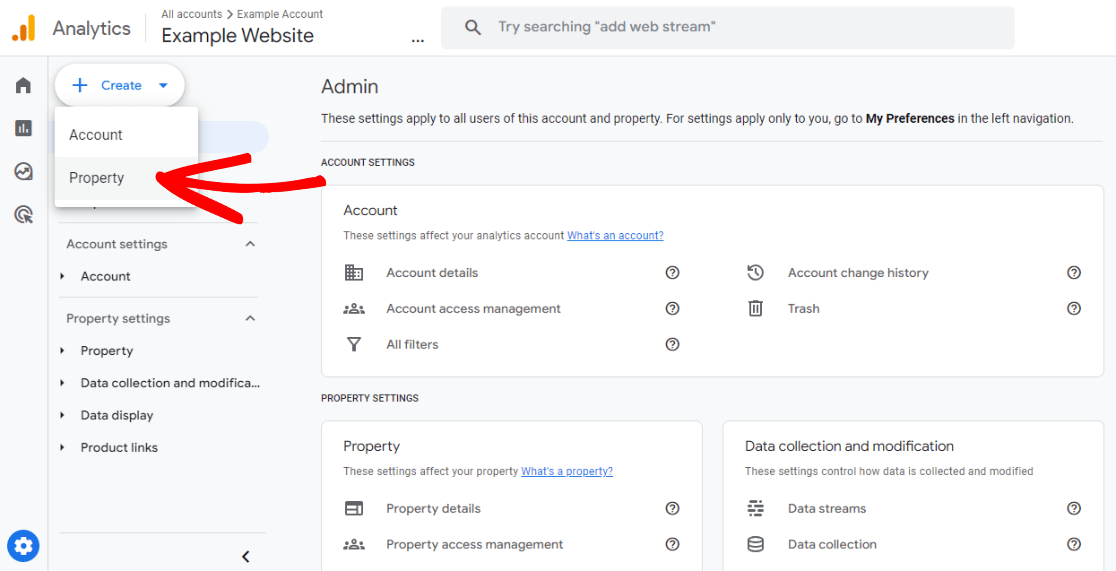
Click the Create dropdown and select Property:
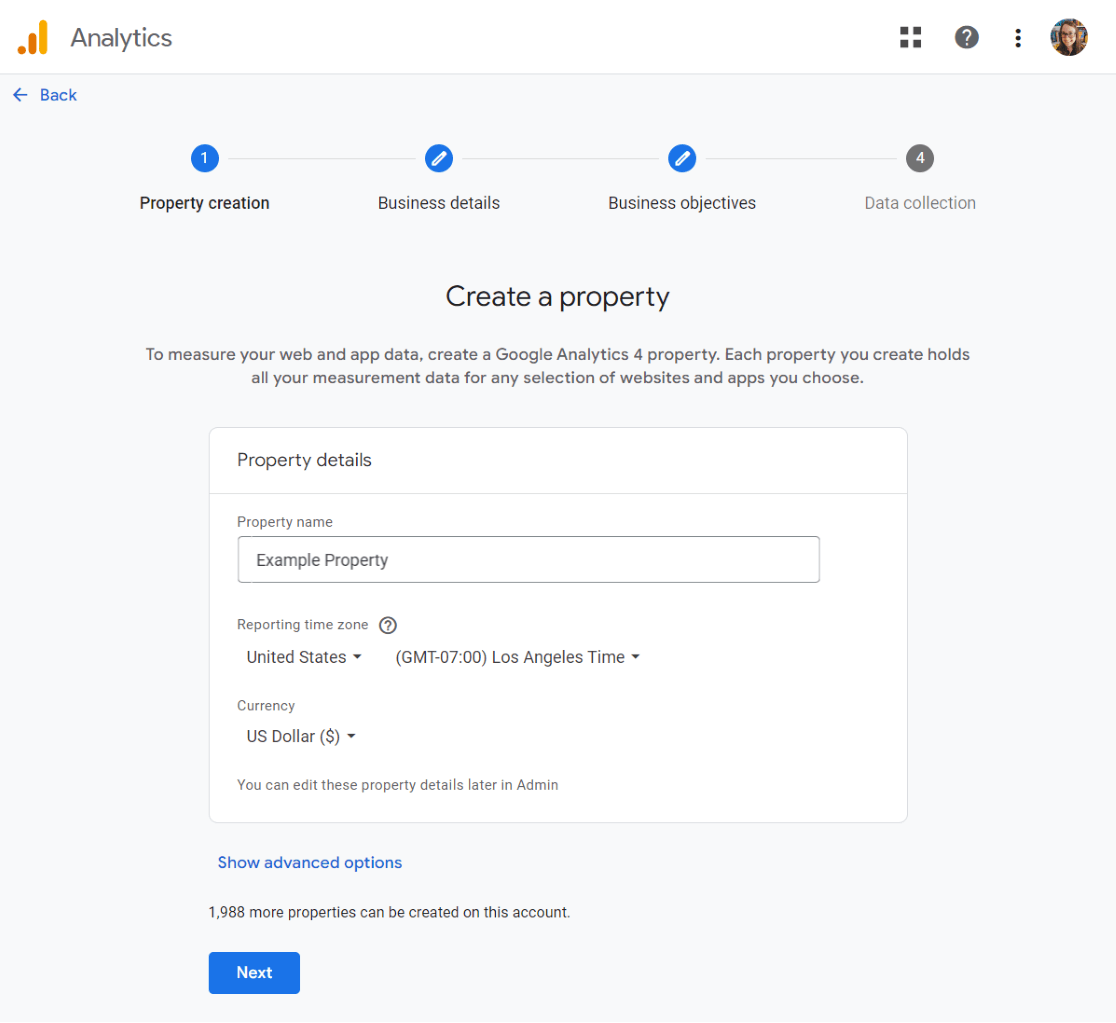
Next, you’ll need to enter your website’s property details. Start by entering a name, selecting a reporting time zone, and choosing your currency.
Step 3: Enter Property Details
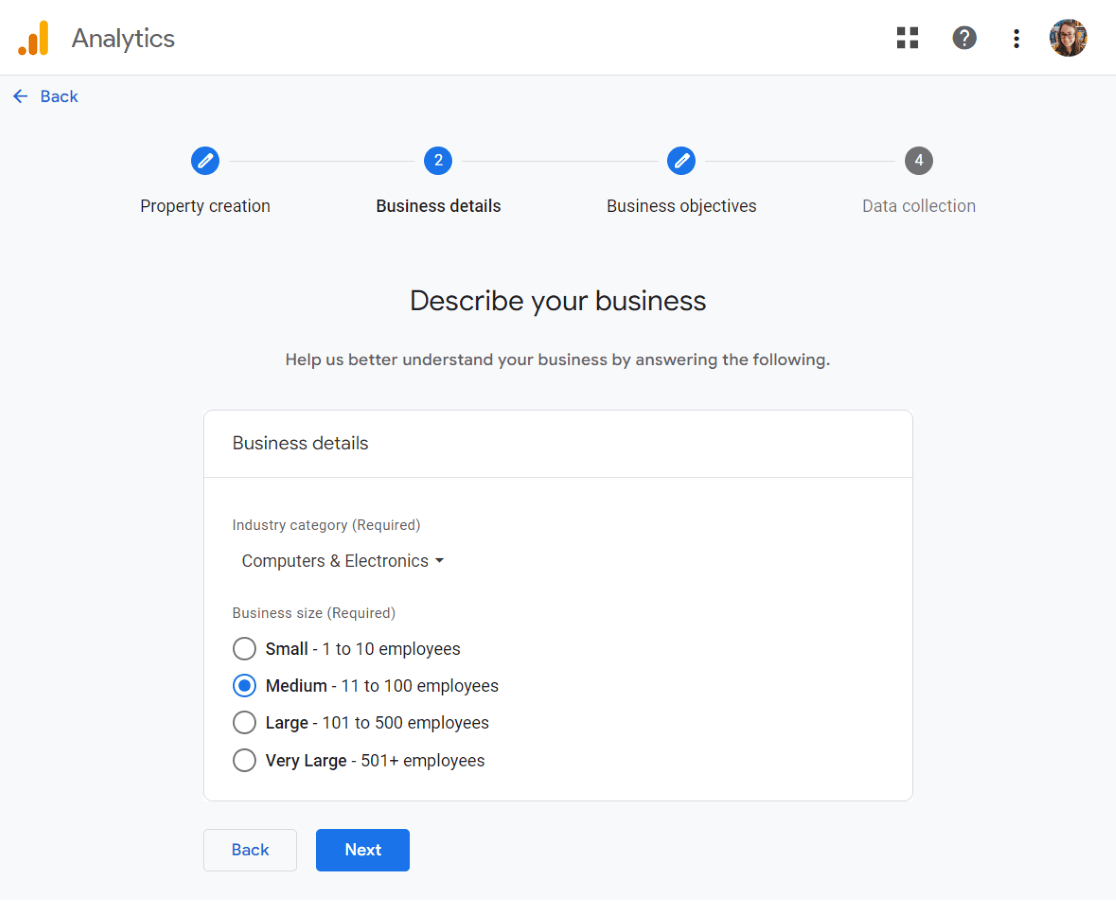
Choose your industry category and your business size, then click Next.
Finally, choose your business objectives. We suggest choosing Other so that you get all of the standard Google Analytics reports in your account.
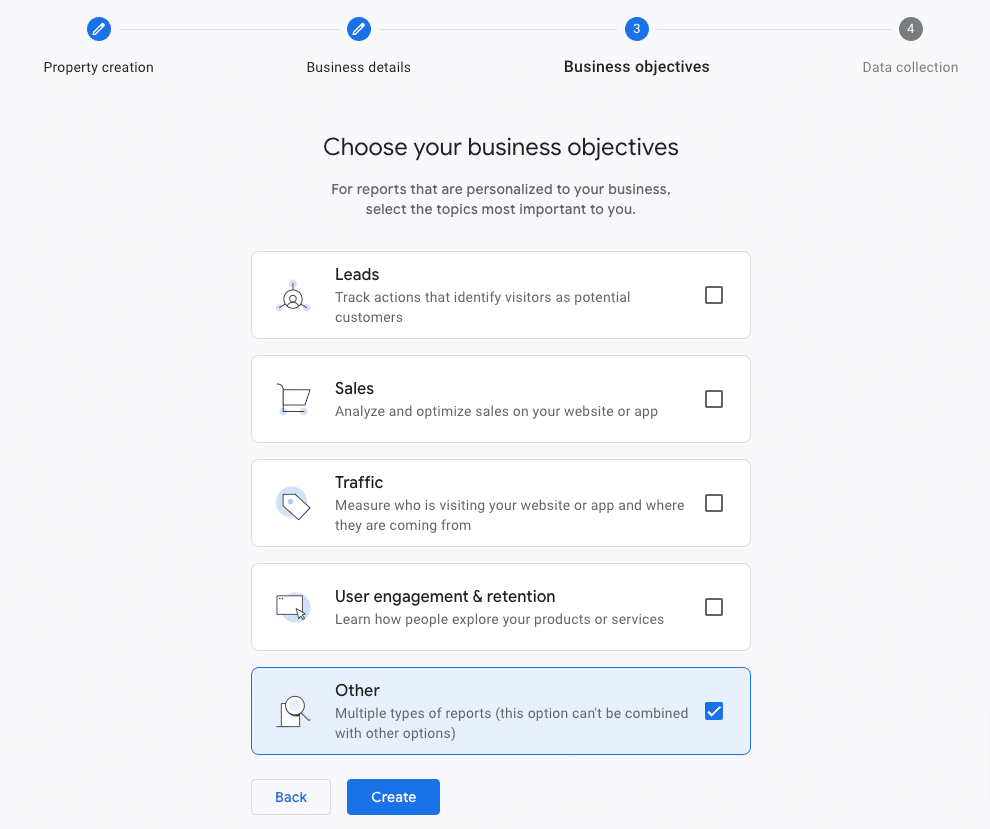
Pro Tip: After creating your property, you can change your business objectives any time in Admin → Property Settings. Don’t stress too much about this choice — it mainly affects which reports GA4 surfaces by default.
Click Create.
Step 4: Install Your Tracking Code
If you’re using a website platform other than WordPress, please refer to the instructions for installing Google Analytics.
To install Google Analytics tracking on your WordPress website, your best option is to use MonsterInsights. It’s the approach I recommend most — it eliminates the need to manually paste tracking code into your theme.
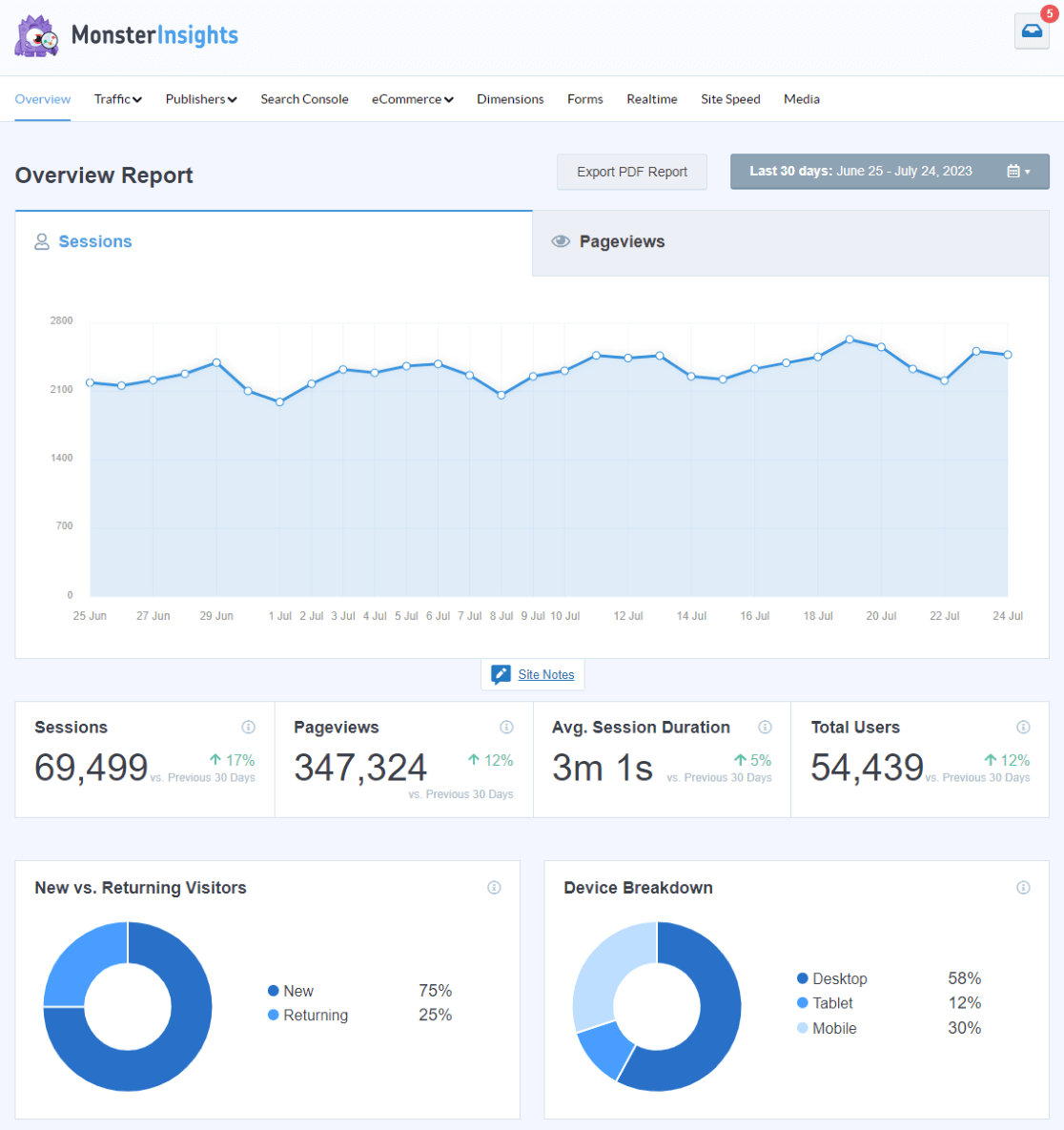
MonsterInsights is the best Google Analytics plugin for WordPress. Add your Google Analytics tracking code quickly and easily without having to touch any code. Plus, you’ll get a set of easy-to-read reports right inside your WordPress dashboard:
You can start by downloading and installing the plugin for free (or grab a license for tons of extra features like eCommerce tracking, PPC ad tracking, media tracking, and so much more).
Add Google Analytics to WordPress — No Coding Required
MonsterInsights connects your GA4 property to WordPress in minutes. Skip the manual tracking code setup and start seeing your analytics data right inside your dashboard.
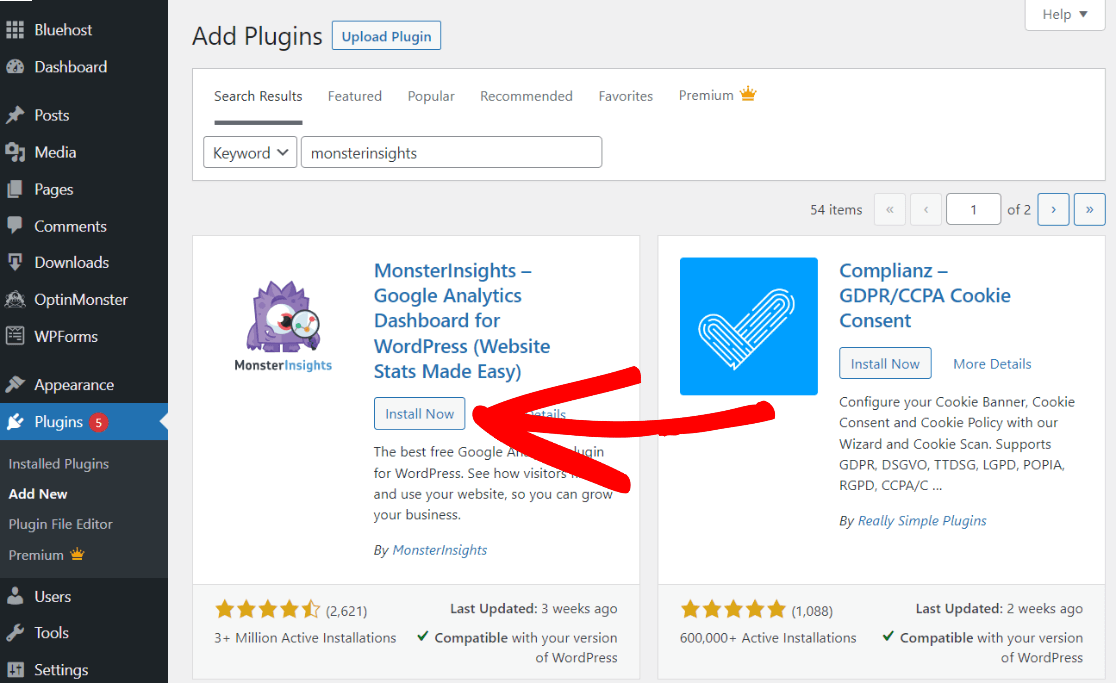
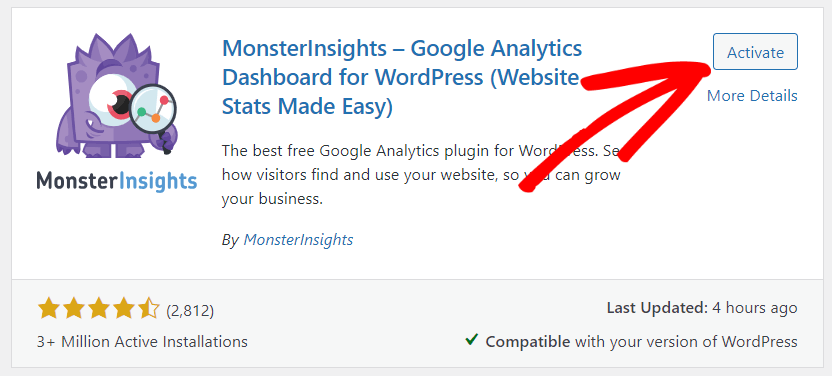
To start for free, go to your WordPress admin area and navigate to Plugins » Add New. Next, search MonsterInsights in the search bar and click Install Now.
Once the plugin installs, click Activate.
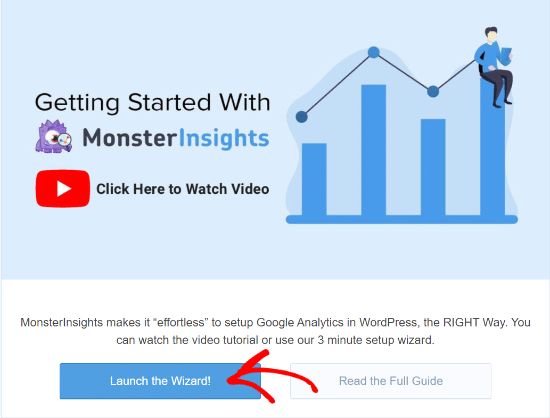
Upon activating the plugin, you will be taken to the MonsterInsights welcome screen. Click on Launch the Wizard! button.
Now select the category that describes your website and then click Save and Continue.

Next, you’ll have to connect MonsterInsights to your website. To do that, click the Connect MonsterInsights button.

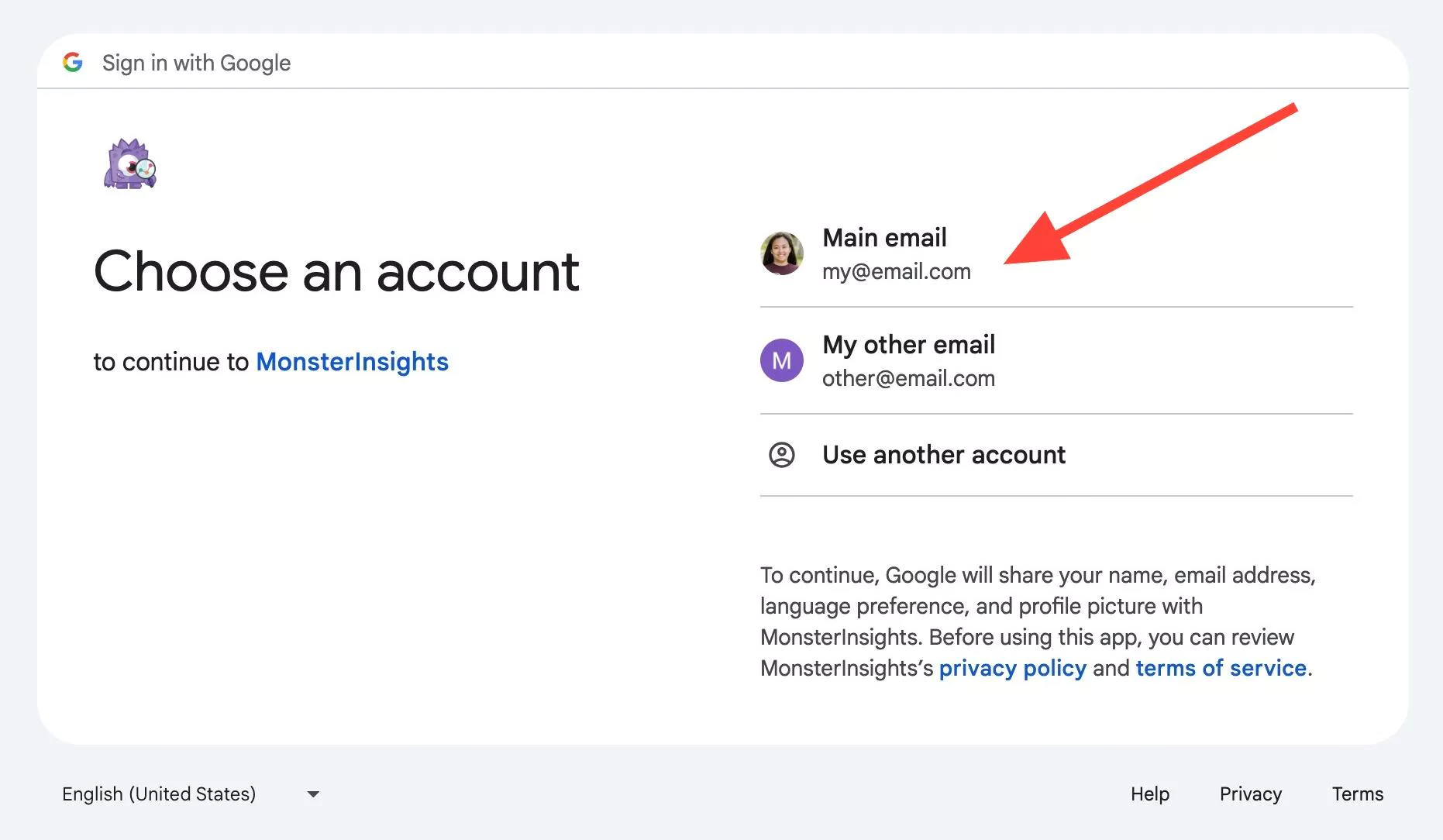
After that, choose your Google account. In the first step, make sure you select the account you used to create your new property.
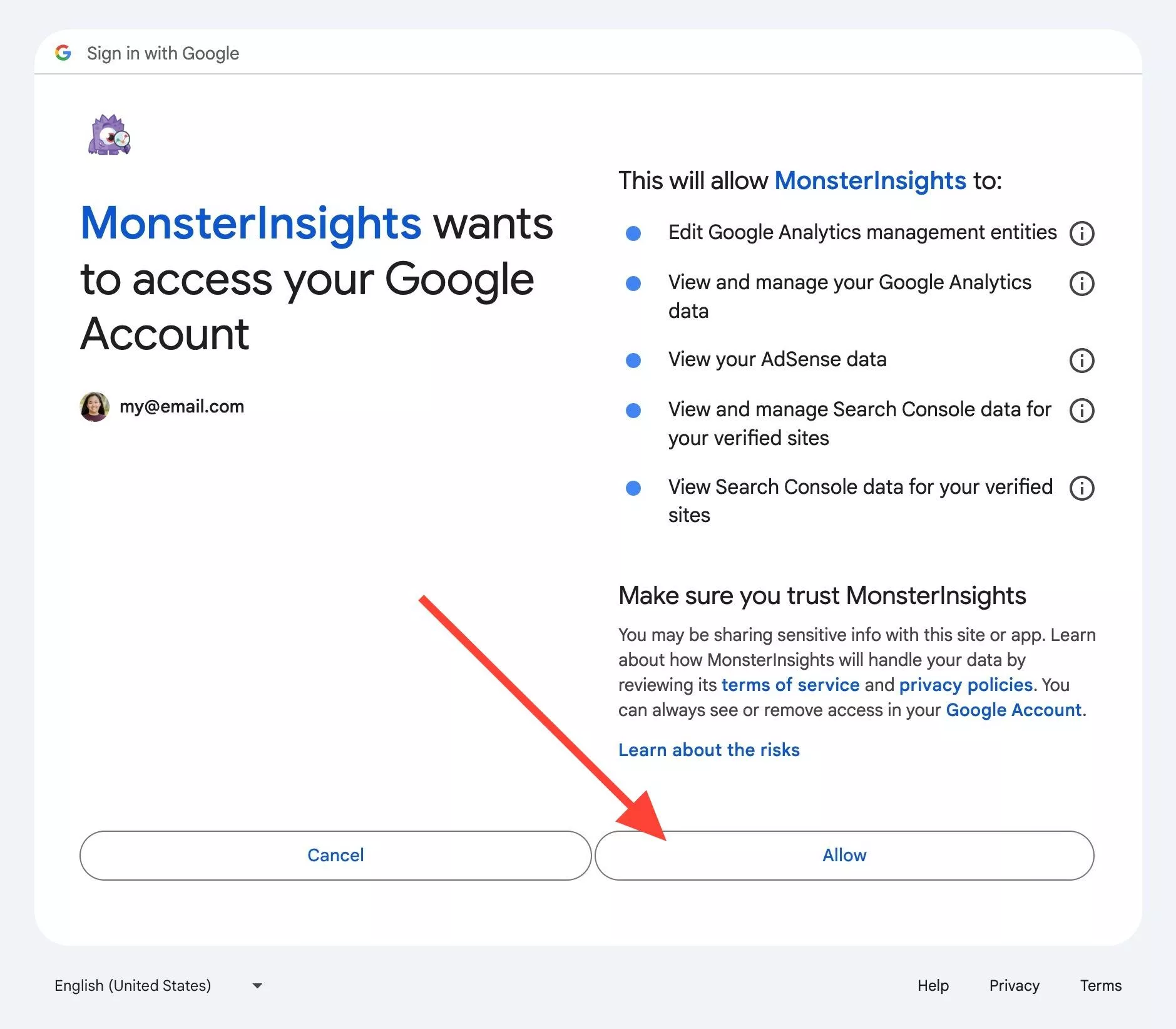
Next, click Allow to give MonsterInsights access to your Google Account.
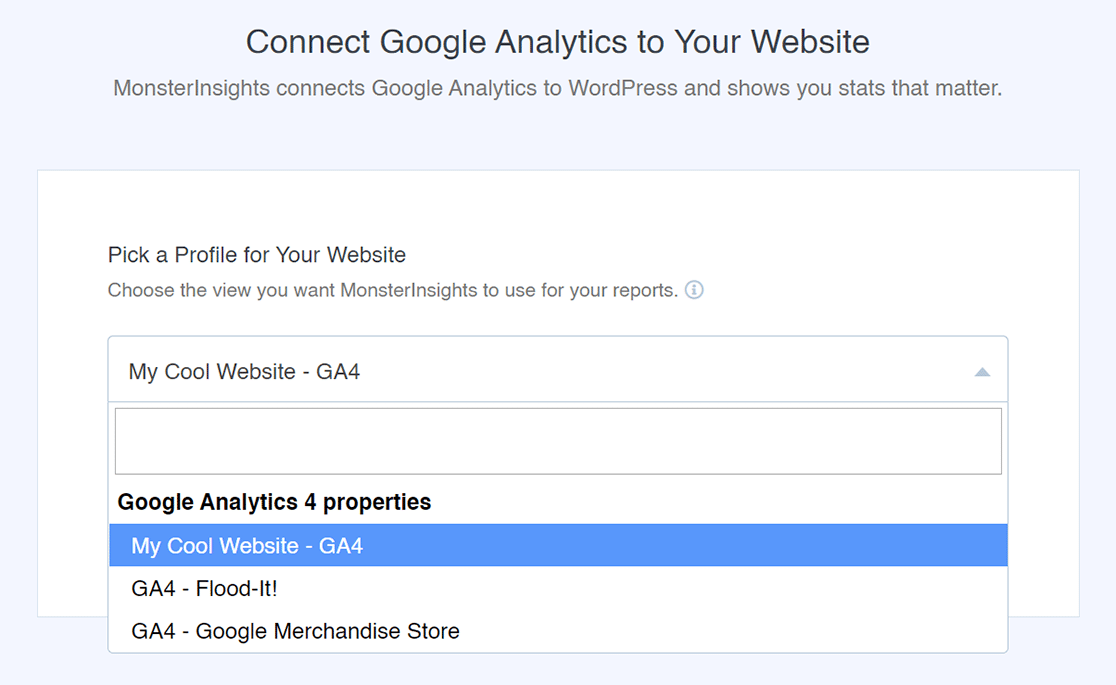
Now select your newly created property and click the Complete Connection button.
MonsterInsights will show you some recommended settings. For instance, you can select the file download tracking extensions, set up affiliate link tracking, and choose which user roles can see the reports.
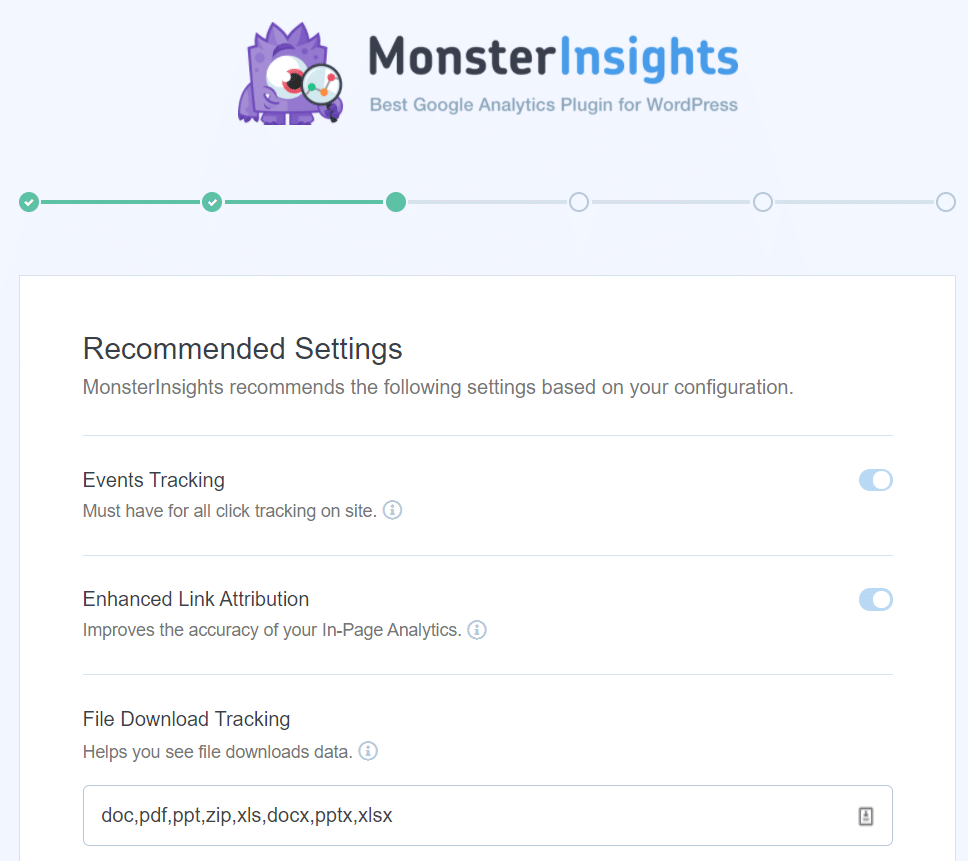
As you scroll down, you’ll see more settings.
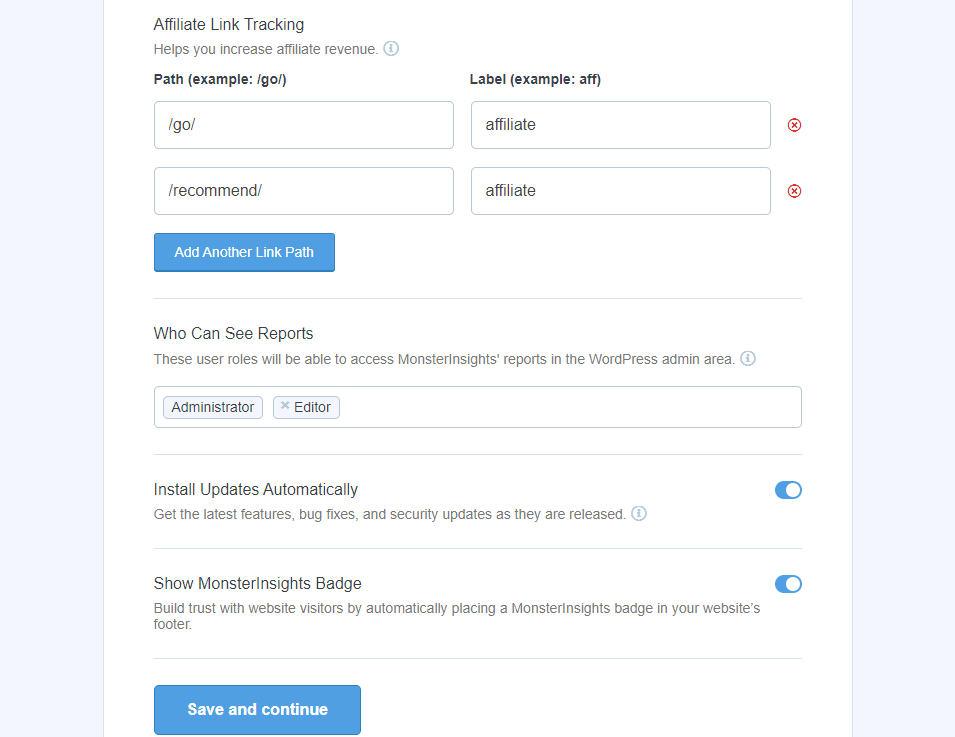
- Affiliate Link Tracking – It adds 2 affiliate link paths by default and lets you add more.
- Access to MonsterInsights Reports – You can choose who can see the MonsterInsights reports.
- Automatic Plugin Updates – You can enable or disable the option to install updates automatically.
- Show MonsterInsights Badge – Choose whether or not you want to show a MonsterInsights badge in your website’s footer. You’ll be able to access a few options for how this looks later.
Review and configure these recommended settings, and then click the ‘Save and Continue’ button at the end.
On the next screen, you’ll see options for even more tracking options, addons, and helpful plugins.
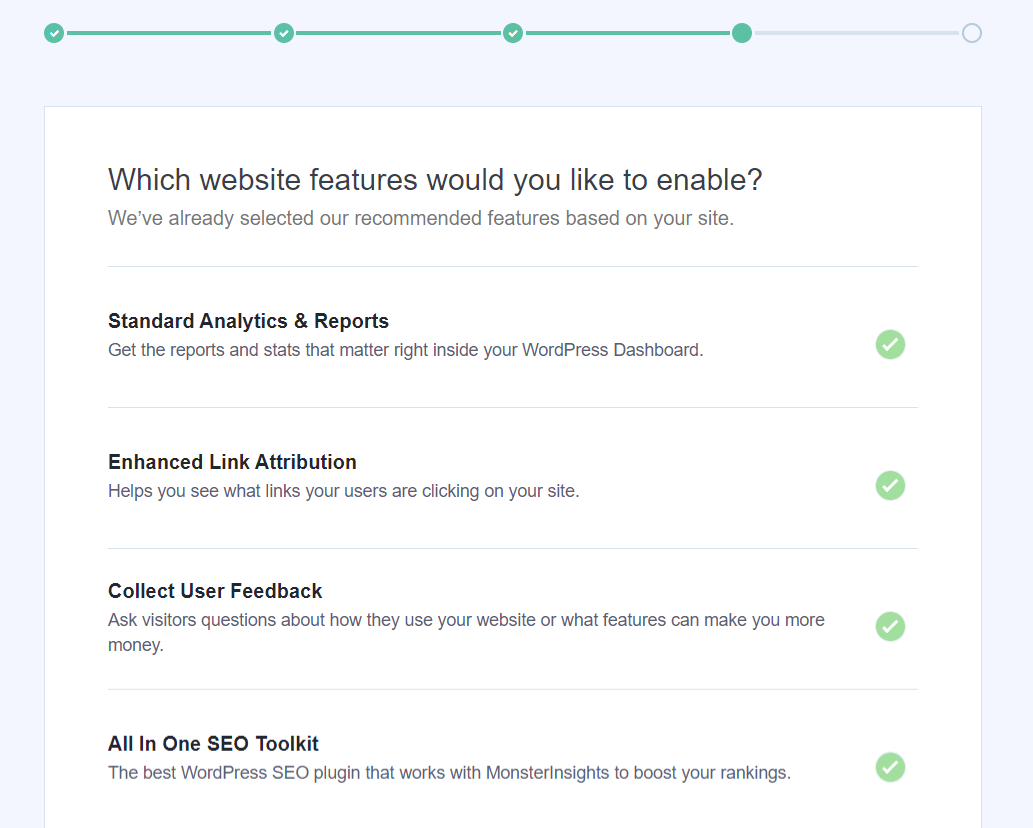
The first ones are:
- Standard Analytics & Reports – The standard MonsterInsights reports you’ll get in your WordPress dashboard.
- Enhanced Link Attribution – This can help you see where users are clicking on your site.
- Collect User Feedback – Ask visitors questions about how they use your website or what features can make you more money with the UserFeedback plugin.
- All in One SEO Toolkit – The best WordPress SEO plugin that integrates with MonsterInsights
When you scroll down, you’ll find even more options:
- Conversion Tools – Get the #1 conversion optimization plugin to convert your growing website traffic into subscribers, leads and sales: OptinMonster.
- Smart Form Builder by WPForms – The most popular WordPress form builder plugin
- Privacy Compliance Addon – Helps Google Analytics become compliant for GDPR, CCPA, and more
- Advanced Reports – Get access to advanced reports inside MonsterInsights, such as search keywords, a real-time report, publishers and eCommerce reports, and more
- eCommerce Tracking – Instantly enable eCommerce tracking
- 20+ Advanced Tracking – Even more advanced tracking, such as author tracking, form conversion tracking, scroll tracking, and more
- Advanced Growth Tools – Get access to our campaign URL builder, popular posts addon, and A/B testing integration.
- Media Tracking – Track how your users interact with videos on your website with the MonsterInsights Media addon.
After that, you’ll see a new screen with this message ‘Awesome, You’re All Set!’. This means that the setup process is complete and that you’ve successfully installed Google Analytics on your WordPress site.
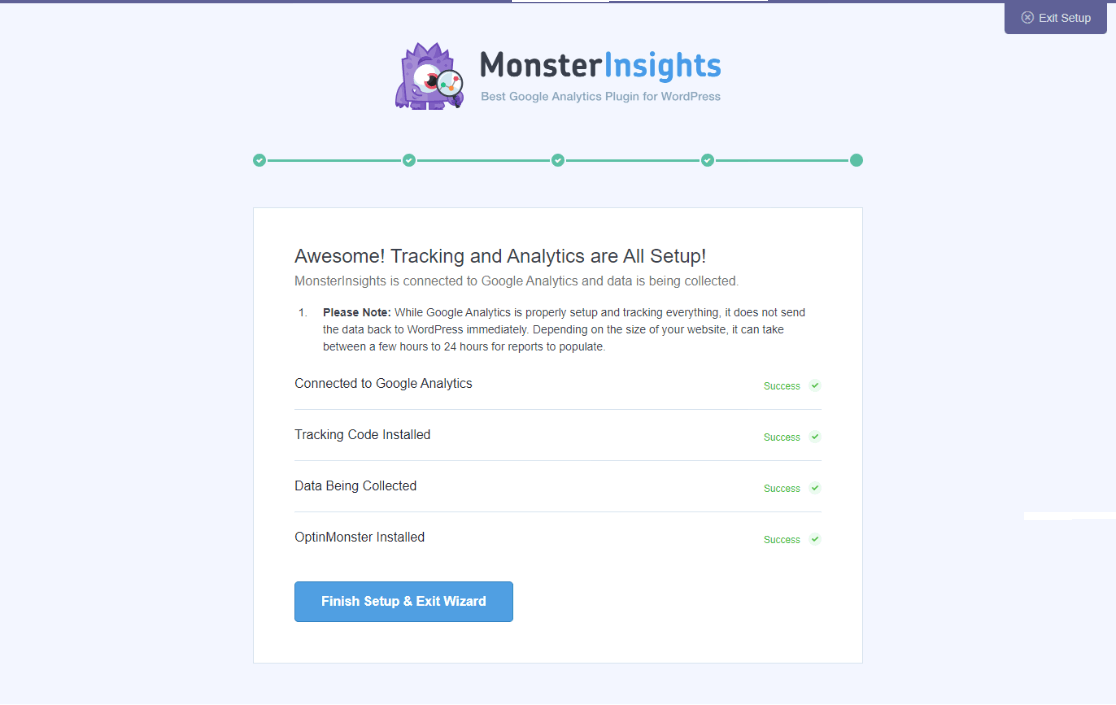
This screen also notifies you about when you can start seeing your website reports. Depending on the size of your website, it can take between a few hours to 24 hours.
Don’t forget to click on the Finish Setup & Exit Wizard button.
That’s it! You’re all set.
It can take a few hours for Google Analytics to start collecting data and show it in the reports.
Besides setting up Google Analytics, MonsterInsights Pro offers lots of other benefits. It automatically sets up advanced tracking right out of the box. For example, it will set up affiliate link tracking, outbound link tracking, file download tracking, and much more.
With its addons, you can track your eCommerce store, make your site GDPR compliant, track form conversions, and so much more.
Take a full tour of the MonsterInsights reports dashboard to learn more.
Recap: How to Create a New Property in Google Analytics
To recap, here’s a quick rundown of the steps you’ll take to create a new property:
- Sign into Google Analytics and choose the account you want to create the new property under.
- Click on the Admin cog, then the Create button. Select Property from the dropdown.
- Enter your business details and choose your business objectives. We recommend selecting Get baseline reports in the business objectives step.
- Click Create.
- Install your tracking code. If you have a WordPress website, try out MonsterInsights for this step.
Get More From Your Google Analytics Data
MonsterInsights Pro automatically sets up advanced tracking — eCommerce, affiliate links, form conversions, and more — without writing a single line of code.
I hope this tutorial helped you add a website to Google Analytics. If you want to keep learning, check out the following beginner-friendly guides:
- How to Log in to Google Analytics (Step by Step)
- Add Google Analytics to WordPress Without a Plugin
- How to Set Up Google Analytics: Step-by-Step Tutorial
Finally, don’t forget to follow us on YouTube for more helpful Google Analytics tips and tutorials.
FAQs About Adding a Website to Google Analytics
How do I add new properties in Google Analytics?
On the Admin page, click the Create button in the upper left of your screen. Then, select Property. Follow the setup wizard to enter your website’s details, including name, reporting time zone, and currency. After creating the property, you’ll need to install the tracking code on your website.
Can you have more than one property in Google Analytics?
Yes. Google Analytics 4 allows up to 2,000 properties per account. This means you can track multiple websites, mobile apps, or both under the same Google Analytics account, making it perfect for agencies or businesses with multiple online properties.
How do you add a website to Google Analytics?
To add a website to Google Analytics, sign in to your account and go to the Admin section. Click Create, then Property, and follow the prompts to enter your website information. After creating the property, you’ll need to add the tracking code to your website. For WordPress users, the easiest method is using the MonsterInsights plugin.
Can I add another website to my Google Analytics account?
Yes! Every Google Analytics account allows up to 2,000 websites (also called properties) per account. To add another website, simply go to the Admin section, click Create, select Property, and follow the same setup process. Each property will have its own tracking ID and separate data collection.
How long does it take for Google Analytics to start collecting data?
After adding a new property and installing the tracking code, Google Analytics typically begins collecting data immediately. However, it may take 24-48 hours for all reports to populate with data. The exact time depends on your website’s traffic volume and the complexity of the tracking setup.