


Are you wondering why some of your page-one rankings drive a flood of clicks while others sit there collecting impressions and almost nothing else?
It’s more expensive than it looks — and more fixable than you’d expect. A 1–2% CTR lift on a page with 10,000 monthly impressions adds hundreds of extra visits per month.
Most of the gap comes down to how your result looks on the page, and those are changes you can make fast.
This guide covers 16 ways to improve your CTR in organic search, starting with how to find which pages need attention first.
In This Article:
16 Ways to Improve Your CTR
These tips range from five-minute snippet tweaks to structural changes that compound over time. Start with the Search Console section to find your highest-leverage pages, then work through the fixes that apply to each one.
Start with Your Search Console Data
Before you change a single title tag, you need to know which pages are worth fixing first.
Not every low-CTR page deserves attention — the ones that matter are the pages already ranking in positions 1–10 with meaningful impressions but a CTR that’s underperforming for that position.
In Google Search Console, you’ll want to open the Performance report and sort by impressions. Then, filter to queries with average position under 10 and look at the CTR column.
A position-3 result averaging 2% CTR when the benchmark is closer to 10–12% is a clear signal that your title or description isn’t pulling its weight.
If your site is built with WordPress, MonsterInsights can pull this data into your dashboard so you never have to leave your site to find it.
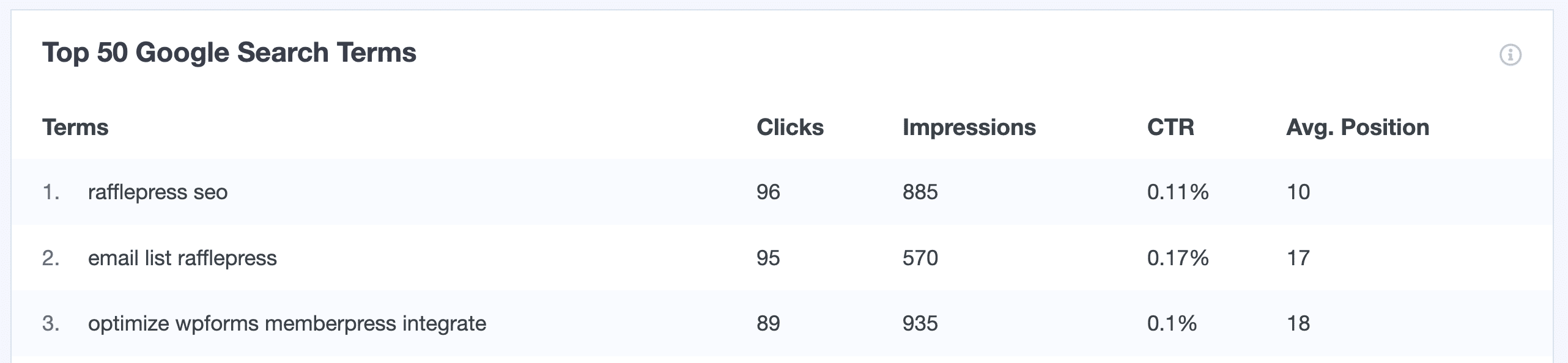
The Search Keywords Report (Insights → Reports → Search Console) shows search terms with impressions, clicks, CTR, and average position — the exact view you need to prioritize which pages to fix.
Once you’ve identified your highest-potential pages, the tips below give you the fastest ways to move the needle — and if you want to go deeper on using Search Console for keyword research beyond CTR, that’s worth reading next.
Title Tag Optimization
Your title tag is the single highest-leverage element for organic CTR. It’s the first thing a searcher reads, and it determines whether they click or scroll past. These five changes are fast to implement and consistently move CTR.
1. Use Power Words in Titles to Spark Emotions
Titles that bring about an emotional response have a higher chance of getting clicks.
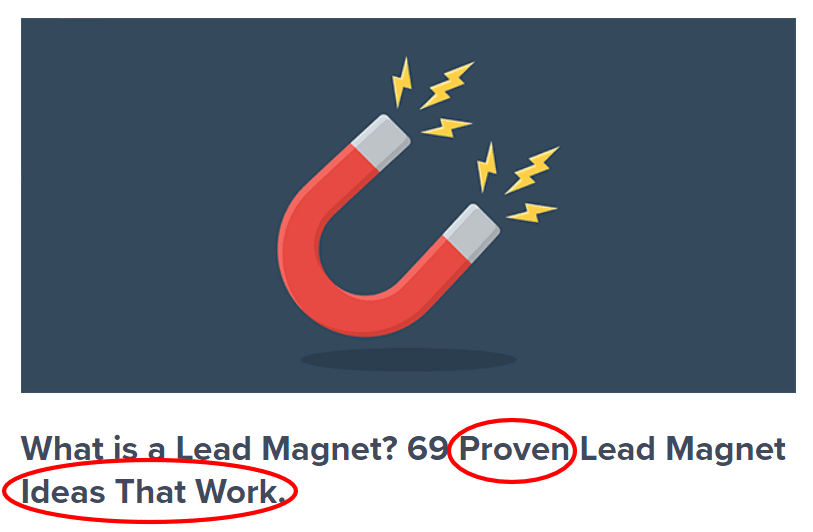
You can use different power words to capture emotions like greed, anger, curiosity, or fear in your titles to boost your CTR.
2. Test Your Headlines Before Publishing
Writing multiple headline options is the right instinct — but the real question is which one will actually earn more clicks. The MonsterInsights Headline Analyzer answers that question while you’re still in the WordPress editor, before the post goes live.
The analyzer scores each title across click potential, emotional impact, and SEO value. It flags specific weaknesses — a headline that’s too long, too neutral in sentiment, or missing a word that raises curiosity.
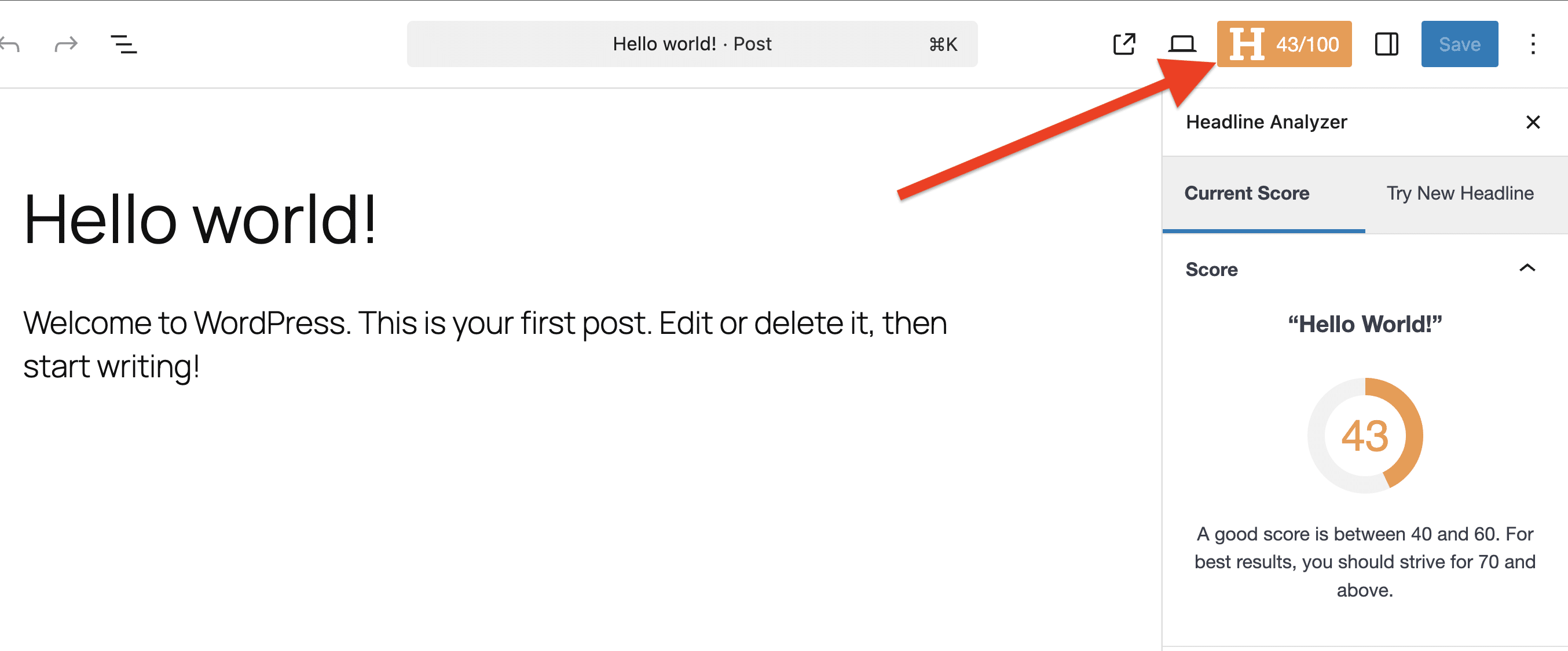
The goal is to iterate until you have a score you can publish with confidence, not just the first title that sounds reasonable.
Both features require MonsterInsights Plus or above. If you want to go deeper on what makes titles click-worthy, our post on headline writing best practices breaks down the full framework.
3. Keep Your Title Under 65 Characters
If your titles exceed the character limit (65 characters), search engines will cut them off at the end. Incomplete titles fail to capture users’ attention and result in low CTR. So, make sure your headlines are within the limit.
4. Put Your Focus Keyword in the Title
By adding your focus keyword, your title becomes relevant to the searcher. Not only does it help in ranking, but you have a better chance of getting more clicks because the keyword appears in bold when it matches what the searcher typed.
5. Add Numbers and Brackets for Clarity
Numbers are great at grabbing attention — they signal a list, a step count, or a percentage, which sets a concrete expectation for the reader. Bracket clarifications work similarly: adding [Guide], [Infographic], or [Step-by-Step] at the end of a title tells the searcher exactly what format to expect. Both consistently lift CTR when measured.
Meta Descriptions and URLs
Your meta description and URL are the other two visible elements in your search listing. Both are quick to fix — and getting them right can lift CTR on pages that are already ranking.
6. Optimize Your Meta Descriptions
Your meta descriptions explain to users why they should click on your link. Just like for your titles, you should use an emotional hook and your keyword in your meta description, and stay within the character limits (about 150–160 characters).
Google doesn’t always display the meta description you write — it sometimes rewrites it using page content. But when it does display yours, a well-written description that addresses the searcher’s intent and ends with a clear value proposition consistently outperforms a generic one.
7. Make URLs Descriptive and Easy to Read
When you have symbols, numbers, and special characters in your URL, it can be a negative experience for searchers and decrease your CTR. That’s why it’s important to make your URLs easy to read, short, and descriptive so people know what’s in store for them and they click on your link.
Here’s what a bad URL looks like:

Instead, try creating one that explains the purpose of the page:
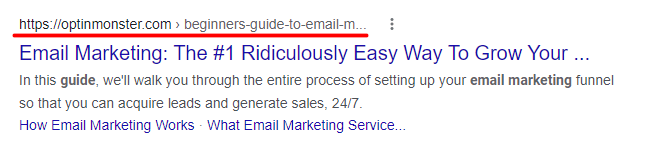
A readable URL is a small trust signal that adds up across every listing you appear in — and it’s one of the few CTR improvements that also helps with link sharing and brand recognition.
Featured Snippets
Featured snippets and answer boxes take up significant real estate on the search results page. When your content appears in one, your result gets more visibility than a standard listing — which translates directly into higher CTR, even when the snippet itself shows some of your content.
8. Add Short Summaries at the Top of Your Post
Adding a summary of 40–50 words to your article or listing items as bullets helps search engines use your content for featured snippets. You can also try inserting a table of contents. The cleaner your structure, the easier it is for Google to extract and display your answer.
9. Use Question Headings to Capture Answer Boxes
Another way of capturing featured snippets is to use the main keyword or question as a heading and then provide a direct, concise answer immediately below it.
The most effective question headings mirror search queries closely. If someone types “how do featured snippets work” into Google, that phrase as a heading — followed by a 40–60 word answer — gives Google exactly what it needs to pull your content into the snippet box.
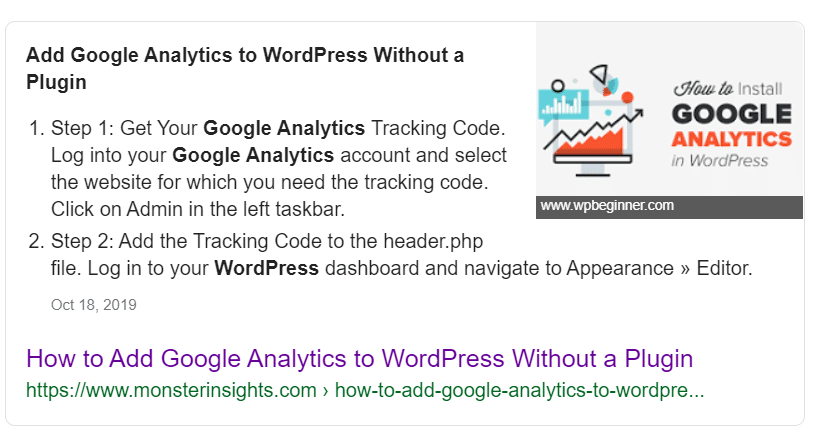
The more directly your heading mirrors the language of the search query, the better your chances of landing the snippet.
10. Target People Also Ask Questions
Google displays a list of questions under the People Also Ask section for different search terms. If your content can answer these questions, you can improve the CTR of your site.
To capture these boxes, write short 40–50 word answers and include the questions as headings.
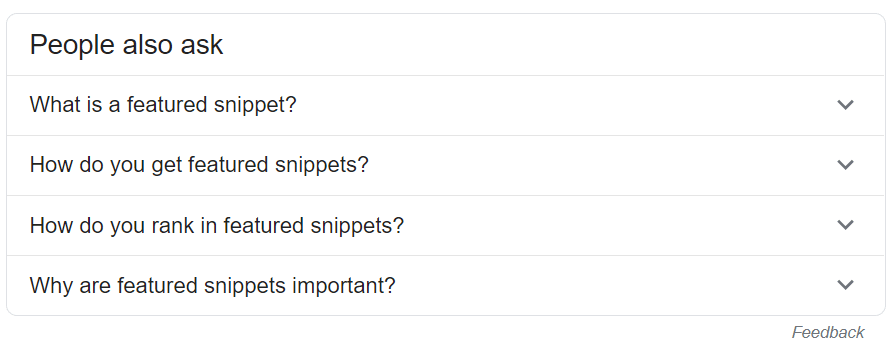
People Also Ask boxes often surface for queries where the main featured snippet is already dominated by a strong competitor — they’re a side door into the top of the results page.
11. Identify Snippet Opportunities with SEO Tools
Using SEO tools like Ahrefs (or just by running searches in a private window), you can enter the keywords you identified in your Search Console data.
Then see which keywords already have a featured snippet and what type it is — paragraph, list, or table. Match your content’s format to what’s already being pulled into snippets for that query.
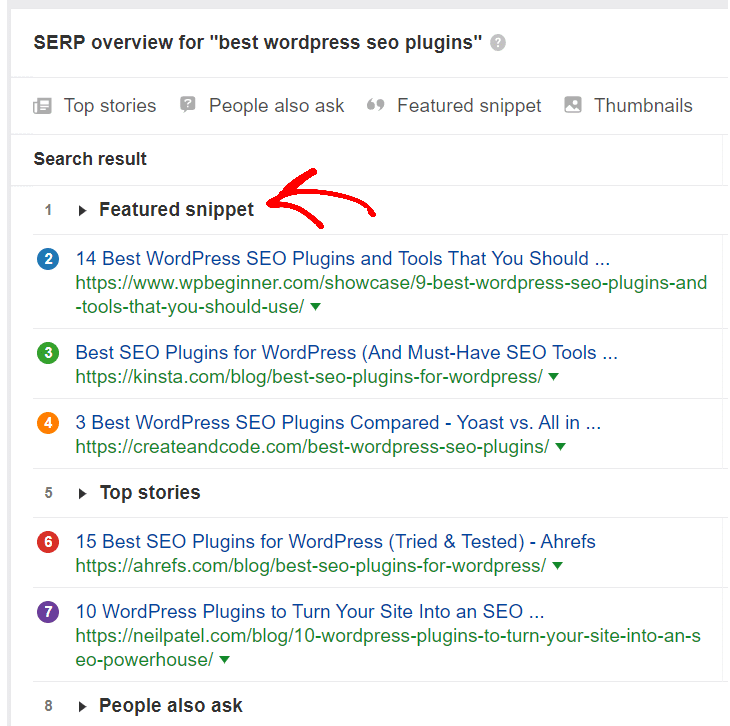
Once you know which queries show snippets and what format they use, optimizing for them becomes targeted — not guesswork.
Schema Markup
Schema markup (structured data) tells search engines what type of content your page contains.
When Google parses your schema correctly, it can show rich results — star ratings, FAQ dropdowns, recipe info, event dates — directly in the search listing.

Those visual enhancements make your result stand out and consistently increase CTR.
12. Include a Table of Contents for Sitelinks
By adding a table of contents in your posts, you’re helping Google’s algorithm understand the different sections of your page — and possibly display them as sitelinks. While sitelinks can appear without a TOC, having one does seem to increase your chances of seeing those extra blue links below your main result.
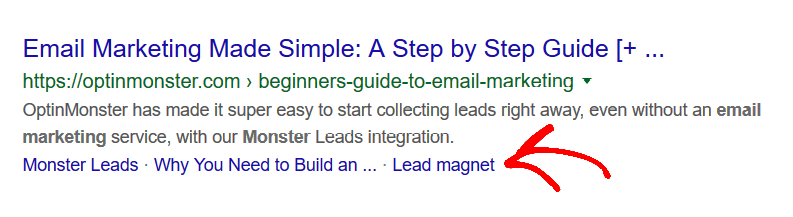
If you haven’t added one yet, see our guide on creating a table of contents in WordPress — it covers both plugin and manual approaches.
13. Add FAQ Schema to Your Posts
Another way to gain more space in search results is to add FAQ schema to your post. If you’re ranking on the first page of results and you have FAQ schema set up, it’s possible for your result to display those questions and answers directly in the search listing:
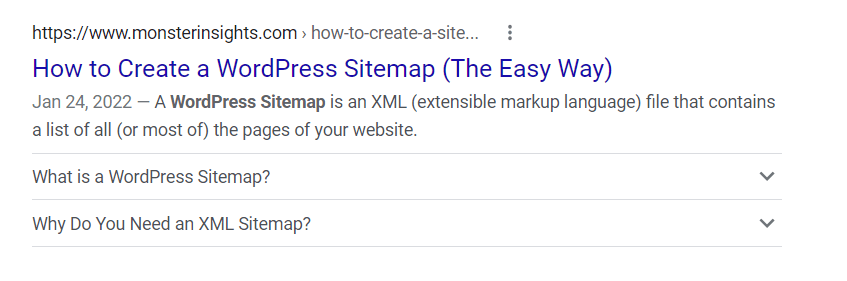
Important caveat: In 2023, Google significantly restricted how FAQ rich results appear in search. FAQ schema now shows for authoritative government and health sites by default, and for other sites only on a limited basis. It’s still worth implementing — but don’t expect the broad visibility that was common before 2023.
When you’re ready to set it up, see our guide on adding FAQ schema in WordPress.
14. Use Other Schema Types for Your Content
Depending on what type of website you have, there are other schema types that might be useful to improve your CTR. Schema can be used for products, courses, how-to tutorials, job postings, events, and more.
If you’re not sure which schema types apply to your content, see our guide on schema markup in WordPress.
AI Overviews and Organic CTR
Google’s AI Overviews have changed the math for informational queries. For broad, definitional searches — “what is CTR,” “how does bounce rate work” — AI Overviews now appear above organic results and frequently answer the question without requiring a click. Studies tracking CTR before and after AI Overview rollout have shown measurable drops for these query types, particularly for position 1–3 results.
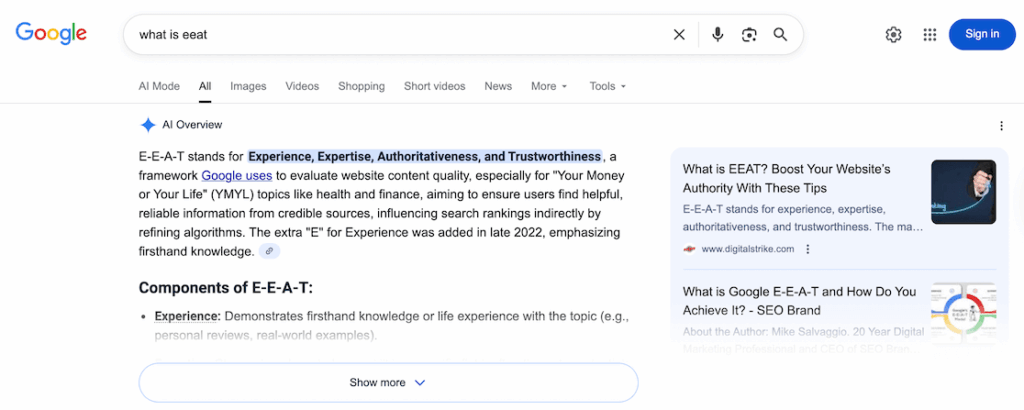
The queries that still generate strong organic CTR are the ones where the searcher needs more than a summary: comparison queries, step-by-step how-to content with real specificity, and queries with commercial or transactional intent. These searches signal that the user wants to take action — and AI Overviews are less likely to fully satisfy them with a summary.
To frame your content for visibility alongside AI Overviews, prioritize direct answers in the opening paragraphs of each section. Google’s AI Overview system frequently pulls from content that answers the question clearly within the first 1–2 sentences of a heading.
Being cited as a source in an AI Overview — even when the user doesn’t click through — builds brand recognition that shows up as lift in CTR for subsequent branded searches.
Worth Knowing
AI Overviews reduce CTR most for broad informational queries. Content with real specificity — step-by-step processes, comparisons, and data-backed answers — continues to generate strong organic clicks because AI Overviews can’t fully satisfy the user’s need with a summary.
Technical Quick Wins
Two technical factors directly affect whether a click sticks: mobile performance and page speed. Both are quick to audit and worth addressing if you haven’t already.
15. Optimize Your Site for Mobile Search
Mobile devices now account for the majority of organic search traffic.
According to StatCounter data through early 2025, mobile accounts for approximately 63% of all web traffic globally. If your site doesn’t function properly on mobile — slow load times, unreadable text, broken layouts — visitors bounce before your click even registers as a session.
Google’s mobile-first indexing means a poor mobile experience doesn’t just hurt UX — it affects your rankings too. Run your site through PageSpeed Insights and address any mobile-specific Core Web Vitals issues.
16. Improve Page Speed to Keep Clicks Counting
No one likes a slow-loading website. If your page doesn’t load before a visitor goes back to the search results, the click doesn’t count — and Google may stop crediting it to your site in Search Console.
Plus, Google factors site speed into rankings. By improving your Core Web Vitals, you improve both user experience and search visibility — a compound win for CTR.
If your WordPress site is sluggish, our list of the best speed plugins for WordPress is a practical place to start.
See Which Keywords Are Losing Clicks — Right Inside WordPress
MonsterInsights connects your Google Search Console data to your WordPress dashboard. See impressions, clicks, CTR, and average position for every keyword — without leaving your site. Available on Plus and above.
Get MonsterInsightsFAQs: How to Improve CTR for Your Website
What is a good CTR for organic search?
A “good” CTR depends heavily on your ranking position. Position 1 typically sees CTR in the 10–15% range for informational queries, while position 5 might average 3–5%. Positions 8–10 often see CTR below 2%. The more useful benchmark is whether your page’s CTR is above or below average for its position — Search Console shows this directly. Note that AI Overviews have lowered average CTR for informational queries at positions 1–3 in recent months.
Why is my CTR dropping even though my rankings haven’t changed?
Several things can cause this. Google may have introduced an AI Overview or featured snippet for your target query, pushing organic results further down the page. A competitor may have added schema markup that makes their result more visually prominent. Seasonality and changing search behavior also affect CTR. Check Search Console for any correlation between the CTR drop and query-level changes — it usually points to one of these causes.
Does meta description affect CTR?
Yes, but with an important caveat: Google doesn’t always display the meta description you write. Google rewrites or ignores your description in roughly 60–70% of cases, pulling text from the page instead. When it does use yours, a well-written description that addresses the searcher’s intent and includes the target keyword can meaningfully improve CTR. Writing a strong meta description is still worth doing — you’re optimizing for the cases where it does appear.
How do I check my CTR in Google Search Console?
In Google Search Console, go to Search Results under Performance. Make sure the CTR and Impressions checkboxes are enabled at the top. You can view CTR by query or by page — the Pages tab shows which URLs are underperforming relative to their impression volume. Sort by impressions, then scan the CTR column to find your biggest opportunities. If you use WordPress, the MonsterInsights Search Keywords Report surfaces this same data inside your dashboard at Insights → Reports → Search Console.
Does page speed affect CTR?
Page speed affects CTR indirectly, but the mechanism is real. A slow page means visitors who click through bounce before engaging, which signals to Google that your result wasn’t satisfying — and over time, that can hurt rankings and CTR. More directly, Core Web Vitals are a confirmed Google ranking factor, so a slow site risks losing positions that carry better CTR. Improving site speed is a legitimate CTR strategy, not just a UX improvement.
I hope this guide helped you find the fastest ways to improve your organic CTR. If you found it useful, check out these beginner-friendly guides:
- How to Increase Organic Traffic in 2026
- How to Increase SEO Rankings Quickly
- How to Use Google Search Console for Keyword Research
- Powerful SEO Statistics for 2026 to Boost Your Rankings
- What Are Core Web Vitals & How to Improve Them for Better Rankings
- Search Console Insights: Powerful Reports to Boost Your SEO
Follow us on Twitter, Facebook, and YouTube for more Google Analytics tips.