Meet your personal analytics assistant, AI Charlie, built right into MonsterInsights.
Ask questions about your site’s traffic, top pages, traffic sources, and performance in plain English and AI Charlie will share clear, easy-to-understand answers based on your connected Google Analytics data.
Follow this guide to learn more about AI Charlie:
Before getting started…
- You have installed the MonsterInsights plugin.
- You are connected to your Google Analytics account.
Finding AI Charlie
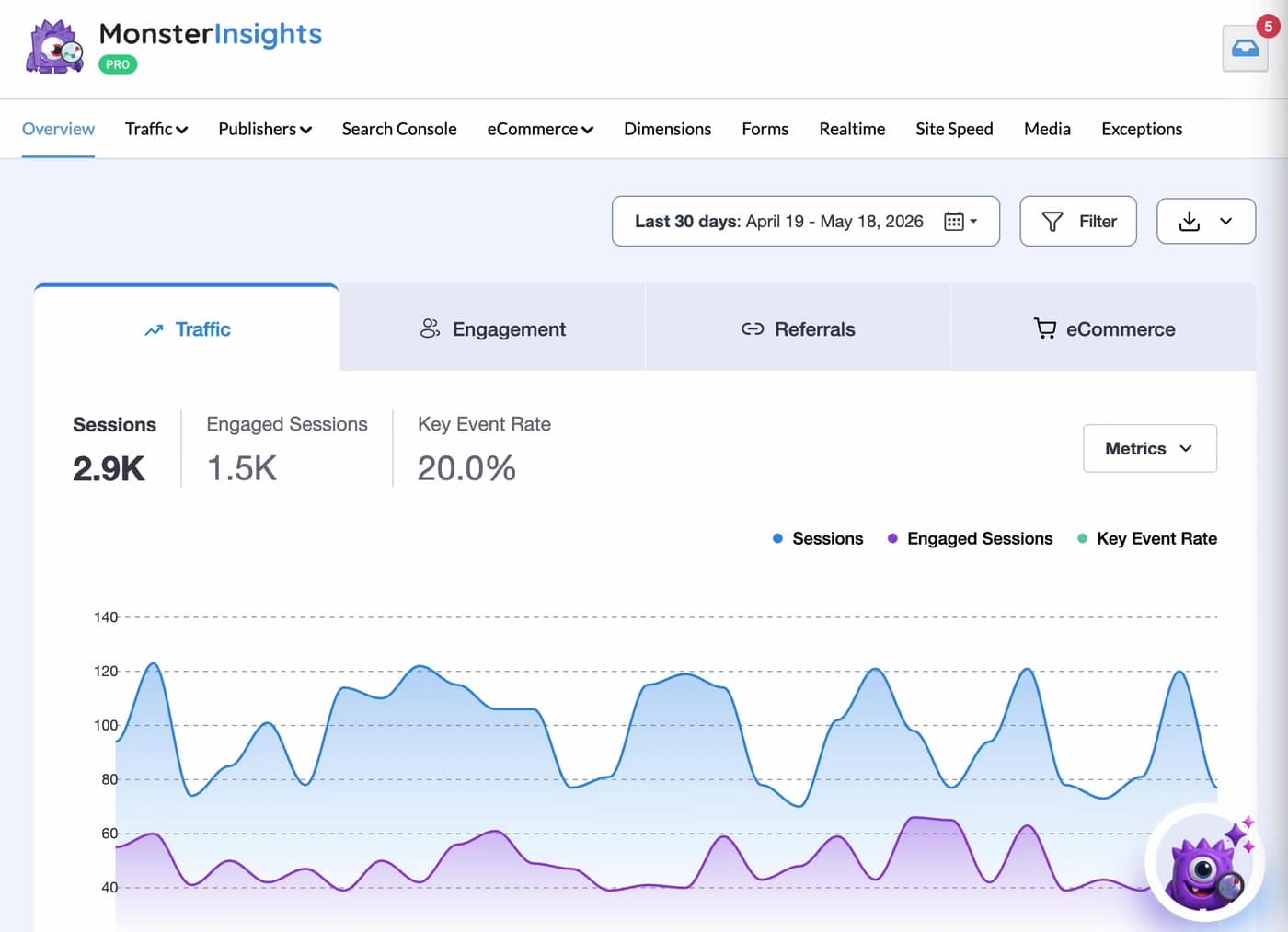
AI Charlie lives in the bottom-right corner of when viewing MonsterInsights Reports. Look for the purple mascot icon. Click it to open the chat panel.
Note
AI Charlie appears on report pages only. It won’t show up on Insights » Settings or other parts of your WordPress admin.
Starting a Conversation
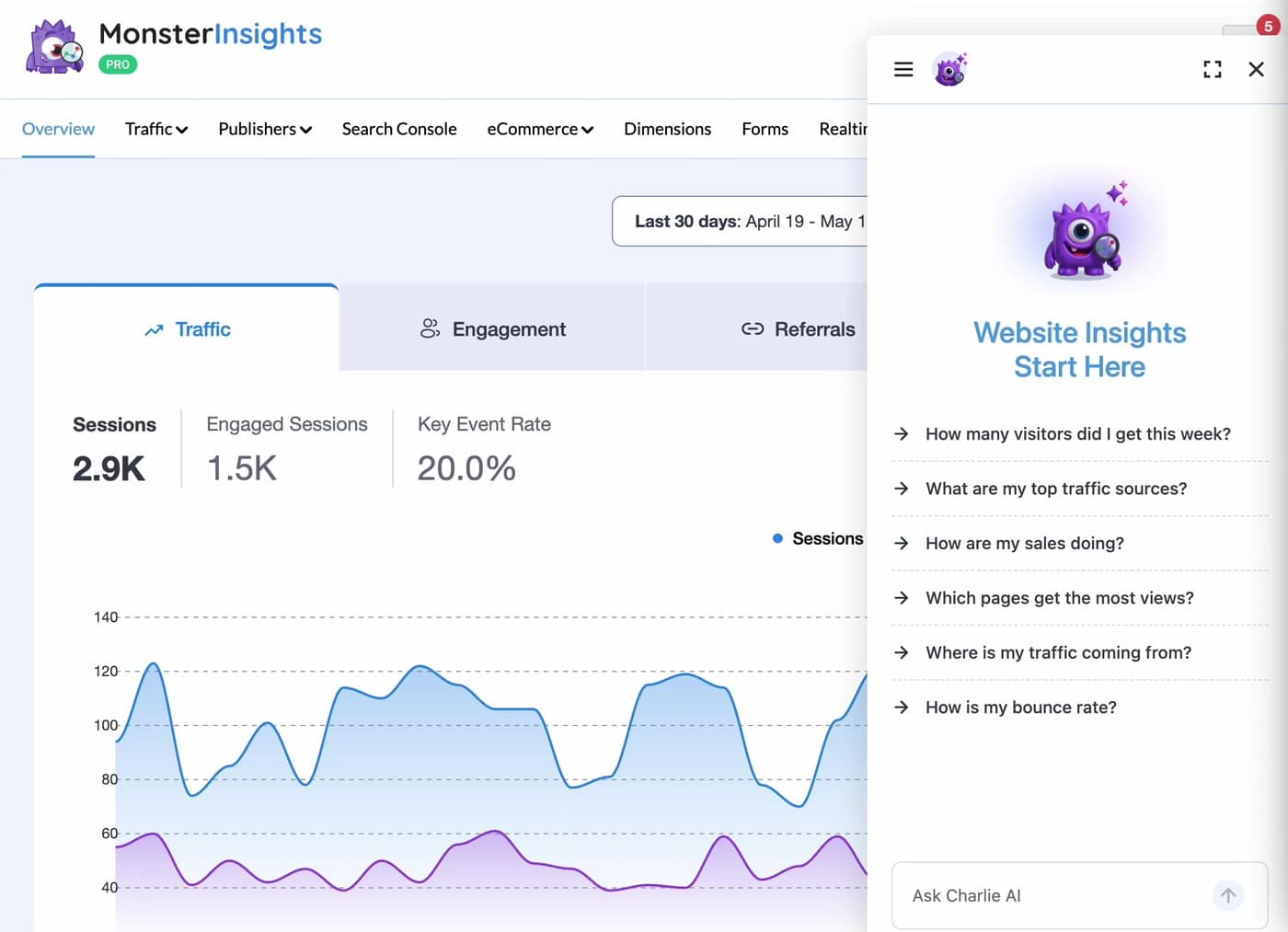
When you open AI Charlie for the first time, you’ll see a welcome screen titled Website Insights Start Here with six suggested prompts to help you get going.
Click any suggested prompt to send it immediately, or type your own question in the Ask Charlie AI field at the bottom and press Enter.
Pro Tip
Not sure what to ask? Try one of the suggested prompts first. Each response includes Quick Key Insights, clickable follow-up questions that help you dig deeper into the same topic.
What You Can Ask AI Charlie
AI Charlie can help you understand a wide range of analytics topics. Here are some examples you can try:
- Traffic: “How’s my traffic this month?” or “How many visitors did I get this week?”
- Top pages: “What are my best landing pages?” or “Which pages get the most views?”
- Traffic sources: “Where are my visitors coming from?” or “What are my top referrers?”
- Comparisons: “How does this month compare to last month?” or “Is traffic up or down?”
- Devices and geography: “What devices are people using?” or “What countries are visitors from?”
- Bounce rate, conversions, and other metrics: “What is my bounce rate?” or “What’s my conversion rate?”
If you have the eCommerce, Forms, or Media addons active, you can also ask about those areas:
- “What are my top products?”
- “How are my form conversions?”
- “How is my video performance?”
Tips for Better Answers
For more control over the answers AI Charlie gives you, try the following:
- Specify a timeframe. Add phrases like “in the last week”, “this month”, “yesterday”, or a specific date range to scope the answer to a window you care about.
- Name a specific metric for a quick answer. Asking “what’s my bounce rate?” or “how many sessions?” gives you a focused, concise reply. Asking a broader question like “how’s my traffic?” gives you a fuller breakdown with tables, observations, and recommendations.
- Mention the area you’re interested in. Phrases like “traffic sources”, “landing pages”, “device”, “country”, or “conversions” help AI Charlie target the right part of your data.
What to Expect From a Response
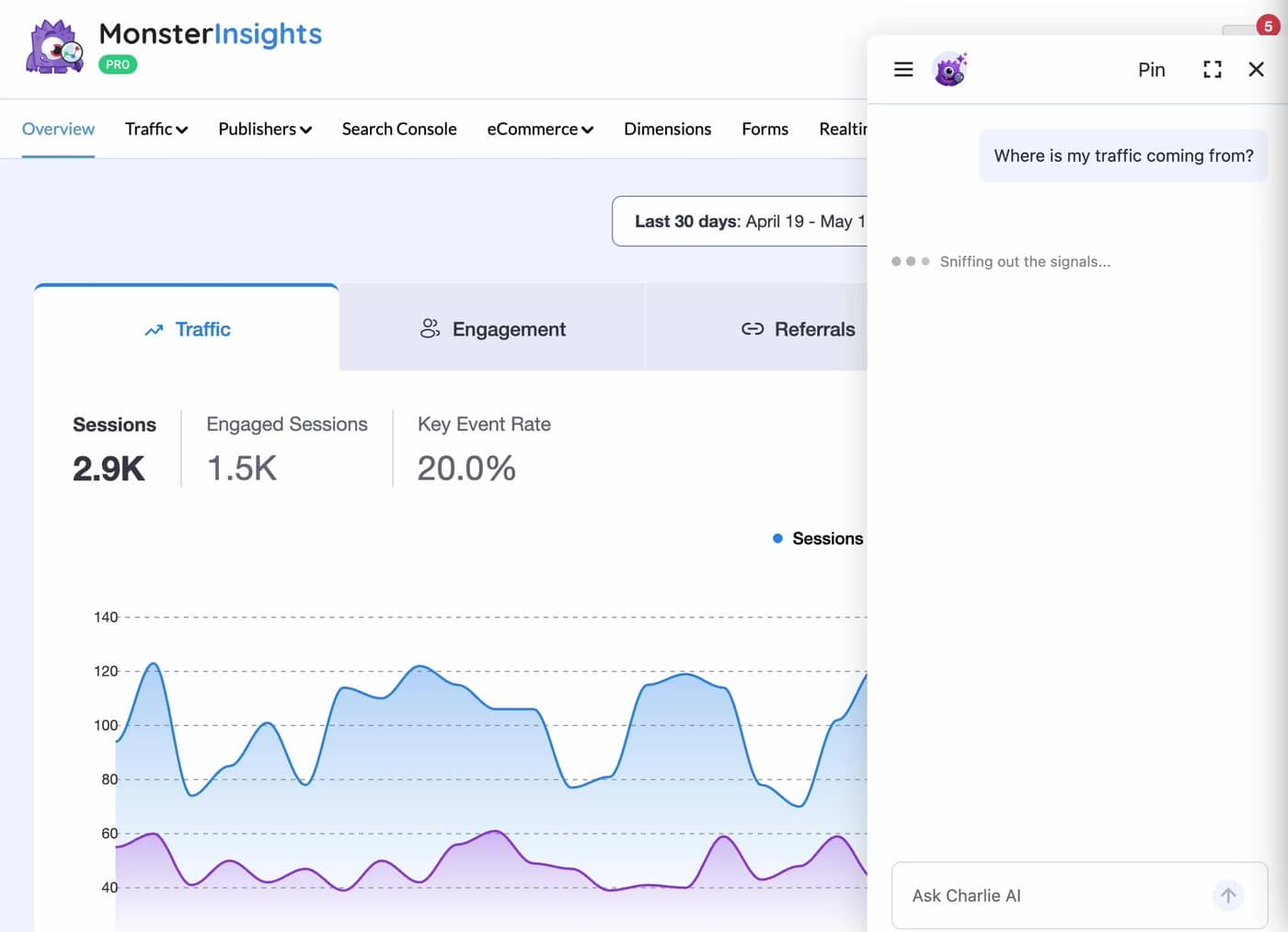
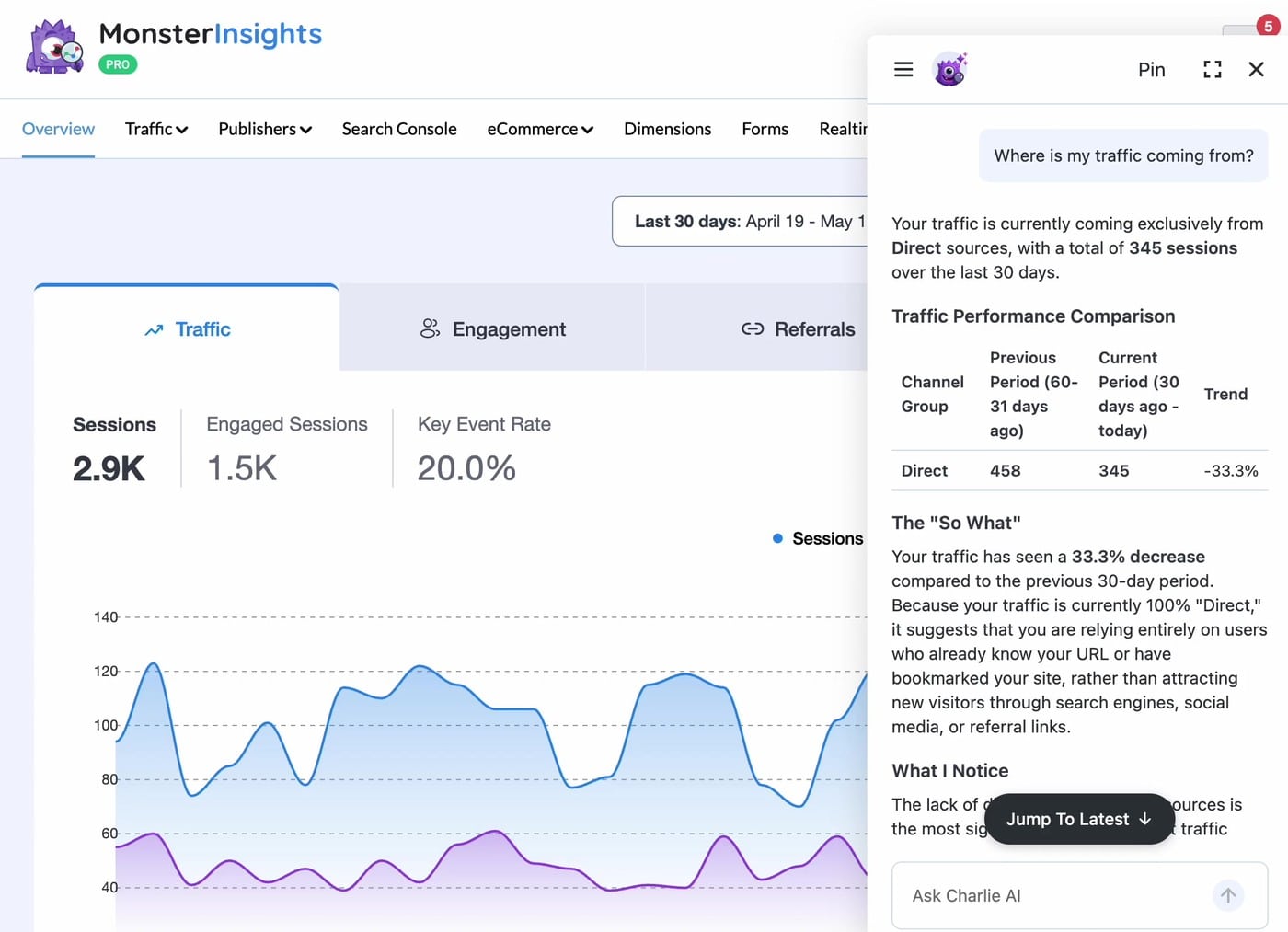
AI Charlie typically replies in a few seconds for simple questions. Richer questions, such as month-over-month comparisons or full traffic breakdowns, can take up to about 15 seconds. While AI Charlie is working, you’ll see a rotating message like Sniffing out the signals… or Cross-checking the metrics… that means your answer is on its way.
Responses come back as a mix of plain-language explanation, structured tables of your data, and for applicable questions you’ll receive extended observations and recommendations. Most responses also include Quick Key Insights: clickable follow-up prompts (Analyze, Review, Explore, or Compare) that take you a step further.
AI Charlie Usage Credits
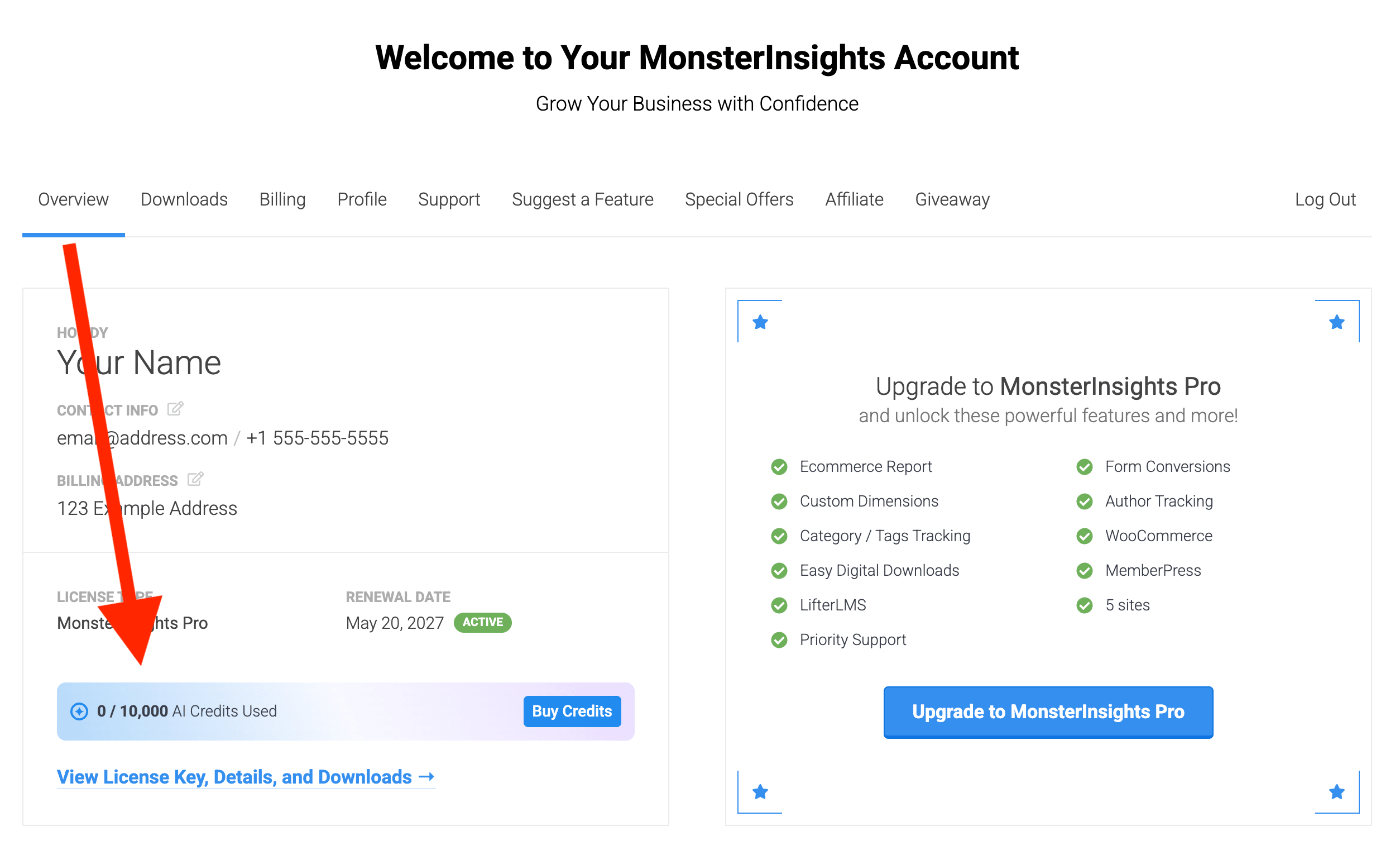
AI Charlie usage is tracked in credits. Each MonsterInsights license tier includes a different credit allowance:
- Lite: 500 credits
- Plus: 5,000 credits
- Pro: 10,000 credits
Your AI Charlie credit allowance resets at the start of each calendar month.
Once you’ve reached your credit limit, AI Charlie will pause new responses until additional credits are available. To get more credits, you have two options: purchase additional credits directly, or upgrade to a higher plan.
You can check your current AI Charlie credit usage on your MonsterInsights account page. Log in at monsterinsights.com/my-account, and on the Overview tab, look for the AI Credits Used indicator in your customer info card. To purchase more credits, click the Buy Credits button next to it.
The Chat Header
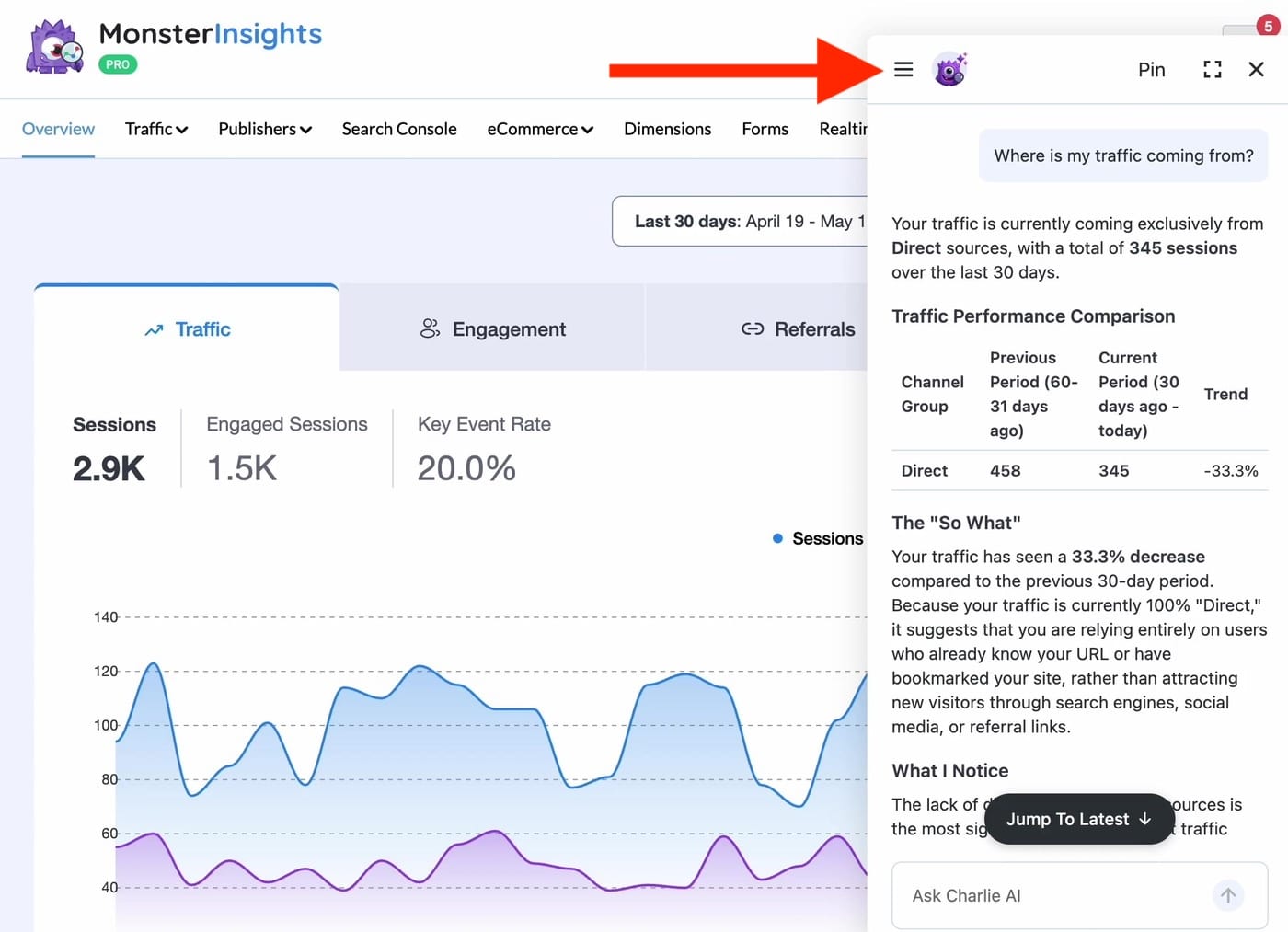
AI Charlie’s header has four controls:
`
- Menu (☰): Open the menu to access New Chat, Pinned Conversations, and History.
- Pin / Unpin: Bookmark the current conversation so you can find it later under Pinned Conversations. This option appears after AI Charlie has answered your first question.
- Fullscreen: Expand the chat panel for easier reading. Click again to return to the standard size.
- Close (X): Close the chat panel. Your conversation is saved.
Your Conversations Are Saved
AI Charlie keeps your conversation as you move between MonsterInsights report pages. You can close and reopen the chat, switch between reports, or even reload the page, and your conversation will still be there when you return.
To start fresh, click the menu icon and select New Chat. Your previous conversation isn’t lost. It moves to History, where you can reopen it anytime.
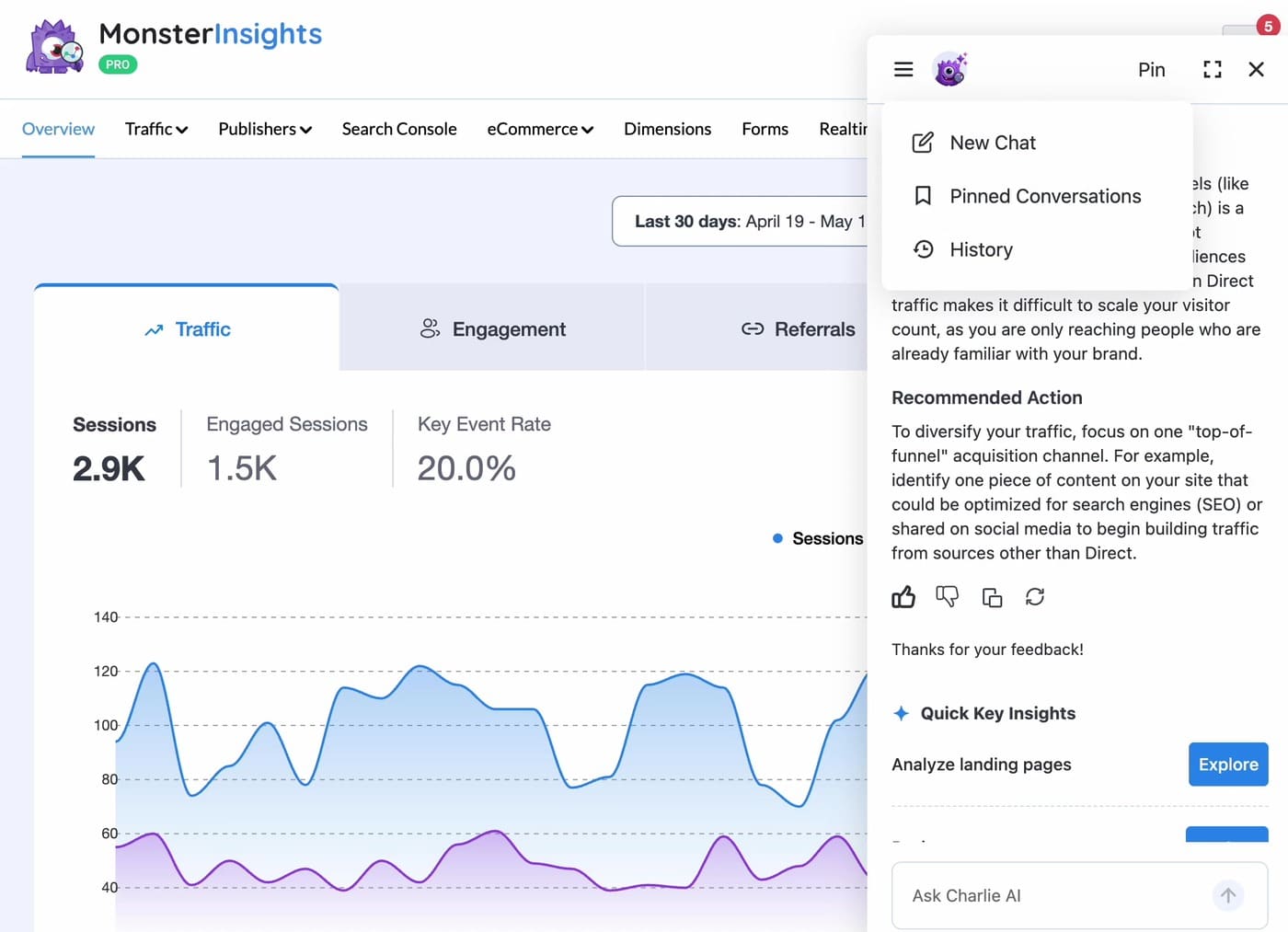
Open the menu and click History to see all your past conversations, listed by the first question you asked. Click any conversation to reopen it.
Click the three-dot icon next to any conversation to:
- Pin it (so it also appears under Pinned Conversations).
- Delete it from your history.
Sharing Feedback
Below every AI Charlie response, you’ll see four small icons:
- Thumbs up: Mark this response as helpful.
- Thumbs down: Mark this response as not helpful. You can optionally share a note about what went wrong.
- Copy: Copy the response text to your clipboard.
- Regenerate: Ask AI Charlie to try the question again.
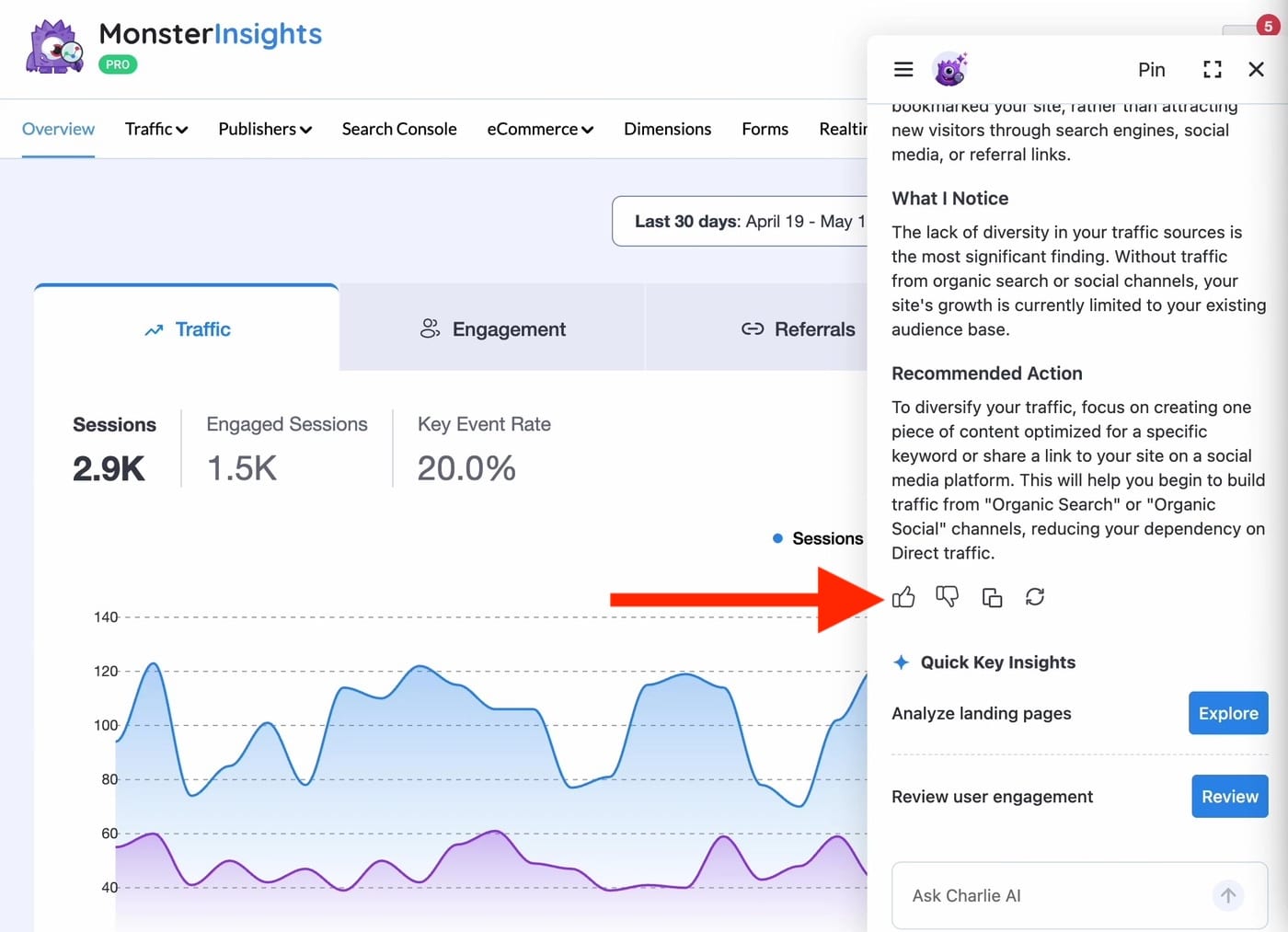
Your feedback helps us fine-tune AI Charlie and improve the answers it gives. Thank you for sharing!
What AI Charlie Can’t Help With
AI Charlie is focused on your Google Analytics data. For other topics, it will let you know it’s not the right tool.
- Installing or setting up MonsterInsights: See our getting started documentation or contact support.
- Anything outside your analytics data: AI Charlie will politely let you know it’s an analytics assistant and suggest something it can help with.
Troubleshooting
If AI Charlie isn’t responding or says it doesn’t have data to share, the most common cause is a Google Analytics connection issue. To check:
- Go to Insights » Settings » General.
- Confirm your Google Analytics property is showing as connected. If not, click Connect MonsterInsights to reconnect.
- If you have a paid MonsterInsights license, confirm it is showing as Active on the same page. Click Verify Key if needed.
- Refresh the page and try AI Charlie again.
If you’ve confirmed your connection and AI Charlie still isn’t working as expected, please reach out to our support team. We’re more than happy to help.
That’s it! You’ve learned how to use AI Charlie to chat with your analytics.
What’s next? Take your insights further with our complete guide to MonsterInsights reports.