


QR code tracking with Google Analytics lets you get a whole bunch of really helpful data about who’s scanning your codes and what they do afterward. Whether you’re putting QR codes on restaurant menus, event flyers, product packaging, or anywhere else, tracking helps you figure out if you’re getting the results you’re hoping for.
In this guide, I’ll show you a simple way to set up QR code tracking: using UTM parameters and Google Analytics. No complicated coding required!
You’ll learn how to create trackable QR codes, set up proper tracking, and see clear reports that show what’s working and what’s not.
In This Article:
The Benefits of Tracking QR Codes
Tracking QR codes gives you a clear picture of which campaigns are working and which aren’t. Here’s what you gain:
- Know your audience: Find out who’s scanning your QR codes. This shows you who really cares about what you’re offering.
- Measure success: See how many people visit your site from a QR code. Plus, you can see what those visitors do after they land on your page.
- Improve your campaigns: Learn what works best and tweak your strategy. Maybe one QR code on a poster in the park gets more scans than another in a busy street. Use this info to evaluate your efforts.
- Save money: By knowing what works, you can spend less on things that don’t work and more on what does.
- Quick feedback: Get fast insights and user feedback into your marketing efforts — no need to wait for long reports or analyses.
In my experience, the biggest advantage is being able to compare placements against each other. Once you can see that your storefront QR code converts at 3× the rate of your flyer QR code, you know exactly where to put your next campaign. You can make smarter decisions and boost your traffic without guessing.
What’s the best way to track QR codes?
I’ve found that adding UTM tags to your URLs is the best way to track QR codes. UTM tags are special tracking codes that attach to your link, letting Google Analytics track visits from super-specific sources.
This setup gives you accurate tracking for how each QR code brings traffic to your website. For example, you can create different UTM codes for QR codes in different places to see which ones work better.
If your website uses WordPress, I highly recommend MonsterInsights. It lets you create URLs with UTM codes right in your WordPress dashboard and provides a campaigns report (to see your QR code traffic) right inside your WordPress dashboard.
For non-WordPress sites, Google’s URL builder tool works well for making these custom links. Either way, using UTM tags gives Google Analytics the info it needs to report on your QR code campaigns.
For more details on UTM parameters, read our Beginners’ Guide to UTM Parameters.
How to Track QR Codes With Google Analytics
To start tracking your QR codes with Google Analytics, you need to build a custom URL using UTM parameters. I’ll show you how to do this using the URL builder in MonsterInsights.
Don’t have WordPress? Use a different URL builder tool and skip to step 3.
Step 1: Install and Activate MonsterInsights
First, set up the MonsterInsights plugin on your WordPress site. It’s the best Google Analytics plugin and integrates seamlessly with Google Analytics, eliminating the need for coding or a developer.

With MonsterInsights, you gain access to sophisticated tracking features immediately, including monitoring file downloads, tracking affiliate links, keeping tabs on clicks for outbound links, and much more.
What’s incredibly convenient is the ability to view Google Analytics data directly within your WordPress dashboard, simplifying the process of analyzing your website’s performance.
To get started, grab a license at the Plus level or above to be able to access a QR code tracking report inside your WordPress dashboard. (You can use the URL builder tool in the free version of MonsterInsights, but you won’t get access to the report inside WordPress, and you’ll need to look up the data in Google Analytics.)
Then, download the ZIP files from your account area under the Downloads tab.

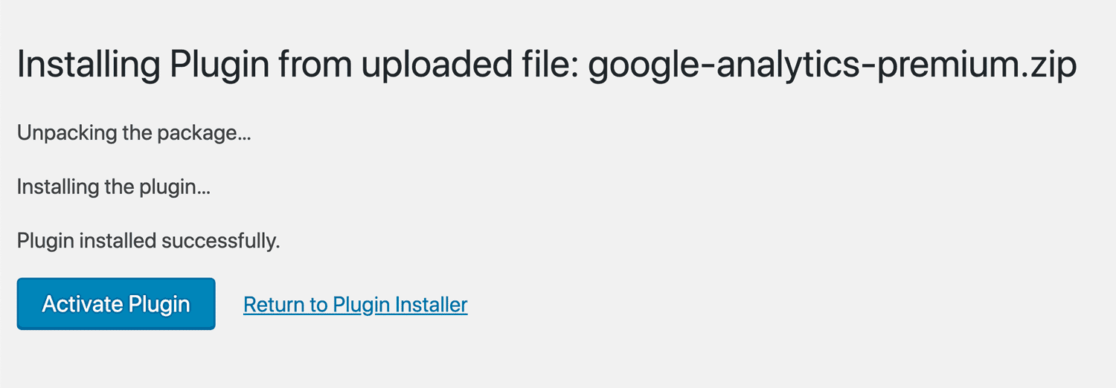
Next, upload the plugin to your WordPress website. You can do that by going to Plugins » Add New » Upload Plugins in your WordPress admin and clicking the Install Now button.

After that, click the Activate Plugin button.
Now, you’ll need to connect Google Analytics to your WordPress website. Using MonsterInsights, it’s really easy! Just follow the steps in the setup wizard, and the plugin will add Google Analytics to your site without the need to edit code.
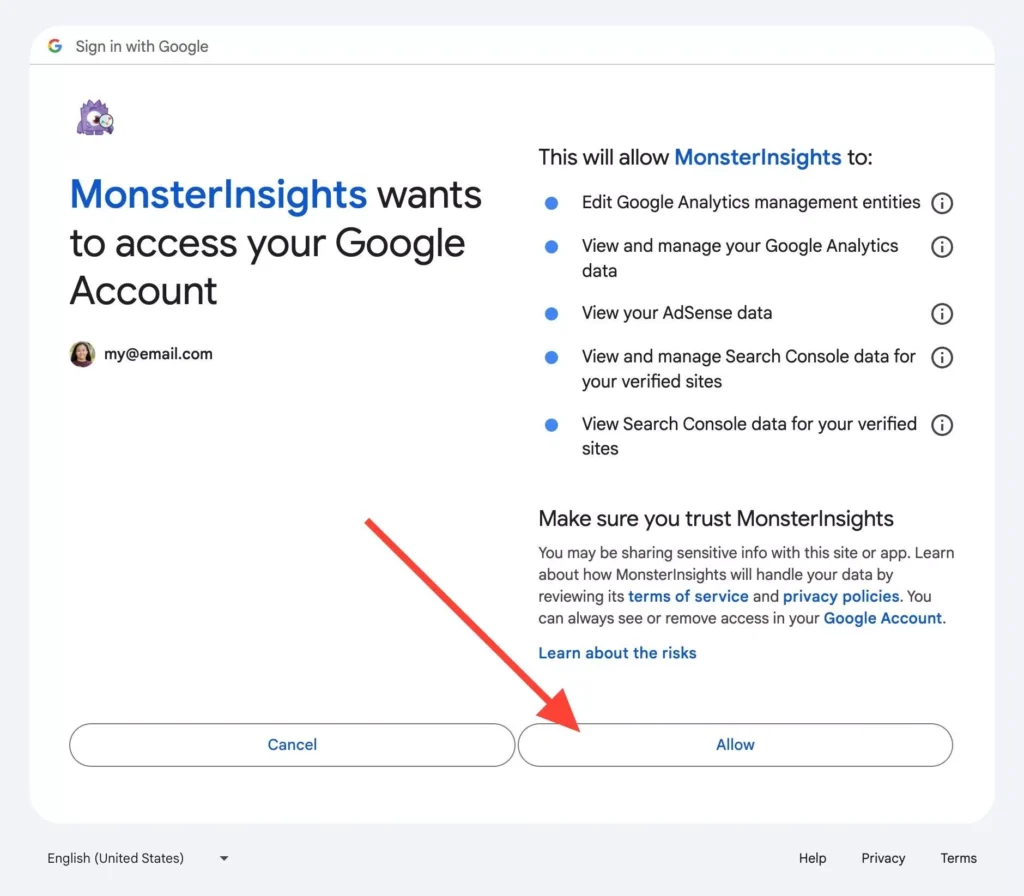
For help getting started and a walkthrough of the onboarding wizard, check out our step-by-step guide on how to properly set up Google Analytics and MonsterInsights.
Step 2: Create a Custom URL for Your QR Code
The next step in setting up QR code tracking with Google Analytics involves crafting a unique link with UTM parameters.
To begin, navigate to Insights » Tools from your WordPress dashboard.
Here, you can input the website URL where you want to send people who scan your QR code and detailed information about your campaign for precise tracking in Google Analytics.
The URL builder presents six fields to fill, though only the Website URL and Campaign Source are mandatory.

- Website URL: Input the URL where you want your QR code scanners to land.
- Campaign Source (utm_source): Specify the origin of your traffic, like qr_campaign_1, for instance.
- Campaign Medium (utm_medium): Indicate the medium through which the campaign will be presented, such as QR, email, or CPC.
- Campaign Name (utm_campaign): Assign a unique name to your campaign for easy identification, like qr_winter_sale.
- Campaign Term (utm_term): This optional field is ideal for paid search campaigns, allowing you to tag specific ad keywords, such as winter+shoes.
- Campaign Content (utm_content): Utilize this for A/B testing by differentiating between your QR code campaign variations, like image_link vs text_link.
Pro Tip: Use consistent naming conventions across all your QR code campaigns. If you use “qr” in some places and “qrcode” in others, they’ll show up as separate sources in Google Analytics and you won’t be able to compare them side by side.
Once you’ve filled in the necessary campaign details, copy your newly created custom link and point your QR code to it.
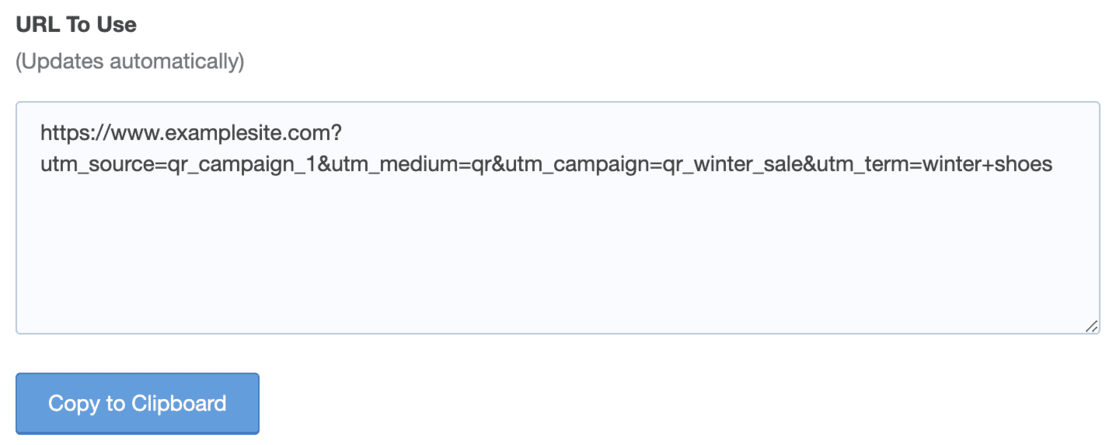
This custom URL will send the parameters you just set into Google Analytics every time someone visits it, so you’ll be able to see how effective your QR code is.
Step 3: View Your QR Code Campaign Report
After setting up your custom URL for QR code tracking, the next step is to check the performance of your QR code campaigns after you’ve launched them.
Using MonsterInsights, you can easily monitor your campaign’s effectiveness directly from your WordPress dashboard. (If you’re not using WordPress, skip to the Google Analytics instructions).
Simply go to Insights » Reports and then select the Campaigns tab:

Here, you’ll discover the number of visitors each QR code campaign brought to your site (the Campaign column contains your utm_campaign tags) and essential metrics such as the revenue each campaign generated.
For those using Google Analytics, navigate to Acquisition » Traffic Acquisition, and switch your view by selecting Session campaign from the dropdown menu. This will display a list of all your campaigns:

If you’re interested in viewing the Source and Medium for each campaign, you can enhance your report by clicking the blue plus icon near the dropdown, then searching for and selecting Session source/medium.
To locate your QR code campaign’s data, search for the parameters you assigned in the URL builder.

Before You Print
Set different utm_medium values for each placement before generating your QR codes — print, digital, event, etc. Once a code is printed or published, you can’t change its UTM parameters without reprinting or re-issuing it.
Use Charlie Chat to Analyze Your QR Code Campaigns
Once your QR code campaigns are running and data is flowing into Google Analytics, the next challenge is actually making sense of it quickly. That’s where Charlie Chat comes in.
Charlie Chat is MonsterInsights’ AI assistant, built right into your WordPress dashboard. Instead of digging through multiple reports and adjusting date ranges, you can ask it plain-English questions about your data and get answers in seconds.

Want to know which QR code campaign drove the most conversions last month? Just ask.
Charlie Chat pulls from your connected GA4 data and gives you a direct answer — no custom reports, no date range adjustments, no digging through menus.
You can follow up with more specific questions too: which landing page did QR code visitors hit most often, or what was the conversion rate broken down by campaign source. It keeps the conversation going as long as you have questions.
The best part: Charlie Chat is available to all MonsterInsights users, including the free Lite plan. Just look for the chat icon in the bottom-right corner of your Reports screen.
Start Tracking QR Codes with MonsterInsights
Connect your WordPress site to Google Analytics in minutes — no coding required. Build UTM-tracked URLs, view your campaign reports right inside your dashboard, and use Charlie Chat to ask questions about your data on every plan.
Get MonsterInsights Today →FAQs About QR Code Tracking in Google Analytics
Can Google Analytics track a QR code?
Yes, Google Analytics can track a QR code using a URL with UTM parameters. This method lets you see the traffic and engagement from your QR code scans in your analytics dashboard. By adding tags like utm_source=qrcode, you can clearly see this traffic group.
Can you track traffic from a QR code?
You can definitely track traffic from a QR code by adding UTM parameters to the code’s URL. This shows you exactly how many people visit your site after scanning the QR code, which pages they visit, and what they do on your site. Businesses that track QR codes consistently tend to see stronger campaign results over time — because they can identify which placements convert and cut the ones that don’t.
Can you put a UTM on a QR code?
Yes, you can put UTM parameters on a QR code by including them in the URL that the QR code contains. When made this way, every scan of your QR code will send the UTM data to Google Analytics, allowing for detailed tracking. This is the most reliable method for QR code analytics tracking.
Do you have to pay for trackable QR codes?
No, you don’t have to pay for basic trackable QR codes. By using free tools to create QR codes with UTM parameters, you can track them through Google Analytics for free. However, this can be a tricky task that involves coding. Using a tool like MonsterInsights to track your QR codes is much easier and faster, though it does require a subscription for the best features.
What are the best UTM parameters to use for QR codes?
The most useful UTM parameters for QR codes include utm_source=qrcode, utm_medium=print (or digital, depending on where the QR code is), and utm_campaign=campaign_name (with a specific name for each campaign). For multiple QR codes in different places, I recommend using utm_content to note the exact location (like utm_content=storefront or utm_content=businesscard).
How do I generate a QR code with UTM tracking?
To make a QR code with UTM tracking, first create a URL with UTM parameters using a tool like MonsterInsights’ URL builder or Google’s Campaign URL Builder. Once you have your tracking URL, use a free QR code generator like QRCode Monkey or QR Code Generator to turn that URL into a QR code. Save the image and use it in your marketing materials.
That’s it! I hope this article helped you set up QR code tracking with Google Analytics. If you found it useful, check out these related guides:
- How to Track Link Clicks in Google Analytics
- Best Campaign URL Builder Tools (Easiest to Use)
- How to Set Up Marketing Campaign Tracking in Google Analytics
- Beginners’ Guide to UTM Parameters (And How to Use Them)
- How to Track Your SMS Campaigns in Google Analytics
Follow us on Twitter, Facebook, and YouTube for more Google Analytics tips.