


The Meta Pixel is one of the most important tracking tools you can install if you’re running Facebook or Instagram ads. Without it, you’re spending ad budget without knowing which campaigns actually drove purchases, signups, or leads on your site. Getting it installed correctly — and quickly — makes a real difference in how fast you can optimize your campaigns.
There are a few different ways to add the Meta Pixel to your website: through Google Tag Manager, pasted directly into your site’s code, or via a plugin. In this guide, we’ll walk through how to add your Meta (Facebook) Pixel using Google Tag Manager. We’ll also cover a much faster option for WordPress users that skips GTM entirely.
In This Article:
Why You Need to Add a Facebook Pixel
Installing your Facebook Pixel gives you valuable data on how visitors interact with your website after clicking on your ads. That makes it a crucial tool for any business running Facebook ad campaigns.
Here are a few of the key benefits of installing your Facebook Pixel:
- Track Conversions Accurately: Without the Facebook Pixel, you’re essentially flying blind with your Facebook ads. The pixel allows you to precisely track how many conversions (purchases, leads, signups, etc.) result from visitors clicking on your ads. This conversion data is necessary for measuring how your ads are doing and making changes to improve them.
- Build Retargeting Audiences: The pixel tracks everyone who visits your website, making it possible to build custom audience lists for retargeting purposes. You can create audiences of past website visitors, people who abandoned a cart, or those who completed specific actions like joining your email list. Showing ads to these audiences tends to drive more conversions than cold-audience campaigns.
- Get Laser-Focused Ad Targeting: Facebook Pixel data also unlocks advanced ad targeting capabilities. You can find “lookalike” audiences of new prospects who share traits with your website visitors or customers, putting your ads in front of people who are most likely to convert.
- Optimize Ads for Conversions: The Pixel lets you run conversion optimization studies and test different ads, audiences, and placements — so you can figure out what works best at the lowest cost.
Simply put, if you want to get the most out of your Facebook advertising budget and truly profit from your paid social ads, installing the Facebook Pixel is essential. I’d also recommend pairing it with Google Analytics social media ROI tracking so you get the full picture of what your ads are driving.
How to Add a Facebook Pixel the Easy Way (WordPress)
While Google Tag Manager lets you install the Facebook Pixel on your website, the setup process can be time-consuming — especially if you’re not familiar with GTM. There’s a much faster way to get this done if you’re running WordPress.
MonsterInsights, the WordPress analytics plugin, includes a built-in setting to install your Facebook Pixel and track your Meta ads directly — no coding or GTM required:
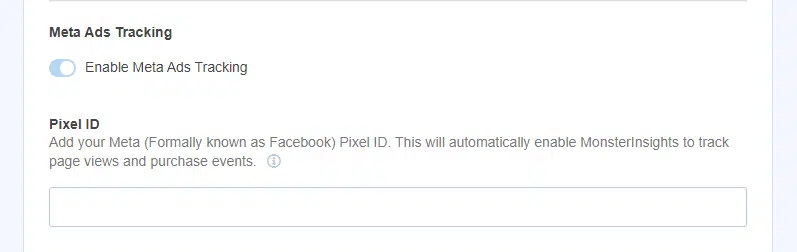
With MonsterInsights Pro, you can enable Facebook Pixel tracking in just a few clicks. It tracks page views for all sites and purchase events for WooCommerce, Easy Digital Downloads, LifterLMS, MemberPress, and GiveWP stores.
MonsterInsights connects your WordPress site to Google Analytics while also making it easy to enable other tracking features like:
Google Ads Conversion Tracking
For Google Ads and Microsoft Ads, enter your conversion IDs into MonsterInsights to properly track ad conversions without complicated code installation.
Form Conversion Tracking
MonsterInsights also makes it easy to enable form submission tracking on your WordPress forms, no matter which forms plugin you’re using.
eCommerce Tracking
Install the eCommerce addon with a couple of clicks to track revenue, products, conversion sources, and more — no code needed. It works with WooCommerce, Easy Digital Downloads, MemberPress, and more.
On top of that, MonsterInsights unlocks powerful reporting right inside your WordPress dashboard — including:
- Form conversions report
- eCommerce reports for revenue, products, etc.
- Affiliate link tracking
- File download tracking
- Marketing campaign tracking
- Site Notes (annotations)
- And much more
If you want to skip the hassle of setting up the Facebook Pixel manually through Google Tag Manager, I’d recommend getting started with MonsterInsights at the Pro level. All you need to do is install the PPC Ad Tracking addon and paste in your Pixel ID.
Once that’s in place, you’ll get a social media traffic report right inside WordPress:

For a full walkthrough, check out our guide on adding your Facebook Pixel to WordPress.
Track Your Meta Ads Right Inside WordPress
MonsterInsights Pro lets you enable Facebook Pixel tracking in a few clicks — no Google Tag Manager or custom code required. Install the PPC Ad Tracking addon, paste in your Pixel ID, and you’re done.
Get MonsterInsights ProHow to Add Facebook Pixel to Google Tag Manager
For those who prefer to go the Google Tag Manager route for installing the Facebook Pixel, here’s how to do it step by step.
Step 1: Sign Up for Google Tag Manager
Sign up for Google Tag Manager and create an account and container for your website if you haven’t already.

If you don’t have Google Tag Manager installed on your website yet, check out our guide on how to install Google Tag Manager in WordPress. If you’re not on WordPress, follow Google’s installation instructions.
Step 2: Create a Facebook Pixel Tag
In the Google Tag Manager dashboard, go to Add a new tag:

Then, click into the Tag Configuration box:

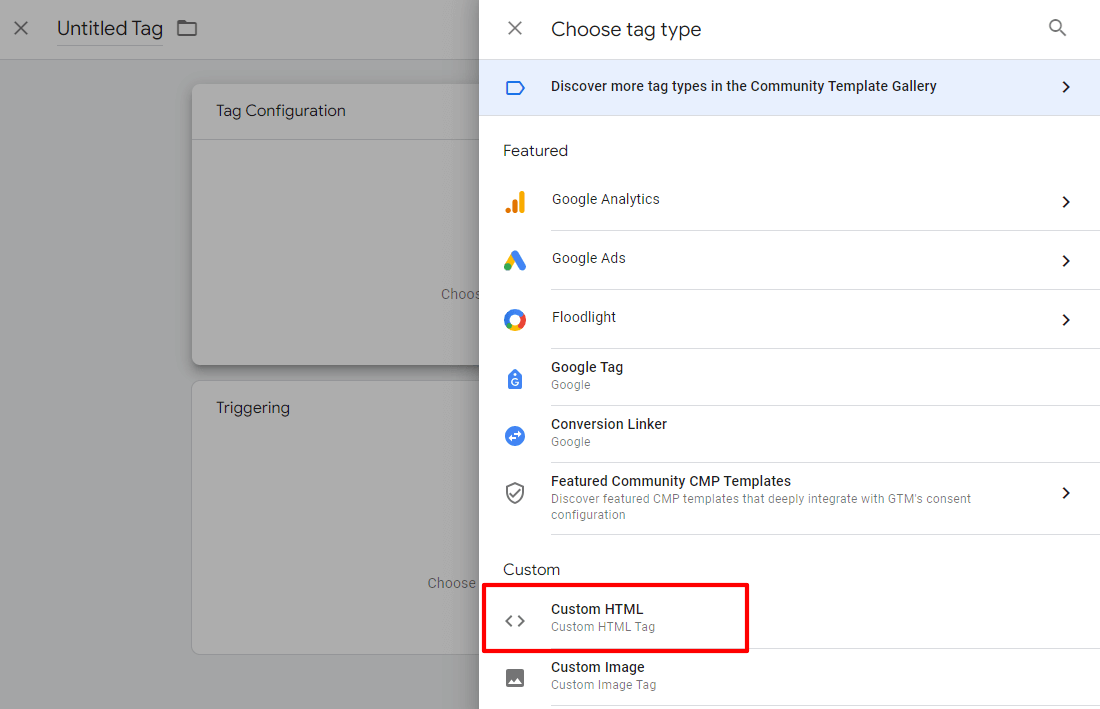
Next, choose Custom HTML from the list of tag types:
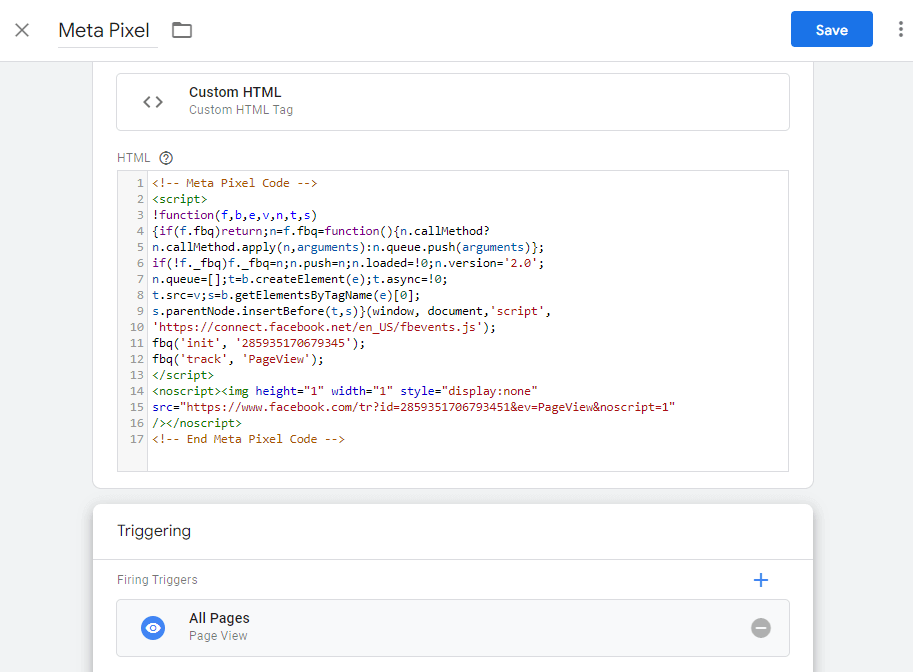
Now, copy and paste your Meta Pixel code into the tag box and give your tag a name, such as Meta Pixel:
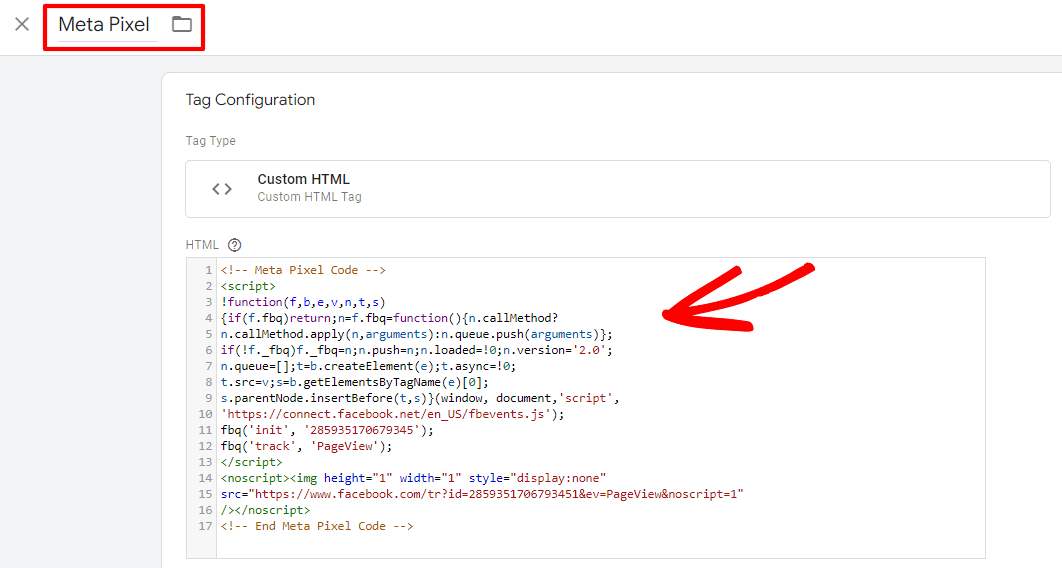
Need help finding your pixel code? It’s located in your Facebook Events Manager. Find it by choosing the Install code manually button:

For more help on creating or locating your Pixel, check out our instructions for adding a Facebook Pixel to WordPress.
Step 3: Set an All Pages Trigger
The next step is to set up your trigger, which appears below your tag in Google Tag Manager:
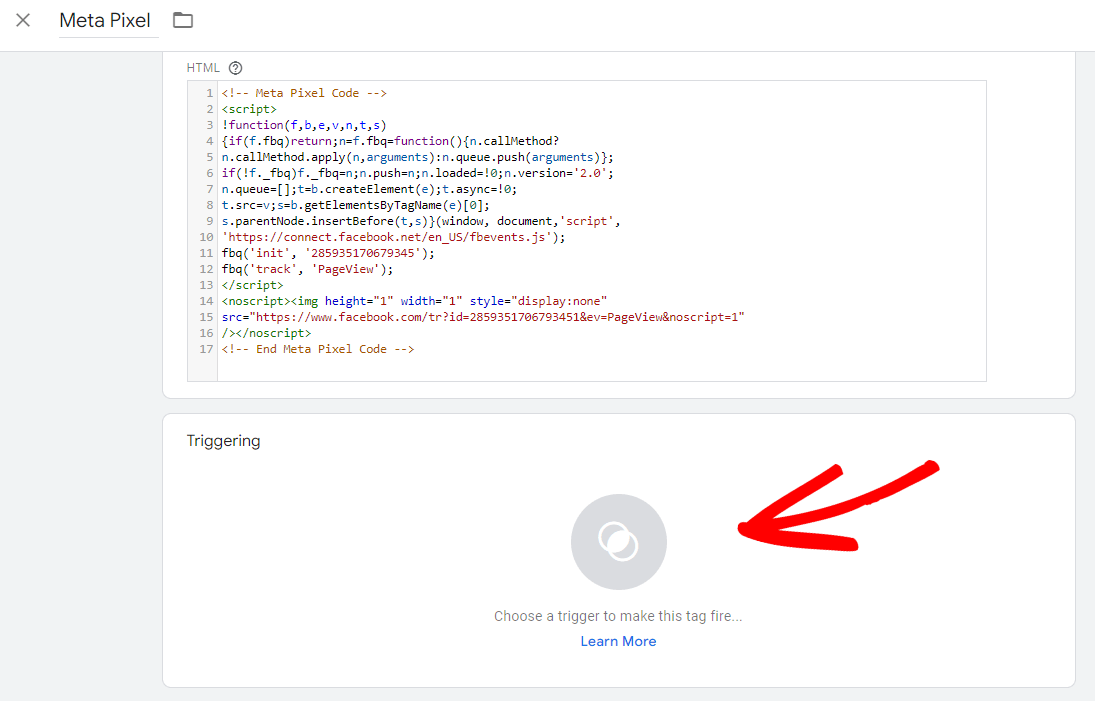
Since you want your visitors to be tracked on all of your pages, choose All Pages here:

Now click the blue Save button:
Step 4: Publish Your Container
The final step is to publish your changes to the Google Tag Manager container. Click the blue Submit button on your dashboard screen:

You’ve now installed your Meta (Facebook) Pixel tracking code in Google Tag Manager. The pixel will fire on every page of your site and start building conversion and audience data in Meta’s Events Manager.
While Google Tag Manager does offer flexibility by letting you install the Facebook Pixel and other marketing tags, the setup requires more time and learning compared to using a plugin. If you’re on WordPress and want a faster path, the MonsterInsights PPC Ad Tracking addon is worth a look.
Want to Skip GTM Entirely?
MonsterInsights Pro includes a PPC Ad Tracking addon that installs your Meta Pixel in minutes — just paste in your Pixel ID and you’re done. No containers, no tags, no triggers to configure.
See MonsterInsights PricingFAQs About Adding the Meta Pixel to Google Tag Manager
Can you put a Facebook pixel in Google Tag Manager?
Yes. You can install your Facebook Pixel using Google Tag Manager by creating a new Custom HTML tag, pasting in your Pixel code, and setting an All Pages trigger. Once you publish the container, GTM fires the Pixel across your entire website.
How do I connect my Facebook pixel to Google Analytics?
There is no direct integration between the Facebook Pixel and Google Analytics. However, you can view Facebook traffic data in your Google Analytics reports to understand how your Meta ad visitors behave on your site.
Is Google Tag Manager the same as Facebook pixel?
No, they’re different tools. Google Tag Manager is a tag management system that lets you install and manage various tracking codes on your site. The Facebook Pixel is a specific tracking code for measuring Facebook ad conversions. GTM is a container you use to deploy the Pixel — not a replacement for it.
Where do I put the Meta Pixel code?
For WordPress sites, the easiest option is to use a plugin like MonsterInsights to install your Pixel with just a Pixel ID — no code placement needed. Otherwise, you can add the Pixel base code to your site’s header.php file, or deploy it through Google Tag Manager as described in this guide.
How do I find my Facebook Pixel ID?
You can find your Facebook Pixel ID in Facebook Events Manager. Go to Data Sources, select your pixel, and the ID will be displayed there. It’s a unique string of numbers you’ll need to enter when setting up the pixel — whether in GTM or a plugin like MonsterInsights.
Do I need to use Google Tag Manager for the Facebook pixel?
No, GTM is not required. You can add the Pixel code directly to your site files or use a plugin if you’re on WordPress. Google Tag Manager is just one option — it’s useful if you’re already managing other tags, but it adds complexity for those who only need the Pixel.
What kinds of conversions can the Facebook pixel track?
The Facebook Pixel tracks a wide range of conversion events including purchases, registrations, leads, checkouts, and more. You can also define custom conversion events based on specific URLs. This data helps optimize your Facebook ad performance and build more targeted audiences over time.
What is the difference between a tag and a pixel on Facebook?
In the context of Facebook ads, “tag” and “pixel” refer to the same thing — the conversion tracking code you place on your website. The terms are often used interchangeably, though “pixel” is the more common term for Facebook’s specific tracking code.
I hope this guide helped you get your Meta Pixel set up through Google Tag Manager. If you want to explore other tracking options or go deeper on your ad analytics, check out these related guides:
- Best Social Media Metrics to Track Now (+ Growth Tips)
- How to Set up Google Analytics Social Media Tracking
- How to Set up Google Analytics Click Tracking (Step by Step)
- Best Facebook Pixel WordPress Plugins (Ranked)
- How to Measure Social Media ROI With Google Analytics
Not using MonsterInsights yet? What are you waiting for?
Follow us on X, Facebook, and YouTube for more Google Analytics tips.